What should you consider when choosing?
Start with the windows you want to see at the same time and the space available on your desk. Then check that the text is readable at your preferred size and review the connection features on both the monitor and your laptop.
| What to consider |
What should you check? |
Who is this important for? |
| Draft and sources side by side |
Try your intended window layout at a text size you can read comfortably. Compare the screen width with the space available on your desk. |
If you often switch between your draft and information about the property while writing, you’ll want to view both without constantly switching between them. Around 33% of consumers prioritise viewing several documents at once. |
| Readability and adjustability |
Check the text size and whether you can adjust the screen position. An adjustable stand alone doesn’t tell you everything about the overall workspace. |
During long writing sessions, you’ll want to be able to read the text and position the screen comfortably. Around 27% of consumers prioritise readability and an adjustable screen position. |
| Desk space |
Measure the available space and allow for the stand and your viewing position. Decide whether you mainly want to view one document or several windows at once. |
If your workspace is limited, a wide screen may be difficult to fit in. Around 20% of consumers choose mainly according to the space available and how documents are displayed. |
| Connecting a laptop |
Check that your laptop port supports video and that the monitor’s power delivery meets your laptop’s charging needs. |
If you want to connect your laptop with as few cables as possible, the monitor needs the right video and charging features. Around 20% of consumers prioritise a suitable laptop connection. |
Monitors at Joybuy
These Joybuy monitors are suited to writing tasks where you use an external screen for documents, sources and information about your holiday home. Check that the dimensions and connections of each model suit your workspace and laptop.
 No image available
Philips 27E1N1800AE/00 27-inch 4K UHD IPS monitor
A 27-inch screen for viewing documents and sources in one workspace. Check for yourself whether the layout and text size are comfortable to read.
3840 × 2160 pixels; 60 Hz; IPS; HDMI and DisplayPort; height-adjustable stand.
View at Joybuy
 No image available
INNOCN 2751S PLUS 27-inch QHD monitor
The stated QHD resolution suits a setup where you want to view your draft and sources side by side. Check that the text is readable at your chosen size.
2560 × 1440 pixels; the product information lists height, swivel and pivot adjustment.
View at Joybuy
 No image available
Dell UltraSharp U4924DW 49-inch monitor
The wide-screen layout may suit you if you want to keep several documents visible at once. Bear in mind how much desk space you’ll need.
49 inches; 5120 × 1440 pixels.
View at Joybuy
 No image available
ARZOPA Z1RC 16-inch portable monitor
A portable 16:10 screen for a compact document setup. Check that the available screen space suits your windows and text size.
2560 × 1600 pixels; IPS; built-in stand; USB-C and HDMI.
View at Joybuy
 No image available
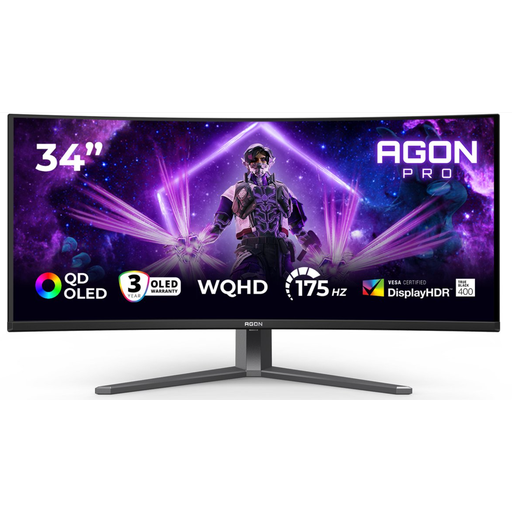
AOC AGON PRO AG346UCD 34-inch ultrawide monitor
An ultrawide layout for viewing drafts and sources at the same time. Measure your desk first to make sure the screen will fit.
3440 × 1440 pixels; 21:9; height, swivel and tilt adjustment.
View at Joybuy
Frequently asked questions
Will a monitor automatically make the cross-references in your guide correct?
No. You create and update cross-references using the features in your document software. Microsoft Support explains how to insert a cross-reference and update fields in Word; a larger screen won’t replace those steps.
How can you place your draft and source material side by side?
In Windows, you can use Snap to position windows at the edges or corners of your screen. Then check that both documents remain readable at your chosen text size.
Can any USB-C monitor charge your laptop with a single cable?
No, USB-C features vary by model. Dell lists 90 W power delivery for the P2725DE and LG lists up to 65 W for the 27BA65QB-B; Dell describes the USB-C port on the P2425 as a downstream data port. Also check that your laptop supports video through the port in question and that the charging power is suitable.
What Dutch workplace health and safety rules apply if you work at a screen for long periods?
According to the Dutch Working Conditions Portal (Arboportaal), employees who work at a screen for more than two hours a day must be able to use a separate monitor or keyboard when working on a laptop. This rule applies to the relevant work situation and is not a general purchasing requirement for people writing in their personal capacity.
Who should you report a faulty monitor to, and do you have a cooling-off period?
According to the Dutch Government, the seller must provide a solution for a consumer purchase if a product doesn’t meet expectations; an additional warranty doesn’t replace your statutory guarantee. For distance purchases, a 14-day cooling-off period applies in many cases, subject to exceptions and conditions.


