
Long-form guide writer
You mainly work in one document and want to keep the text, heading structure and comments clearly visible without constantly switching between windows.


For a guide with nested headings, an adjustable 27-inch QHD monitor is a sensible starting point if you want to see the text and headings pane at the same time. An ultrawide screen may suit you if you need to view source material alongside your document, provided your desk has enough room. A more compact screen is an alternative for a small workspace, but leaves less room for side-by-side windows. Also check adjustability, your computer’s connections and the power delivery you need: Dell lists 90 W USB-C power delivery for the P2725DE, while LG lists up to 65 W Power Delivery for the 27BA65QB-B.
You mainly work in one document and want to keep the text, heading structure and comments clearly visible without constantly switching between windows.
As you write, you compare procedures or other source material with your draft and would ideally like to view both windows at the same time.
You have limited desk space or switch between computers. In that case, a suitable size, adjustability and connections may matter more than having the widest screen possible.
Suited to: writing a long guide and keeping the headings pane beside the text. Dell and LG list a 27-inch screen with a resolution of 2560 × 1440 pixels for the models reviewed.
Trade-off: it takes up more desk space than a compact screen; connections and USB-C power delivery vary by model.
Suited to: a smaller workspace and mainly working in one document. Philips specifies a 23.8-inch diagonal for the 24B2G5200/00.
Trade-off: there is less screen space for multiple windows; check the settings for the specific version.
Suited to: viewing sources, comments and your guide side by side. Samsung specifies a 34-inch screen with a resolution of 3440 × 1440 pixels for the ViewFinity S6 reviewed.
Trade-off: measure your available desk space; extra width is no substitute for a well-positioned monitor or readable text size.
| What to consider | What to look for | Who is this important for? |
|---|---|---|
| Seeing text and headings at a glance | Compare the screen size and native resolution; view your own document with the headings pane open. | If you want to keep the structure of your text in view as you write, the layout matters. Around 36% of consumers give this overview their highest priority. |
| Sources alongside your text | Measure the available desk space and check that your computer supports the desired resolution through the connection you plan to use. | If you want to compare procedures or source material with your draft, screen width matters as long as the monitor physically fits. Around 29% of consumers prioritise viewing both at the same time. |
| Adjustability and readability | Check height adjustment, reflections, text size and the position of the screen. | For long writing sessions, you’ll want to position the screen comfortably and read the text clearly. Around 21% of consumers make an adjustable, readable set-up their top priority. |
| Size and connection | Measure your workspace; check the video port, display support over USB-C and the power delivery your laptop needs. | At a shared or small desk, you’ll want to know whether the size and connection suit your space and computer. Around 14% of consumers prioritise a compact monitor with a suitable connection. |
A larger screen doesn’t automatically mean the text and headings pane will both be easy to read at the same time. Resolution and your chosen text size matter too.
Compare both screen size and resolution, and, if possible, view your own document at the font size you want to use.
The models reviewed list different power delivery levels. A USB-C port on the monitor alone doesn’t guarantee that it will work with your laptop.
Check your laptop’s display capabilities, the cable and the power delivery required, and compare them with the specifications for the exact monitor model. You may still need a separate power adapter or another connection.
The extra width for viewing sources alongside your text is only useful if the screen fits your available space.
Measure your desk and consider the screen’s position in relation to windows and lighting before choosing a 34-inch model.
An additional warranty doesn’t automatically equate to your statutory rights. The Dutch government describes an additional warranty as a supplement to the statutory guarantee.
Read exactly what an extra warranty covers and contact the retailer if a product is faulty.
The Pro 27 Plus P2725DE is a specific 27-inch QHD model to compare if you’re looking for USB-C connections.
The 27BA65QB-B is a 27-inch QHD model to compare if screen adjustment and USB-C are important to you.
The business-focused 24B2G5200/00 is a compact Full HD option to compare for a smaller workspace.
The ViewFinity S6 LS34C652UAUXEN is an ultrawide model to compare if you often want to view source material alongside your guide.
The GW2790QT is a 27-inch QHD USB-C model to compare if connections and screen adjustment matter to you.
This Joybuy selection includes QHD monitors in compact and larger sizes, as well as 34-inch ultrawide options. Compare the space your document layout needs with your desk dimensions and your computer’s connections.
 Image unavailable
Worth comparing if you want to view a long guide and the headings pane at the same time.
27 inch; 2560 × 1440 pixels; USB-C with 90 W Power Delivery; RJ45; adjustable stand with height, tilt and swivel adjustment.
 Image unavailable
A more compact screen option to compare if your desk has limited space.
24 inch; 2560 × 1440 pixels; height, tilt, swivel and pivot adjustment.
 Image unavailable
Worth comparing if you want to view source material and your draft side by side as you write.
34.1 inch; 3440 × 1440 pixels; USB-C with 90 W Power Delivery; RJ45. Check in advance that the ultrawide format fits your desk.
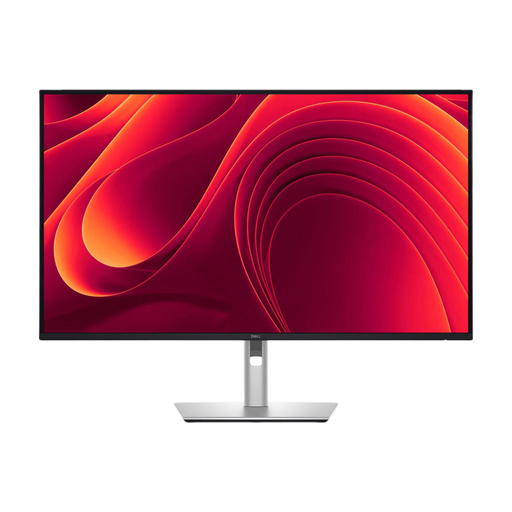 Image unavailable
Worth comparing if you’re looking for a larger QHD format than 27 inches for your guide.
31.5 inch; 2560 × 1440 pixels; USB-C with 90 W Power Delivery; RJ45; adjustable design.
 Image unavailable
Worth comparing if you want to place source material alongside your guide and have room for an ultrawide screen.
34 inch; 3440 × 1440 pixels; 21:9 format; height adjustment; USB-C with up to 65 W Power Delivery. Check that this power delivery level is suitable for your laptop.
No, 4K isn’t essential for everyone. The 27-inch QHD models reviewed from Dell and LG have a resolution of 2560 × 1440 pixels. Check that your own document, headings pane and preferred text size are all comfortable to read together.
Adjust the monitor and text so they’re easy to read, and avoid distracting reflections where possible. Arboportaal notes that small characters, reflections and poor lighting can affect readability; an adjustable screen alone doesn’t determine the whole workspace set-up.
No, the presence of USB-C alone doesn’t guarantee this. Compare your laptop’s display and charging capabilities with the specifications of the exact model: LG lists up to 65 W Power Delivery for the 27BA65QB-B, while Dell lists 90 W power delivery for the P2725DE.
If a product is faulty, the retailer is your point of contact regarding your statutory rights to a product that meets the required standards; the Dutch government states that there is no fixed statutory guarantee period in the Netherlands. For distance purchases, you can generally change your mind within 14 days. Check the terms and exceptions that apply to your purchase.
For employees in this situation, Arboportaal states that the screen and keyboard must not be fixed together. This requirement doesn’t automatically apply as a general buying rule to everyone purchasing a monitor for personal use.