
Writer working with lots of cross-references
You switch between chapters, source texts and notes, and want to see how many windows remain readable at once. Microsoft Support explains how to arrange windows on screen.


Choose a monitor that suits the way you work: an ultrawide screen gives you more horizontal space for side-by-side windows, while a 27-inch QHD or 4K monitor offers a different balance of screen space, resolution and size. If you spend a lot of time reading long passages, consider text size and screen layout too. If you use a laptop, check separately that video and charging over USB-C work with your laptop.
You switch between chapters, source texts and notes, and want to see how many windows remain readable at once. Microsoft Support explains how to arrange windows on screen.
You read and edit long passages, and want to consider sharpness, text size and screen layout. Microsoft Support explains how to make text and other items larger on a Windows screen.
You want to connect an external screen without assuming that every USB-C port supports video or can charge your laptop. Check these features for your laptop, monitor and cable.
When: if you want to place documents side by side but aren’t looking for an ultrawide screen.
Trade-off: offers less horizontal space than the 34-inch ultrawide option mentioned; QHD isn’t the same resolution as 4K.
When: if text display on a 27-inch screen is your priority and you want to adjust the scaling settings to suit you.
Trade-off: more pixels don’t automatically mean more visible content; larger text or app scaling takes up space.
When: if you regularly view chapters, sources and notes in separate windows at the same time, and have enough desk space.
Trade-off: a wide screen calls for a suitable workspace setup; screen width is no substitute for readable text settings.
When: if you mainly want to see more lines of text and the screen’s aspect ratio suits your window layout.
Trade-off: a manufacturer’s positioning of a screen for programming doesn’t prove that it’s better suited to writing a handbook.
| What to consider | What should you check? | Who is this important for? |
|---|---|---|
| Side-by-side overview | Try arranging a chapter, sources and notes; compare the screen size and resolution of the exact model. | I want to compare a chapter, sources and notes at the same time, so I can arrange my windows clearly. Around 36% of consumers give the ability to view documents and sources at a glance their highest priority. |
| Readable text | Compare the model’s resolution and try text and app scaling on your own computer. | When I’m editing long passages, I want to be able to read text clearly at my chosen size. Around 29% of consumers put text readability first. |
| A workspace that fits | Check the adjustability and whether the screen will fit in the desk space available. | When working for long periods, I want to be able to adjust the screen position to suit my workspace. Around 21% of consumers give a suitable setup their highest priority. |
| Connecting a laptop | Check video over USB-C, the charging power required, the monitor ports and the cable included. | If I work on a laptop, I want to know whether the connection supports the display and charging features I need. Around 14% of consumers put laptop connectivity first. |
USB-C ports can support different video, data and charging features. So, the presence of the port alone won’t tell you whether your laptop and monitor will work together as you want them to.
Compare the features of the laptop port, monitor port and cable before choosing a single-cable setup.
You may need a different cable, an adapter or a separate power supply.
With larger scaling settings, less document content may fit on screen at once. Resolution alone therefore doesn’t tell you how much text you’ll see at a comfortable reading size.
Try a readable text and app size, then check how much space is left for your sources.
A bigger screen doesn’t automatically make for the right workspace setup. Screen size, adjustability and the desk space available all play a part.
Check the stand and the space available before deciding where to put the screen.
Dell offers both 27-inch QHD and 27-inch 4K models, making it possible to compare connections and resolution at the same screen size.
The Philips B Line 346B1C/00 is a 34-inch ultrawide USB-C model to consider if you want to place several windows side by side.
The ThinkVision T27h-30 is a 27-inch QHD office monitor with model-specific connections for a laptop setup.
The RD280U is a 28.2-inch screen with a 3:2 aspect ratio, worth comparing if vertical screen space is a consideration.
This Joybuy selection includes 27-inch QHD and 4K monitors, as well as wider screens for viewing documents in several windows. Check which resolution, connections and setup suit your work for each model.
 Image unavailable
A 27-inch 4K option to consider if text display and an adjustable screen position matter to you.
3840 × 2160 pixels; 60 Hz; 4 ms; EasyRead; height-adjustable stand; HDMI and DisplayPort.
 Image unavailable
A 27-inch 4K option with features for working across several windows and a laptop setup; check that the ports suit your equipment.
3840 × 2160 pixels; USB-C with DP Alt Mode and 98 W Power Delivery; KVM; PIP/PBP; height-adjustable stand.
 Image unavailable
A wide-screen option if you want to view lots of documents side by side; bear in mind the space the screen takes up.
5120 × 1440 pixels; described as usable as two separate screens; KVM; USB-C with 90 W Power Delivery; stated width 121,49 cm.
 Image unavailable
A 27-inch QHD office monitor to compare if you want to place documents side by side and need connections for a laptop.
2560 × 1440 pixels; USB-C for video and data with 90 W charging; RJ45 port; stand adjustable for height, tilt and swivel.
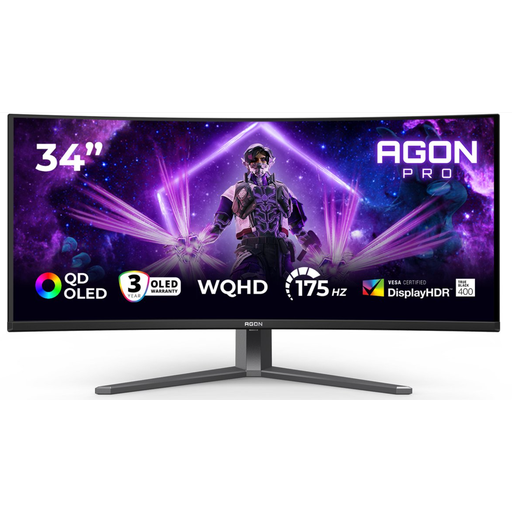 Image unavailable
A 34-inch ultrawide option if you want to view chapters, sources and notes in separate windows; make sure you have enough desk space.
21:9; 3440 × 1440 pixels; integrated USB hub; stand adjustable for height, swivel and tilt.
No, an ultrawide screen isn’t essential for comparing documents. You can place windows side by side on another screen too; consider how much text remains readable at your chosen font size.
Adjust the text size or the scaling for apps and other screen items in the display settings. Then check that there’s still enough room for your document and sources.
No, it depends on the features of the laptop port, monitor port and cable. Check that your laptop supports video over USB-C and that the charging power is suitable for it.
Compare the model-specific power information on the European energy label or in EPREL. To calculate running costs, you’ll also need comparable usage hours and an electricity tariff.
For an online consumer purchase, you’ll generally have a statutory 14-day withdrawal period from delivery, subject to applicable exceptions. Statutory consumer guarantees also apply: when used normally, the product must meet what you can reasonably expect from it; this doesn’t automatically mean a fixed two-year period. ACM ConsuWijzer explains these consumer rights. Employers also have obligations to ensure safe screen work for employees, as described by Arboportaal.