For planning, schedules and discussions in a shared workspace, a height-adjustable office monitor with plenty of room to read is a good place to start. If you regularly switch between laptops, check that both the laptop and monitor support USB-C video and the required charging power. Compare colour features or 4K resolution mainly if you also select or edit images.
Who is this choice relevant to?
Shoot planner with lots of windows open
You keep your schedule, running order and messages in view at the same time, and want a tidy, organised workspace. Samsung lists the available desk space and the type of work as factors to consider when choosing a screen size.
Shared desk user
You move between workstations and want to adjust the monitor setup to suit the user and the space available. Dell lists an adjustable stand and anti-glare finish for the P2726DEV.
Planner who also reviews images
You discuss image selections or edit photos as well as organising the shoot. BenQ and LG list colour and display specifications for specific models, which you can weigh up if these tasks are genuinely part of your work.
What should you look for?
Start with the windows you want to view at the same time and the space available on your desk. Then consider adjustability and laptop connections; display features matter most if you also work with photos.
| What to consider |
What to look for |
Who is this most relevant to? |
| Clear, readable overview |
Compare the screen size and resolution, and check that your usual windows remain easy to read side by side. |
If you want to see your schedule, running order and messages at a glance, readability comes first; around 31% of consumers say an overview is their main buying priority. |
| Shared workspace |
Check adjustability, reflections and how much desk space the screen and stand take up. |
If several people use the same workstation, you’ll want to adjust the setup and minimise distracting reflections; around 25% of consumers prioritise comfort in a shared workspace. |
| Connecting laptops |
Check the laptop’s USB-C video output, the charging power required and the connections available on the exact model. |
If you regularly switch between laptops, you’ll want to check in advance that the connection works with your devices; around 25% of consumers put easy connectivity first. |
| Reviewing images |
Decide whether you’ll only be viewing examples or editing photos too, then compare the stated resolution and colour gamut. |
If you’ll be selecting or editing images as well as planning, display specifications matter; around 19% of consumers say image review is their main buying priority. |
Common buying pitfalls
-
Choosing a photo-editing monitor when you only need it for organising
Colour features and 4K can be useful for selecting images or editing photos, but they’re not necessarily needed for calendars, running orders and discussions.
Before you buy, decide whether selecting images or actually editing photos will be part of your work on this monitor.
-
Assuming USB-C will provide video and power to any laptop through a single cable
USB-C alone doesn’t tell you whether a laptop can output a video signal or receive enough power from the monitor.
Check your laptop, cable, video output and required charging power against the specifications of the exact monitor model.
-
Assuming a two-year warranty is the full extent of your legal cover
The Dutch government states that there is no fixed statutory warranty period in the Netherlands. A manufacturer’s warranty or additional cover is not the same as your statutory rights.
Read the terms of any additional cover separately, and contact the seller if a consumer product is faulty.
Brands to consider
Dell
The Pro P range includes models designed for shared office work and discussions.
- Dell lists a 27-inch QHD IPS screen, integrated webcam, anti-glare finish and adjustable stand for the P2726DEV.
- The webcam is mainly useful if you make calls through the monitor; these specifications don’t prove that it offers an advantage for photo editing.
Philips
The 5000 Series includes models with a webcam and USB-C for discussions and connecting a laptop.
- Philips lists a 27-inch QHD screen, USB-C and a 5 MP webcam for the 27E1N5600HE/01.
- Check that your laptop is compatible with the USB-C features you want; you won’t need a webcam if you don’t make video calls.
BenQ
The DesignVue PD2705Q is worth considering if image selection or creative work is part of the job.
- BenQ lists QHD, 100% sRGB, an anti-glare finish and 65 W USB-C Power Delivery for this model.
- The colour figures are manufacturer specifications, not proof of a complete colour workflow; also check that 65 W is suitable for your laptop.
LG
The 27UP850K-W is a 27-inch 4K model for anyone who wants extra image detail alongside their organisational work.
- LG lists an adjustable stand, typical DCI-P3 coverage of 95% and USB-C charging up to 96 W.
- Extra resolution and colour features aren’t necessarily needed if you only use the monitor for calendars and running orders.
Joybuy monitors for planning and multitasking
This Joybuy selection focuses on monitors for planning and working with multiple windows in a shared workspace. Some models also list features for connecting a laptop or image-related work.
 No image available
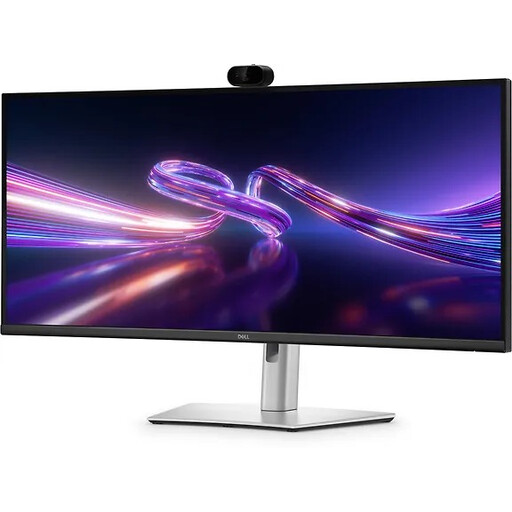
Dell Pro P3426WEV 34.1-inch Curved WQHD USB-C Hub Monitor
An ultrawide screen could suit you if you want to view schedules and running orders side by side.
34.1-inch curved WQHD; USB-C hub monitor with webcam and 90 W Power Delivery.
USB-C charging requires a compatible laptop; the stated maximum is 90 W.
View at Joybuy
 No image available
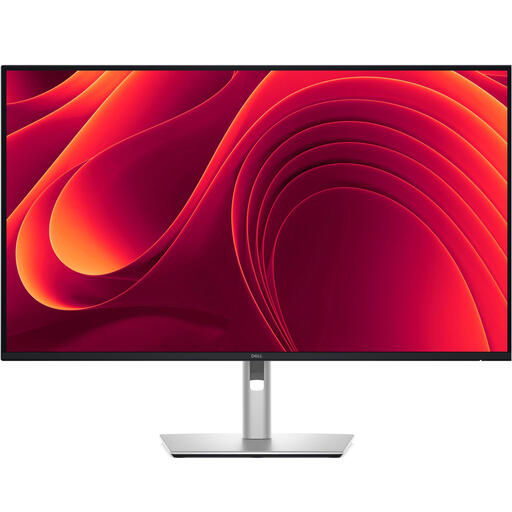
Dell Pro Plus P3225QE 31.5-inch 4K monitor
The larger screen could suit a workstation where you want to view your schedule and other windows at the same time.
31.5-inch; 3840 × 2160 pixels; 4K Ultra HD LCD.
View at Joybuy
 No image available
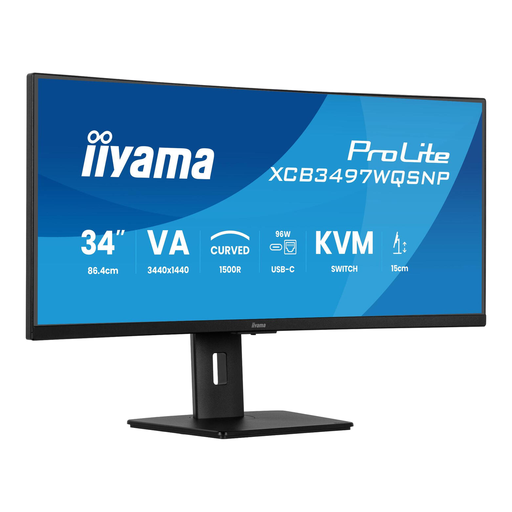
iiyama ProLite 34-inch UWQHD Curved Monitor with USB-C Dock
An ultrawide screen could help if you want to view multiple windows side by side for planning and messages.
34-inch UWQHD curved monitor; USB-C dock, LAN, KVM switch and a stand with 15 cm of height adjustment.
View at Joybuy
 No image available
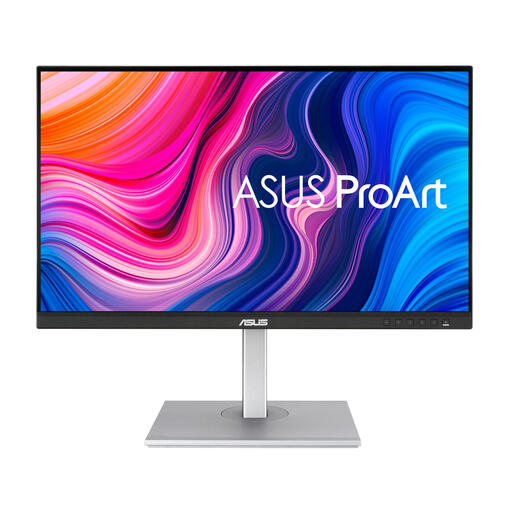
ASUS ProArt PA278CV 27-inch QHD monitor
This monitor could suit a shared workspace where you also discuss image selections.
27-inch; 2560 × 1440 pixels; Quad HD LED.
View at Joybuy
 No image available
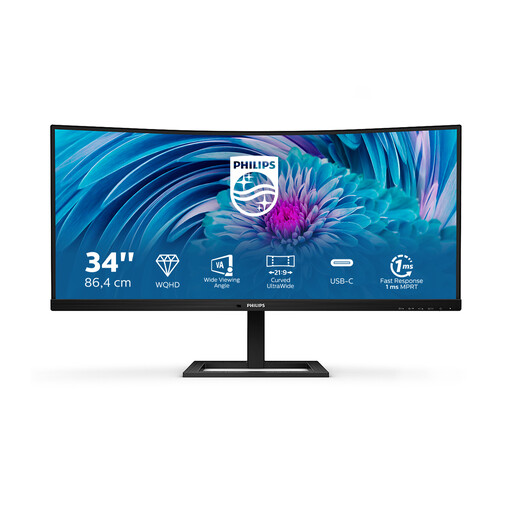
Philips E Line 346E2CUAE/00 34-inch monitor
The ultrawide format could be useful if you want to view your schedule, running order and messages at the same time.
34-inch; 3440 × 1440 pixels; Wide Quad HD+ LCD.
The product description lists a USB-C connection and charging for compatible devices.
View at Joybuy
Frequently asked questions
How should you set up a monitor when several people use the same workstation?
Adjust the workstation to suit the user, watch out for reflections and make sure there’s enough ambient light. Arboportaal offers this advice for setting up display screen work; an anti-glare specification alone won’t fix a poor position in relation to windows.
Does USB-C always provide both video and enough power through one cable?
No. It depends on the laptop and the exact monitor model. Check that the laptop can output video via USB-C and compare its power requirements with the monitor’s stated charging output.
Do you need 4K or advanced colour features to organise a wedding shoot?
Not necessarily. These features aren’t an automatic requirement for planning, running orders and discussions. They’re more useful if you also select images or edit photos on the same monitor; manufacturer colour specifications alone don’t guarantee the results of your entire workflow.
How do you compare monitors’ energy consumption and warranties in the Netherlands?
The European Commission states that electronic displays carry an energy label from A to G; compare the label for the exact model. The Dutch government states that there is no fixed statutory warranty period. Keep your statutory rights for a faulty product separate from a manufacturer’s warranty or additional cover, and contact the seller.


