Don’t buy a monitor with a webcam solely for background blur: that feature is part of your meeting app and depends on support from your device. A conferencing monitor is worth considering if you also want a built-in camera and microphone. Microsoft Support warns that blur may not completely hide confidential information.
Who should consider this option?
Video callers with a busy background
Would you like to show less of your room during study or work calls? First, try the background blur or replacement feature in your meeting app. Zoom Support describes blur as a software feature, while Microsoft Support warns that confidential information may still be visible.
Readers and writers at a desk
If you work with text a lot, readability, screen positioning and available desk space all matter. Arboportaal outlines considerations for employees who work with screens, including specific requirements for those who spend more than two hours a day doing so.
Laptop users who regularly make video calls
If you want fewer separate devices and cables, compare the camera, microphone, USB-C video and charging power of the exact monitor model with your laptop’s capabilities.
What should you look for when choosing?
First decide whether you need a camera; then choose a screen based on readability, positioning and connectivity. Check separately whether the background feature works in the meeting app you use.
Keep using your current monitor and camera
Choose this option: if your camera is suitable and you mainly want to blur the background of your room during calls.
Bear in mind: the effect depends on the app and device support, and does not provide complete privacy protection.
A conferencing monitor with a webcam
Choose this option: if you also want a built-in camera and microphone alongside your screen.
Bear in mind: the webcam itself won’t blur the background. Also check the screen size, connections and app support.
A larger conferencing or docking monitor
Choose this option: if you need more screen space or laptop connections as well as video calling.
Bear in mind: more connections or meeting features don’t prove that the background will be better hidden or that the monitor will run more quietly.
This table is for consumers considering a monitor for study or work calls. Teams and Zoom describe background blur as a feature of their meeting software; Microsoft Support warns that blur or replacement may not completely hide confidential information.
| What to consider |
What should you look for? |
Who should pay particular attention? |
| Hiding your background |
Try the feature in your meeting app and check whether it’s available on your device. |
I want to show less of my room during a video call, so I check the image before joining. Around 42% of consumers say background privacy is their main buying concern. |
| Screen readability |
Compare the screen size, resolution, adjustability and reflections with your workspace. |
If I read or write for long periods, I want a screen that fits well on my desk and is comfortable to read. Around 25% of consumers give text readability their top priority. |
| Connecting a laptop |
Check the video output, charging power required and which cables or USB upstream connections you’ll need. |
I want to use my laptop with as few separate connections as possible, so I check that it supports the required video and charging features. Around 17% of consumers prioritise an easy laptop connection. |
| Meeting set-up |
Check whether the exact monitor has a webcam and microphone; don’t infer anything about the monitor’s sound from its microphone specifications. |
I want fewer separate devices on my desk during calls, so I check which meeting features are built in. Around 16% of consumers say a simple calling set-up is their main buying concern. |
Common buying mistakes
-
Assuming a built-in webcam includes a background filter
Teams and Zoom documentation describes background blur as a meeting software feature, not a feature of the monitor’s webcam.
Before buying a new screen, test the camera and background setting in the app you use.
If your existing camera and app already do what you need, buying a new monitor just for this effect may be unnecessary.
-
Treating blur as complete privacy protection
Microsoft Support warns that confidential information may still be visible despite a blurred or replaced background.
Move sensitive information out of view and check the preview before your call.
-
Assuming one USB-C cable will do everything with every laptop
The video, charging and USB connections required vary by laptop and monitor model.
Compare the connections and charging power of both devices, and check what connection the webcam and microphone need.
Depending on the combination, you may need an extra cable, a USB upstream connection or a separate charger.
-
Confusing microphone noise cancellation with a quiet monitor
A noise cancellation specification describes the microphone’s function; it doesn’t tell you how much noise the monitor itself makes.
Treat audible operating noise as a separate requirement. Don’t infer it from the microphone specifications.
Brands to consider
HP
The HP E24mv G4 and E27m G4 are different conferencing monitors: a 23.8-inch FHD model and a 27-inch QHD model respectively.
- HP lists a built-in camera for both models. For the E27m G4, HP specifies USB-C for video, data and charging up to 65 W.
- The E24mv G4 page lists HDMI, DisplayPort and USB-B, among other connections. A built-in camera doesn’t confirm that background blur is available.
Dell
The Dell P2726DEB is a 27-inch QHD USB-C hub monitor for anyone looking to combine screen-based work with meeting equipment.
- Dell lists a webcam, speakers and microphone for this model.
- These specifications don’t prove that the monitor itself can mask a complex background or runs quietly.
Lenovo
Lenovo positions the ThinkVision T27hv-30 as a 27-inch QHD screen for video calls and work.
- Lenovo lists a 5MP camera, microphones, speakers and meeting controls for this model.
- These manufacturer specifications aren’t an independent comparison of picture or sound quality, and don’t confirm background masking.
Philips
The 27E1N5600HE/01 is a webcam monitor that Philips offers for working from home.
- For the full variant code, Philips lists an integrated 5MP webcam and a microphone with noise cancellation.
- Check the full model code: these details don’t automatically apply to other HE or AE variants. Microphone noise cancellation won’t hide what the camera sees.
BenQ
The BenQ GW2790QT is a 27-inch QHD USB-C monitor for work and reading, with built-in audio.
- BenQ lists USB-C power delivery up to 65 W, speakers with noise filtering and a microphone with noise cancellation.
- A built-in webcam hasn’t been confirmed for this model, so don’t assume it’s a complete camera solution without checking.
Monitors on Joybuy
These product options range from screens for studying and everyday desk work to larger monitors with meeting equipment. Background blur still depends on the meeting app.
 Image unavailable
Dell Pro P3426WEV 34.1-inch Curved WQHD IPS USB-C Hub Monitor
For anyone looking to combine multiple windows and video calls without a separate webcam.
34.1-inch curved WQHD IPS screen with a wide 21:9 workspace; integrated webcam, 100 Hz and USB-C up to 90 W.
View on Joybuy
 Image unavailable
Dell Pro P P2726DEV 27-inch QHD IPS Monitor
An option if you’re looking for a 27-inch screen with a built-in webcam and USB hub for work and video calls.
QHD IPS screen, 100 Hz, webcam and USB hub; USB Power Delivery up to 90 W.
View on Joybuy
 Image unavailable
Dell Pro P P3426WEB 34-inch USB-C Hub Conferencing Monitor
For anyone looking to combine a wide workspace with built-in meeting equipment.
34-inch WQHD screen; 4MP webcam, microphone and speakers; USB-C for video, data and power up to 90 W.
View on Joybuy
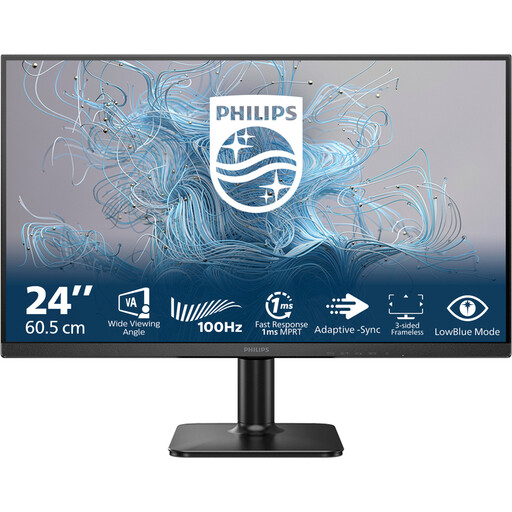 Image unavailable
Philips 1000 Series 24E2N1100LB/00 24-inch Full HD 100Hz VA Monitor
For studying or everyday desk work; check separately which camera you’ll use for calls.
24-inch Full HD VA screen, 100 Hz and a 4 ms response time.
View on Joybuy
 Image unavailable
Philips 34B2U5900C/00 34-inch Curved Dual-Mode Business Monitor
An option for working with text and multiple windows on a wide screen.
34-inch curved screen with 3440 × 1440 resolution; USB-C up to 140 W and a USB hub. Check separately whether your camera set-up is complete.
View on Joybuy
Frequently asked questions
Can a monitor automatically blur the background of my room?
Don’t assume it can: Teams and Zoom describe background blur as a feature of their software. Check whether the feature is available on your device. Microsoft Support warns that confidential information may still be visible.
Why doesn’t the built-in webcam work as soon as I connect the monitor?
Check the required USB or USB-C connection, whether there’s a camera shutter, and camera access in your operating system. Dell lists the USB upstream cable as something to check if you have problems with a monitor webcam.
What are my rights if a monitor bought online in the Netherlands is faulty?
According to the Dutch government, you’re entitled to a product that works properly, and you should contact the seller if there’s a problem. The Netherlands does not have a fixed statutory warranty period of two years. For online purchases from a business, you’ll often also have a 14-day cooling-off period; check which terms apply to your purchase.
Do workplace screen regulations apply to a monitor I buy as a student or home worker?
Screen-work regulations apply to employees and don’t automatically require every private student to buy a particular monitor. Arboportaal outlines specific requirements for employees who work with screens for more than two hours a day.


