A QHD monitor may suit you if you mainly want to view a map, text and a local preview side by side. Choose 4K when you need to assess small map details and layout more closely, provided the scaling remains comfortable for you. For USB-C, check both video support and your laptop’s power requirements. Google Chrome’s documentation describes mobile simulation as a first approximation, so test your finished guide on a real mobile device too.
Who is this monitor advice for?
Route guide creator working with multiple windows
You edit a map and accompanying text while keeping a local preview open. The QGIS documentation describes elements such as maps, text and legends in the print layout; the most useful screen arrangement depends on your project. Google Chrome for Developers describes mobile simulation as a first approximation of how a page appears on a mobile device.
Creator of visually detailed guides
You want to assess map labels, images and page layout carefully. Compare the resolution and model-specific colour information, but don’t treat manufacturer figures as a measurement of your screen or a guarantee of how content will look on other devices.
Laptop user with long editing sessions
You want to connect your laptop and position the screen comfortably. Check USB-C video, power delivery and adjustability separately; the right connection depends on both your laptop and the exact monitor model.
What should you look for in a monitor for a route guide?
| What to consider |
What should you check? |
Who is this important for? |
| Space for multiple windows |
Open your own map, text and preview side by side at a readable scale. Compare the resolution of the exact model. |
I want to see the map, text and local preview at the same time without constantly rearranging my windows. Around 30% of consumers prioritise usable window space when making this choice. |
| Map detail and design |
Compare the resolution, stated colour gamut and any calibration options for the full model number. Check the final output on other devices too. |
If carefully assessing small map labels and images is a priority, detail matters. Around 30% of consumers prioritise visual detail when making this choice. |
| Connecting and powering your laptop |
Check whether your laptop supports video over USB-C and compare its power requirements with the monitor and cable. |
I want to connect my laptop easily, but only if the connection provides video and enough power. Around 20% of consumers prioritise a suitable laptop connection. |
| Comfortable positioning |
Check the height adjustment, tilt and swivel, and make sure the stand suits your desk and viewing position. |
During long editing sessions, I want to position the screen comfortably without the stand taking up too much desk space. Around 20% of consumers prioritise comfortable positioning. |
Avoid common buying mistakes
-
Mistaking a mobile simulation for a test on a real phone
A simulated mobile view gives you an idea of the experience, but it doesn’t run the guide on actual mobile hardware. Google Chrome for Developers describes simulation as a first approximation.
Use the preview while you’re creating the guide to spot issues, then check the finished version on a real mobile device too.
-
Assuming every USB-C port provides video and enough power
A USB-C port on a monitor doesn’t confirm that your laptop can output video through its USB-C port or work with the power it supplies.
Compare the video, data and Power Delivery specifications of the exact monitor model with your laptop’s capabilities and charging requirements.
-
Choosing 4K solely for its higher pixel count
A 4K model has more pixels than a QHD model of the same screen size, but readability also depends on scaling and how you arrange your windows.
Try your own map labels, text and preview at a comfortable, readable scale before making the extra resolution the deciding factor.
-
Confusing a manufacturer’s warranty with your full legal rights
According to ACM ConsuWijzer, your legal guarantee is separate from a warranty offered by the seller or manufacturer. If a consumer product doesn’t meet the expectations you’re entitled to have under normal use, the seller is responsible.
Keep your purchase and model details, and contact the seller if you think the product may be faulty.
Brands and models to compare
Dell
The P2725DE and P2725QE are separate 27-inch models to compare if you’re looking for QHD workspace or 4K detail respectively.
- Dell lists the P2725DE with 2560 × 1440 resolution, 90 W USB-C power delivery and RJ45. According to Dell, the P2725QE has a resolution of 3840 × 2160.
- These specifications apply to the models named. Check that USB-C video and power delivery are suitable for your laptop.
BenQ
The PD2705U is a 27-inch 4K model to consider if guide layout and sRGB-focused work are important to you.
- BenQ lists 99% sRGB, a calibration report and USB-C with 65 W Power Delivery for the PD2705U.
- These are BenQ’s figures for this model, not an independent measurement or a guarantee that content will look the same on other devices.
LG
According to LG, the 27UP850K-W combines a 27-inch 4K screen with USB-C and an adjustable stand.
- LG specifies up to 96 W of charging over USB-C and support for hardware calibration.
- According to LG, the associated software isn’t included. Check that the exact model and the features you need suit your workflow.
Philips
The 27E1N1600AE/00 is a QHD model with USB-C to compare if you want to view a map, text and browser side by side.
- Philips lists a 27-inch screen, 2560 × 1440 resolution and USB-C power delivery for this model.
- Check your laptop’s power requirements and the exact model variant; the specifications alone don’t show that it offers any particular benefit for creating route guides.
ASUS
The ProArt PA279CRV is a 27-inch 4K model to compare if colour settings and connectivity are important to you.
- ASUS lists 99% DCI-P3, 99% Adobe RGB and 96 W USB-C Power Delivery, among other specifications, for this model.
- These are manufacturer specifications for this variant. Consider whether the stated colour gamuts suit the output of your guide.
Joybuy monitors for map and guide layout
These monitors are worth considering for editing maps and text, checking detail and arranging multiple work windows. Compare the stated resolution and connections with your laptop and workflow.
 Image unavailable
Philips 27E1N1800AE/00 27-inch 4K UHD IPS monitor
An option for assessing map detail and guide layout on a 4K screen; check that the scaling is comfortable and easy for you to read.
27 inches; 3840 × 2160; IPS; 60 Hz; 4 ms; HDMI and DisplayPort; height-adjustable stand.
View at Joybuy
 Image unavailable
MSI Modern MD272UPHG 27-inch 4K monitor
A 4K option for viewing map and layout details; try your own window arrangement at a readable scale.
27 inches; 3840 × 2160; 4K UHD.
View at Joybuy
 Image unavailable
INNOCN CB27U1 27-inch 4K UHD IPS monitor
An option for arranging a map, text and preview on one screen; check that the listed connections are compatible with your laptop.
27 inches; 3840 × 2160; IPS; 120 Hz; USB-C with 90 W Power Delivery; PIP and PBP; height-adjustable stand.
View at Joybuy
 Image unavailable
Dell Pro Plus P3425WE 34.1-inch WQHD monitor
The wide screen may suit you if you want to arrange a map, text and preview side by side; try the layout with your own project.
34.1 inches; 3440 × 1440; Wide Quad HD.
View at Joybuy
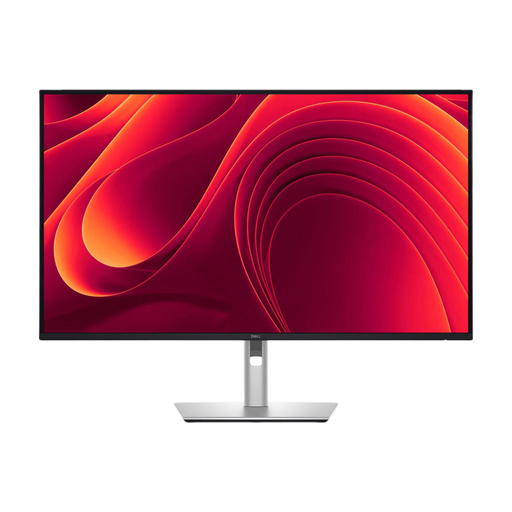 Image unavailable
Dell Pro Plus P3225DE 31.5-inch QHD monitor
A QHD option for maps, text and previews; check whether there’s enough space for your window arrangement.
31.5 inches; 2560 × 1440; QHD.
View at Joybuy
Frequently asked questions
Can I use my monitor to see how my walking route guide works on a phone?
You can simulate a mobile view, but that isn’t the same as testing it on a real phone. Google Chrome for Developers describes device mode as a first approximation, so check the finished guide on a mobile device too.
How can I check the guide layout before exporting?
QGIS’s print layout lets you add elements such as a map, text, legend and scale bar. Check the export on the device or in the format your readers will use to view the guide too.
How do I choose between QHD and 4K for editing maps and text?
QHD may suit you if you mainly want to view a map, text and preview side by side; 4K gives you more pixels for assessing small details. Try your own window arrangement at a comfortable scaling level, as higher resolution doesn’t guarantee that text will be easy to read without adjustment.
Why does USB-C sometimes fail to provide video or enough power?
Check separately whether your laptop outputs video over USB-C and how much power it needs. BenQ lists DisplayPort Alt Mode, data and 65 W Power Delivery for the PD2705U; Dell lists 90 W Power Delivery for the P2725DE. The monitor’s specifications don’t automatically confirm your laptop’s capabilities.
Who should I contact about a faulty monitor covered by the legal guarantee in the Netherlands?
Contact the seller if a consumer product doesn’t meet the expectations you’re entitled to have under normal use. ACM ConsuWijzer lists repair, replacement or, in appropriate cases, a refund; a separate manufacturer’s warranty doesn’t automatically limit your legal rights.


