
Comparing versions
If you often have map variations, route descriptions and sources open at the same time, a wide screen can help you view them side by side.


An ultrawide monitor is well suited to comparing multiple versions, maps and sources side by side. A 27-inch 4K monitor is a better fit if checking small map details and text is your priority. For print, no colour gamut is enough on its own: align what you see on screen with your colour management workflow and the intended output conditions. Whichever type of monitor you choose, check your computer’s connections, desk space and adjustment options too.
If you often have map variations, route descriptions and sources open at the same time, a wide screen can help you view them side by side.
When checking small labels, fine lines and page details, resolution and a scaling level that keeps text easy to read are important considerations.
If you’re assessing the colours in a printed guide, consider the entire colour management workflow and intended output, not just the monitor specifications.
First decide whether your priority is arranging windows side by side, checking small map details or preparing a print workflow. Then compare the resolution, screen size, connections and space available on your desk.
| What to consider | What should you look for? | Who is this most important for? |
|---|---|---|
| Multiple versions side by side | Compare the aspect ratio, resolution and physical screen width. Also consider the window layout options offered by your operating system. | If I want to compare several map versions and sources at the same time, I mainly need room for windows side by side. Around 31% of consumers prioritise comparing versions. |
| Map details and text | Consider the resolution alongside the screen size, and check that the chosen display scaling makes text comfortable to read. | When I want to check small place names, lines and icons, detail and readability are my main priorities. Around 25% of consumers give map details and text readability top priority. |
| Colour for print | Check the colour features of the exact model and ask which output profile or proofing condition is appropriate. | If I’m preparing a printed guide, I want what I see on screen to match the way it will be printed. Around 25% of consumers prioritise assessing colour for print. |
| Laptop and workspace | Check that your computer can output video through the port you plan to use, what charging power is required and whether the monitor is adjustable. | When I connect a laptop and position the monitor at my workstation, the connection and setup need to work with my equipment. Around 19% of consumers say laptop connectivity and workstation setup are their top priority. |
A monitor specification alone doesn’t determine how colours will look on paper. The result also depends on document colour management and the chosen output conditions.
Before choosing a monitor, find out how the guide will be printed and which profiles or proofs will be used.
A proof or correction round may take extra time while the output conditions are being finalised.
Aspect ratio and vertical resolution also matter when comparing windows. The LG 34U650A-B reviewed here has 1440 vertical pixels; the 27-inch 4K models mentioned have 2160 vertical pixels.
Sketch out the windows you want to use at the same time, then compare both screen width and height at a scaling level that keeps the content easy to read.
A USB-C connection on its own isn’t enough: your laptop must be able to output video through the port, and the power supplied must meet the computer’s requirements.
Check the specifications for the laptop and monitor ports, the required charging power and the cable. BenQ lists USB-C with DisplayPort Alt Mode and 65 W power delivery for the PD2705U; ASUS lists 96 W for the PA279CRV.
Depending on your laptop, you may need a suitable cable or a separate charger.
The UltraWide 34U650A-B is an example of a monitor suited to anyone who uses a wide screen to arrange multiple windows.
The DesignVue PD2705U is a 27-inch 4K option for digital layout work and a USB-C workstation.
According to its specifications, the ProArt PA279CRV combines a 27-inch 4K screen with USB-C.
The ColorEdge CS2740 is a specialist option for a design workflow involving colour management and print preparation.
The 27E1N5600AE/00 is a 27-inch QHD option with a USB-C connection that may be useful for a compatible laptop.
These monitors are suited to comparing project versions, checking map details or preparing layout and colour work at a desk.
 No image available
A 27-inch 4K monitor for checking small map labels and layout details.
Resolution: 3840 × 2160 pixels. The product description lists USB-C with up to 98 W power delivery, KVM, PIP/PBP, height adjustment, factory calibration and colour modes.
 No image available
A 4K monitor for viewing fine map details as part of a design workflow.
Resolution: 3840 × 2160 pixels. The product description lists Thunderbolt 3 with 85 W power delivery, KVM, PIP/PBP and height adjustment. It also mentions Calman verification and Pantone validation.
 No image available
A 21:9 monitor for viewing versions, maps and sources side by side; bear in mind that it needs plenty of desk space.
The product name specifies a 34.1-inch curved WQHD IPS screen, 100 Hz and USB-C with 90 W power delivery. The description also mentions a webcam, KVM, USB hub, and height, tilt and swivel adjustment.
 No image available
A wide screen for arranging multiple windows side by side; check that you have enough desk space.
34 inches, 21:9 and 3440 × 1440 pixels. The product description lists USB-C with up to 96 W power delivery, 99% sRGB, RJ45 and an adjustable stand.
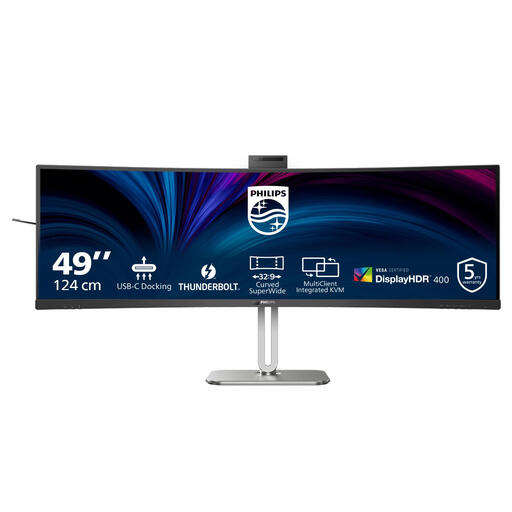 No image available
A wide-screen setup for viewing multiple project versions and sources at the same time; this monitor needs plenty of desk width.
49 inches, 32:9 and 5120 × 1440 pixels. The product description lists Thunderbolt 4, up to 100 W power delivery, height adjustment and a built-in webcam. The screen is 1193 mm wide with the stand attached.
No. In Windows 10 or 11, you can also arrange windows side by side on a standard screen. An ultrawide monitor mainly offers a different balance between horizontal space and screen height. Choose one based on how many windows need to be readable at once.
Check that your laptop can output video through the port, then compare its connection and charging requirements with those of the monitor. The BenQ PD2705U specifies USB-C with DisplayPort Alt Mode, data transfer and 65 W power delivery. That doesn’t mean every laptop will receive both video and enough power through that cable.
Align your colour management workflow with the intended output. Adobe describes using an ICC profile suited to the printer or proofing conditions when printing from InDesign. If necessary, ask the printer for the profile for your specific output; a stated colour gamut alone isn’t enough.
Arboportaal describes rules and conditions for employees working at screens, including a height-adjustable screen in the workplace situation described and breaks from screen work. These conditions are not automatically standard buying requirements for every private customer.
According to the Dutch government, in many cases consumers have a 14-day cooling-off period when buying remotely from a business. The legal guarantee is the right to receive a product that is fit for purpose; it is not a fixed statutory period of two years. If there’s a fault, contact the seller. Check the terms that apply to your order, especially if you’re buying for business use.