A compact Full HD screen may be enough for viewing word lists and reference material alongside an existing design, provided your main screen is suitable for reviewing your cards. If you prefer to view text and layout on one larger screen, consider a 27-inch QHD monitor. Manufacturers such as Philips, Dell and LG publish model specifications, but these are not independent tests. Check your computer’s connections, the space available on your desk and how you’ll position the two screens, too.
Who is this relevant to?
Card designer with lots of reference material
You want to keep word lists, definitions or examples open alongside your design, with enough room to read both at once. Philips describes the 243S1/00 as a compact Full HD model, while Microsoft Support explains how to arrange multiple screens in Windows.
Visual card designer
You pay close attention to colour and layout, and want to compare manufacturer information on colour gamut and calibration for each model. ASUS and BenQ publish this information for specific design monitors, but it won’t tell you exactly how a print will look.
Laptop user with a small desk
You want to know whether a second screen will fit, and how your laptop can connect to and possibly power the screens you need. Philips and Dell product specifications vary by model, so also check your main screen’s position against the advice from Arboportaal.
What should you look for when choosing?
Compact second screen
Choose this if: your main screen is suitable for designing cards and you mainly want to view reference material separately.
Trade-off: a smaller Full HD screen takes up less space, but has fewer pixels than the 27-inch QHD models reviewed.
27-inch QHD main screen
Choose this if: you want to review card layouts and text on a larger main screen, using the second screen for reference material.
Trade-off: allow enough desk space and check that your computer can run both screens.
Model with colour specifications
Choose this if: colour is an important part of reviewing your cards digitally and you want to compare model-specific specifications.
Trade-off: manufacturer information on colour gamut or calibration doesn’t prove that a print will look the same without suitable colour management.
| What to consider |
What to look for when buying |
Who should prioritise this? |
| Workspace and readability |
Compare the screen size and native resolution with the text size you find comfortable to read. Philips lists the 243S1/00 as 23.8 inches and Full HD; Dell lists the P2725DE as 27 inches and QHD. |
If I want to read card text and reference material at the same time, usable screen space matters most to me; around 36% of consumers prioritise workspace. |
| Colour and layout |
Compare specifications for the exact models only. ASUS lists 100% sRGB and factory calibration for the PA278CV; BenQ lists 100% sRGB and factory calibration for the PD2705Q. |
When colour choices matter for my cards, I want to know what the manufacturer specifies for that particular model; around 29% of consumers prioritise colour accuracy. |
| Desk setup |
Measure the space available for both screens and check the adjustment options on the exact variant. Position the screen you use most for designing directly in front of you; Arboportaal offers advice on monitor positioning. |
If I use two physical screens, I want to position them at my workstation without losing sight of my main screen; around 21% of consumers prioritise desk space and adjustability. |
| Connection and charging |
Check that your laptop supports the video output you need and compare its charging requirements with the monitor’s power output. Dell lists 90 W via USB-C for the P2725DE, while LG lists 65 W for the 27BA65QB-B. |
If you want to connect your laptop and two screens with ease, make sure all your devices are compatible; around 14% of consumers start by checking connections and possible USB-C charging. |
Common things to consider
-
USB-C doesn’t automatically mean your whole setup will work with one cable
USB-C features and power outputs vary by monitor, and your laptop must support the video output and power delivery you need.
Before buying, check the video and charging capabilities of both your laptop and monitor, and plan how you’ll connect both screens.
Depending on the connections available, you may need a separate cable or dock.
-
Don’t choose based on screen size alone
A compact Full HD screen and a larger QHD screen differ in resolution and the space they take up. A larger monitor isn’t necessarily the most practical choice for a two-screen desk setup.
Compare the native resolution, then adjust the text scaling and screen positions to suit your card design.
-
General warranty information doesn’t tell the whole story
The Dutch government distinguishes between statutory guarantees and additional manufacturer or retailer guarantees. In the Netherlands, there is no fixed statutory guarantee period of two years.
Check what an additional guarantee covers and contact the retailer if something goes wrong.
Brands to consider
Dell
The Pro P2725DE reviewed is a 27-inch QHD USB-C hub monitor designed for a desk setup with a laptop and a second screen.
- Dell lists 90 W power delivery via USB-C and ethernet for the P2725DE.
- Whether one cable is enough also depends on your computer and the two-screen setup you want.
LG
According to LG, the 27BA65QB-B combines a 27-inch QHD IPS screen with USB-C and an adjustable stand.
- LG lists 99% sRGB as a typical value and 65 W power delivery via USB-C for this model.
- When considering a specific listing, check that the model variant and resolution match the manufacturer’s specifications.
Philips
The Philips 243S1/00 is a 23.8-inch Full HD office monitor that can complement an existing main screen.
- Philips describes USB-C docking and charging for a compatible laptop.
- Full HD has fewer pixels than the 27-inch QHD models reviewed, so consider whether small text on your cards will still be readable.
ASUS
ASUS positions the ProArt PA278CV as a 27-inch QHD monitor for graphic design.
- ASUS lists 100% sRGB and factory calibration for the PA278CV.
- This manufacturer information doesn’t show how a card will look on another display or printer.
BenQ
The Creative Pro PD2705Q is a 27-inch QHD design monitor with model-specific colour specifications.
- BenQ lists 100% sRGB and factory calibration for the PD2705Q.
- The manufacturer’s specifications aren’t an independent colour measurement and don’t, on their own, tell you how a print will look.
Monitors at Joybuy
These models suit a setup where you review your card design on one screen and view reference material on a second, with options including 27-inch 4K and QHD models.
 No image available
Philips 27E1N1800AE/00 27-inch 4K UHD IPS monitor
Suitable if you want a larger screen for designing cards and plan to view reference material on a second screen.
27 inches; 4K UHD IPS; 3840 × 2160; 60 Hz; 4 ms; HDMI and DisplayPort; height-adjustable stand.
View at Joybuy
 No image available
INNOCN CB27U1 27-inch 4K UHD monitor
Suitable if you want to view your card design and reference material side by side, and want to consider the listed picture-in-picture or picture-by-picture features.
27 inches; 3840 × 2160 IPS; 120 Hz; PIP and PBP; USB-C with 90 W Power Delivery; HDMI and DisplayPort; adjustable stand.
View at Joybuy
 No image available
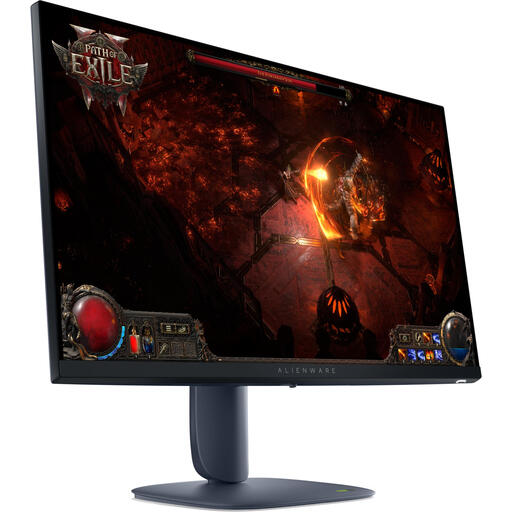
Alienware AW2725DM 27-inch QHD monitor
Suitable if you want to review your card layout on a larger main screen and keep reference material on a second screen.
27 inches; 2560 × 1440; Wide Quad HD LCD.
View at Joybuy
 No image available
ASUS ProArt PA278CV 27-inch QHD monitor
Suitable if you want to compare colour specifications for a specific design monitor while keeping reference material on a second screen.
27 inches; 2560 × 1440 QHD. ASUS lists 100% sRGB and factory calibration for the PA278CV.
View at Joybuy
 No image available
ASUS ProArt PA278CGV 27-inch QHD monitor
Suitable if you’re looking for a 27-inch QHD screen for your card layout and want to view reference material on a second screen.
27 inches; 2560 × 1440 QHD.
View at Joybuy
Frequently asked questions
Do both screens need to be the same size and have the same resolution?
No. You can use a larger main screen for your design and a more compact screen for reference material. Check that the text is readable for you on both screens, and adjust the screen layout and text scaling separately if needed.
How do I set up two screens in Windows?
Arrange the detected screens in the display settings to match their physical positions, then check that the mouse pointer moves naturally between them. Microsoft Support explains how to set up multiple screens and arrange them; also check that your computer supports the connections and display setup you need.
How should I position my screens while designing?
Place the screen you use most for designing directly in front of you, then position the second screen according to how often you refer to your source material. Arboportaal recommends positioning and tilting the screen appropriately, with the top just below eye level.
What should I look for with USB-C, a dock and power delivery?
Check that your laptop can send video to the screens you need through the connection you’ve chosen, and that the power output is suitable for your laptop. USB-C specifications vary between monitors, so don’t assume that one cable will support your entire setup without checking first.
What cooling-off period and guarantee apply to online purchases in the Netherlands?
According to the Dutch government, many online purchases from a business come with a 14-day cooling-off period, although exceptions may apply. Statutory guarantees are separate from the cooling-off period and any additional guarantees; the Netherlands has no fixed statutory guarantee period of two years.


