
Editor with a small desk
You need to fit the screen and stand without making your workspace unusable. So compare the actual dimensions and adjustability, not just the diagonal measurement.


Start by measuring the available width and depth of your desk, and allow for the space your editing setup needs. A compact QHD monitor is a sensible choice if desk space is limited; choose a 27-inch 4K model if the screen and stand will fit and you want more room for your timeline and image checks. For colour work, match the display settings to your film’s SDR or HDR output.
You need to fit the screen and stand without making your workspace unusable. So compare the actual dimensions and adjustability, not just the diagonal measurement.
You want to check details while keeping enough room for your timeline. A 27-inch 4K screen that fits calls for a different trade-off from a more compact QHD display.
You choose display settings based on your planned SDR or HDR output, balancing colour controls against screen size and resolution.
First measure the space for the screen and stand. Then decide whether QHD is enough for your editing interface or whether checking 4K images matters more.
| What to consider | What to look for | Who is this important for? |
|---|---|---|
| Desk space | Measure the available width and depth, then compare them with the monitor’s full dimensions, including the stand. Also check that the height adjustment or mounting option will work with your setup. | If my desk has limited space, I want to know whether the screen and stand will fit without getting in the way of my keyboard or work surface. Around 36% of consumers prioritise a good physical fit. |
| 4K images and timeline | Compare QHD and 4K using the display settings and window layout on your own computer and editing software. Also consider how easy the controls are to read from your viewing distance. | When I want to check 4K footage and keep an eye on my timeline, the screen needs to offer enough usable space for both. Around 29% of consumers prioritise this combination. |
| Colour and output | First decide whether your film will be output in SDR or HDR. Then check the corresponding display mode, stated colour gamut and any calibration options for the exact model. | If I’m grading colour, I want to be able to match the display settings to my film’s output. Around 21% of consumers prioritise colour controls and the output colour gamut. |
| Connectivity and power | Check whether your computer can output video through the USB-C connection you plan to use, and compare the charging power with your laptop’s requirements. | When I want to connect my laptop with as few cables as possible, the monitor needs to suit my computer’s video output and charging requirements. Around 14% of consumers prioritise suitable connectivity and a tidy workspace. |
The diagonal measurement doesn’t tell you how much desk depth the monitor and stand take up. A screen might look compact on paper but still not fit the space you have in mind.
Measure the available width and depth, then compare them with the model’s full dimensions.
If the monitor and stand don’t fit, you may need a different layout or mounting solution.
An HDR label alone doesn’t tell you whether a screen is suitable for your HDR grading requirements. VESA defines different performance levels, each with its own requirements, including brightness and black level.
First decide on your film’s output, then compare the relevant display performance. Don’t base your choice on a logo alone.
A USB-C connection on a monitor doesn’t automatically mean your computer can output video through it or receive enough power to charge. ASUS and BenQ list different video signal and Power Delivery capabilities for their specific models.
Check your computer’s video output and charging requirements against the connection specifications of the exact screen you’re considering.
Depending on the combination, you may need extra cables or a separate laptop charger.
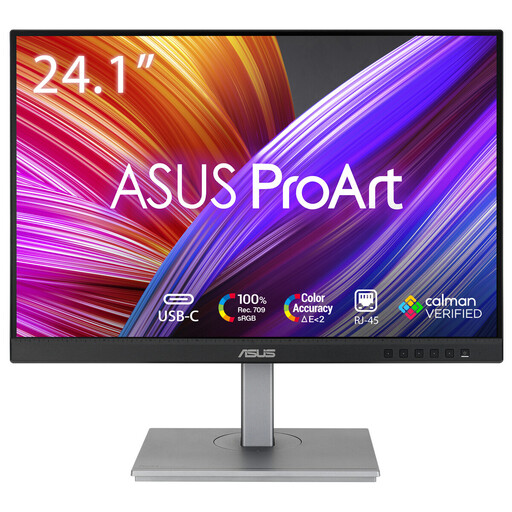
The ProArt PA24ACRV is an example of a compact 23,8-inch QHD screen with stated colour features.
The Creative Pro PD2705U is a 27-inch 4K model for those who have room for the monitor and stand and work in Rec.709 SDR.
The ColorEdge CS2400S is a 24,1-inch alternative if colour controls matter more to you than a 4K panel.
The UltraFine 27UP83AK-W is a 27-inch 4K alternative with stated DCI-P3 coverage.
The UltraSharp U2725QE is a 27-inch 4K model to consider if you want a hub and an adjustable stand, and have room for it.
This selection includes compact monitors for editing in a small workspace, as well as larger 27-inch 4K models for those who want more room to check images.
 No image available
A compact option for reviewing editing panels and colour settings on a 24,1-inch screen.
WUXGA resolution of 1920 × 1200 pixels and stated 100% Rec.709. The product description lists factory calibration, USB-C with 90 W Power Delivery and an adjustable stand.
 No image available
A QHD option in a more compact screen size for editing when desk space is limited.
The product description lists 2560 × 1440 pixels, USB-C with 90 W Power Delivery, 100 Hz, and a stand that is height-adjustable, tiltable, swivel and pivot.
 No image available
A compact QHD screen for editing when desk space matters more than a full 4K preview.
The product description lists 2560 × 1440 pixels, 95% DCI-P3 and factory-calibrated colour presets for sRGB and Rec.709. It also lists USB-C with 90 W Power Delivery and an adjustable stand.
 No image available
A larger 4K option for checking images alongside your editing interface, if the screen and stand fit on your desk.
The product description lists 3840 × 2160 pixels, factory calibration, and stated coverage of 97% DCI-P3 and 94% Adobe RGB. It also lists USB-C with 98 W Power Delivery.
 No image available
A larger 4K screen for editing and colour work when you have enough desk space.
The product description lists 3840 × 2160 pixels, IPS Black, 120 Hz and 99% DCI-P3 and Display P3 coverage.
Not just because the footage may include HDR. First decide on the output: Adobe describes separate settings for Rec.709 SDR and HDR output. If you want to grade an HDR version, check the required display performance separately; an HDR label alone doesn’t tell you whether a monitor is suitable.
First measure the monitor with its stand and compare the dimensions with the space available. Arboportaal recommends, among other things, easy-to-read symbols and a screen that doesn’t cause distracting reflections. Also check that the screen height and viewing distance work for your workspace.
When you buy from a business, the product must meet reasonable expectations; if there’s a fault, contact the seller. The Dutch Government states that there is no fixed statutory warranty period. For eligible distance purchases, you generally have 14 days to change your mind; terms and exceptions can vary by purchase.
Not automatically as a general product requirement for every private buyer. Arboportaal outlines employers’ obligations and rules for employees who work at a screen for more than two hours a day. Its ergonomic advice can still help you set up your own workspace.
Computer monitors are covered by European energy labelling rules for electronic displays. The European Commission explains this labelling; you can consult EPREL for additional model information. Any estimate of electricity costs will depend on the stated power consumption, how long you use the monitor and your own electricity tariff.