
Student who edits for colour
You compare shots and colour references for a showreel, and want to know which screen mode suits your output.


First, identify the output colour space for your showreel and decide whether your priority is judging colour or viewing references alongside your timeline. Then compare screen space, suitable colour modes and laptop connectivity. A wide colour gamut or HDR label alone doesn’t prove that a screen will provide an accurate colour reference.
You compare shots and colour references for a showreel, and want to know which screen mode suits your output.
You want to view source footage, references and your editing timeline at the same time, so usable screen space and detail matter to you.
You move between study spaces or reconnect your laptop regularly. In that case, the video connection and available USB-C power are also important.
Start with the output colour space for your showreel. Then work out how much space you need and whether your laptop can output video via USB-C and receive enough power.
| What to consider | What to look for when buying | Who this matters most to |
|---|---|---|
| Colour accuracy | Check the output colour space, matching screen mode and any calibration options. | If I’m judging colours for the final showreel, I want to match the screen mode to the agreed output and calibrate it if necessary. Around 36% of consumers prioritise colour accuracy. |
| Detail and workspace | Compare the resolution and screen size with the space available on your desk and how easy your editing software is to read. | I want to view reference images and the timeline at the same time without losing sight of how much workspace I need. Around 29% of consumers put detail and workspace first. |
| Laptop connectivity | Check whether your laptop can output video through the relevant USB-C port and how much power it needs. | If I connect and disconnect my laptop often, I want to know whether the monitor can provide video and enough power for my device. Around 21% of consumers prioritise laptop connectivity. |
| Costs and essentials | Work out which resolution, colour mode and connection your project requires, and check whether you’ll also need a cable or calibration tool. | I only want to factor in extra features or calibration equipment if my project requires them. Around 14% of consumers prioritise overall costs and necessary extras. |
SDR and HDR output require the right settings. A stated colour gamut doesn’t prove that the monitor is correctly set up or calibrated for your workspace. Adobe describes Rec.709 as a colour space for an SDR workflow in Premiere.
First, confirm the delivery format. Then check the output space in your editing project and choose the matching screen mode.
A USB-C port on a monitor doesn’t automatically mean that your laptop supports the required video mode or will receive enough power.
Compare your laptop’s video output and power requirements with the specifications for the exact monitor and cable.
Depending on the combination, you may still need a separate laptop charger or a suitable cable.
Model letters can make all the difference: the ASUS PA279CRV is not the same model as the PA279CV.
Check the full model name and relevant specifications on the product page before comparing versions.
The PD2705U is a 27-inch 4K monitor with separate Rec.709 and sRGB modes, making it worth comparing for an SDR showreel.
According to LG, the UltraFine 27UP850K-W combines a 27-inch 4K screen, USB-C and an adjustable stand.
According to ASUS, the ProArt PA279CRV is a 27-inch 4K model designed for tasks including video editing and wide-gamut colour.
EIZO describes the 26.9-inch ColorEdge CS2740 as a 4K model for tasks including video editing and colour grading.
The UltraSharp U2723QE is a 27-inch 4K USB-C hub monitor worth including in your comparison if you also need extra ports.
These 4K and ultrawide monitors are options to compare for editing with footage and references on screen. When choosing, focus on screen space, the colour information in the product specifications and the connection your laptop needs.
 Image not available
The 27-inch 4K version is an option for viewing footage and fine detail while you edit.
The product description lists USB-C with DisplayPort Alt Mode and up to 98 W of power. Check that your laptop supports the video mode and that this is enough power.
The description also lists 97% DCI-P3, 94% Adobe RGB and factory calibration.
 Image not available
The product description lists a 31.5-inch 4K screen, an option for a fixed editing workspace where you can view footage and references on one screen.
The description lists QD-OLED, 165 Hz, a USB hub and HDMI 2.1. Check which connections your equipment needs.
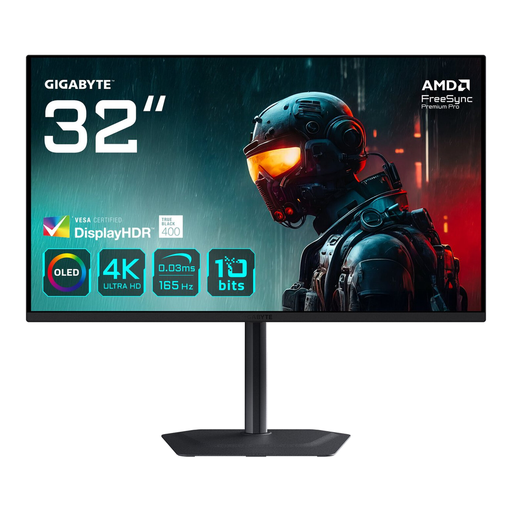 Image not available
The 31.5-inch 4K screen is an option for a desktop workspace where you can view footage and references side by side.
The product description lists OLED and USB-C with up to 18 W of power. This may not be enough to power a laptop, so check your device’s requirements.
 Image not available
The 27-inch 4K version is an option for viewing detailed footage while you edit.
The product specifications list USB-C with up to 90 W of power, an adjustable stand and PIP/PBP. Check that your laptop supports the video connection and that 90 W is enough.
The description lists 100% sRGB and 99% Adobe RGB. Check that the stated colour spaces suit your output and preferred workflow.
 Image not available
The 40-inch ultrawide screen with 5120 × 2160 pixels is an option if you want plenty of space for references and editing windows.
The specifications list USB-C with up to 65 W of power. Check whether that’s enough for your laptop; you may still need a separate charger.
The description also lists PIP/PBP and 99% sRGB.
Match your monitor settings to the agreed output colour space. Adobe describes Rec.709 as a colour space for an SDR workflow in Premiere; also check your own project settings. A Rec.709 mode on the monitor isn’t the same as a measurement or calibration.
No, it depends on your laptop’s video output and its power requirements. The BenQ PD2705U lists DisplayPort Alt Mode and 65 W; LG lists charging up to 96 W for the 27UP850K-W. Also check whether the correct cable is included.
First, check your project’s output colour space, the selected monitor mode and the ambient light. Adobe recommends using a colorimeter for objective colour adjustment; adjusting by eye alone isn’t an equivalent alternative.
Consumer purchases are covered by the statutory guarantee, which has no fixed statutory duration: what you could reasonably expect from the product is what matters, and the retailer is your point of contact. ACM ConsuWijzer states that for an ordinary online purchase, you generally have up to 14 days after delivery to change your mind. Check whether any exceptions apply.
The European Commission lists an A to G energy label for computer monitors; compare the label for the exact version. According to the Dutch government, when you buy a similar new appliance, you can hand in an old electrical appliance free of charge under the old-for-new scheme. The same applies to online purchases under the stated conditions.