
Video editor working with a long timeline
You want to see your voice-over, footage and editing panels at the same time. How much horizontal workspace you need also depends on the layout of your editing software.


If you mainly want to see a long timeline and several windows at once, consider an ultrawide monitor. If you want to assess image detail, compare 4K models and their colour modes. A second screen can give your editing panels their own space, but it won’t manage your project versions: Adobe explains how to move Premiere panels to a second monitor and save the layout. If you use a laptop, also check its video output, charging requirements, cable and adjustability.
You want to see your voice-over, footage and editing panels at the same time. How much horizontal workspace you need also depends on the layout of your editing software.
You want to arrange your windows so you can check the differences between versions. Adobe explains how to move panels to a second monitor in Premiere and save your workspace; also check how your software manages versions.
You want to check details in your walking footage while you edit. So compare the resolution and colour modes of the exact monitor model, not just its screen format.
First decide what you want to keep visible at the same time. Then compare resolution and colour modes, and, if you use a laptop, check that the connections and setup are suitable.
| What to consider | What should you check? | Which consumers does this matter to? |
|---|---|---|
| Timeline overview | Compare the screen aspect ratio and native resolution; see whether your editing software is comfortable to use at the size you have in mind. | If I want to see my voice-over, footage and editing panels at the same time, I prioritise timeline space. Around 36% of consumers say timeline visibility is their top buying priority. |
| Comparing project versions | Check how many windows your editing software can display at once and whether your computer can run a second screen. | If I want to compare versions side by side, I need a layout that lets me check the differences. Around 29% of consumers prioritise comparing versions. |
| Checking detail and colour | Compare the native resolution and colour mode for your project; check that the stated colour coverage applies to the exact model. | If I want to assess image detail and colour while editing, that matters more to me than extra timeline space. Around 21% of consumers make checking image detail and colour their top priority. |
| Laptop and working position | Check video output, charging requirements, a suitable cable and the stand’s adjustment options. | For my laptop setup, both the connection and positioning need to work. Around 14% of consumers prioritise laptop connectivity and working position. |
Ultrawide format and 4K resolution are different features. Philips lists the 346E2CUAE/00 as having 3440 × 1440 pixels; the 4K models mentioned have 3840 × 2160 pixels.
Choose based on what you want to see at once: more horizontal space for your timeline or more pixels for your image.
Your laptop must be compatible with the video connection and the available charging power of the exact monitor model.
Check your laptop port, charging requirements and cable before choosing.
Depending on your setup, you may need a different cable or connection, or a separate laptop power supply.
In the Netherlands, there is no fixed period for the statutory guarantee, according to the Dutch government. An additional manufacturer’s warranty is a separate commitment.
If in doubt, ask which additional manufacturer’s warranty applies to the item on offer, and keep it separate from your statutory rights.
The E Line 346E2CUAE/00 is worth considering if a wide timeline is your priority.
According to the manufacturer, the Creative Pro PD3205U combines a 31.5-inch 4K screen with a Rec.709 mode.
The UltraFine 27UP850K-W is a 27-inch 4K option for a more compact laptop setup.
The ProArt PA279CRV is a 27-inch 4K model with colour presets; the ROG Swift OLED PG32UCDM Gen3 uses a separate OLED approach.
The ColorEdge CS2740 is a 27-inch 4K option if a calibratable colour workflow is important to you.
This selection includes ultrawide monitors for extra space alongside your timeline, and 4K models for assessing image detail.
 No image available
A 34-inch curved monitor to consider if you want to arrange your timeline and several windows side by side.
The product name mentions Dual-Mode; check whether the available modes suit the way you edit.
For video and charging via USB-C, your laptop and cable must be compatible with the monitor and provide the charging capacity you need.
 No image available
A 27-inch model to consider if you want to assess image detail on the same screen as your editing.
The product name specifies 3840 × 2160 pixels and 4K Ultra HD.
For video and charging via USB-C, your laptop and cable must be compatible with the monitor and provide the charging capacity you need.
 No image available
A 40-inch ultrawide option if you want plenty of space for a wide timeline and several windows.
The product name specifies 5120 × 2160 pixels, a 21:9 aspect ratio, IPS and 100 Hz.
The product name specifies USB-C PD65W; check that this suits your laptop’s video output and charging requirements.
 No image available
A 31.5-inch model to consider if you want to assess image detail while editing.
The product name specifies 3840 × 2160 pixels. BenQ lists a Rec.709 mode and USB-C with up to 90 W Power Delivery for the PD3205U.
Check that your laptop is compatible with the monitor port and charging power.
 No image available
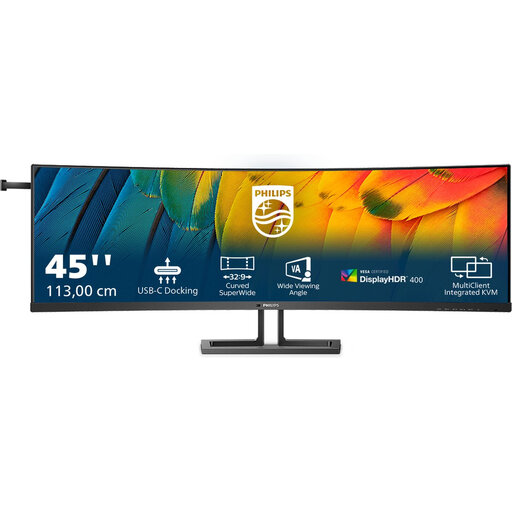
An extra-wide monitor to consider if you want to place your timeline and several windows side by side.
The product name specifies 5120 × 1440 pixels and a 32:9 aspect ratio.
If you use a laptop, check that the connection supports video and provides the charging capacity you need.
Not always: first see whether you can fit your windows on one wide screen. If you use Premiere with a second screen connected, you can move panels onto it and save your workspace, as Adobe explains. Managing project versions remains a separate task in your editing software.
Check that your laptop can output video through the relevant port and that the charging capacity is suitable for your laptop; use a suitable cable too. BenQ lists DisplayPort Alt Mode and up to 90 W Power Delivery via USB-C for the PD3205U. This specification does not automatically apply to other models.
According to ACM ConsuWijzer, online consumer purchases generally come with a statutory 14-day cooling-off period from the date of delivery; check the conditions for trying the product carefully and returning it. If a product is faulty, you can also hold the seller responsible for providing a product that meets legal requirements. The Dutch government states that the Netherlands has no fixed statutory guarantee period.
The European Commission states that EU energy labelling rules also cover computer monitors. The label runs from A to G and can help you compare the energy use of screens; it does not require you as the buyer to choose a particular class.