Webcam monitors at Joybuy
These product picks are monitors with integrated webcams for video calls, ranging from compact screens to ultrawide models. Background features still depend on your meeting app and device.
 Image unavailable
Dell Pro P3426WEV 34.1-inch Curved WQHD USB-C Hub Monitor
For a permanent laptop workspace where you’d like an integrated webcam and USB-C hub.
34.1-inch curved WQHD screen with an integrated 4 MP webcam. USB-C power delivery up to 90 W, RJ45 and KVM. No built-in speakers.
View at Joybuy
 Image unavailable
Dell Pro P P2726DEV 27-inch QHD IPS monitor
For a shared laptop workspace where you want an integrated webcam and central USB ports.
27-inch QHD IPS screen with webcam and USB hub. The stated USB power delivery is up to 90 W.
View at Joybuy
 Image unavailable
Dell Pro P P3426WEB 34-inch USB-C Hub Conferencing Monitor
For video calls and working with several windows on an ultrawide screen.
34-inch WQHD screen with a 4 MP webcam, microphone and speakers. USB-C power delivery up to 90 W, Ethernet and KVM.
View at Joybuy
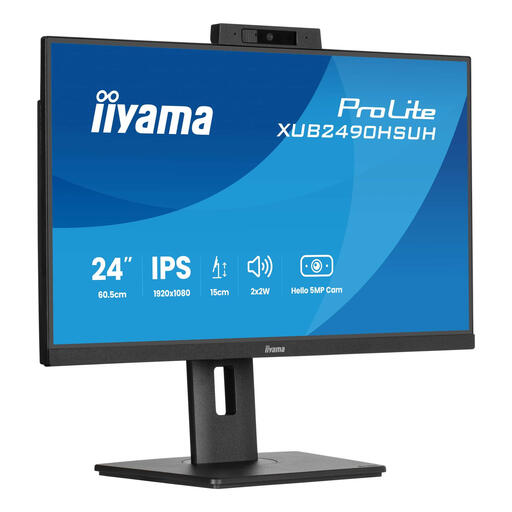 Image unavailable
iiyama 24-inch IPS monitor with built-in Windows Hello camera and microphone
For a more compact video-call setup where you want to adjust the screen height at a shared desk.
24-inch Full HD IPS screen with built-in 1080p webcam, microphone and speakers. The stand is height-adjustable and supports swivel and tilt. Ports: HDMI, DisplayPort and three USB ports.
View at Joybuy
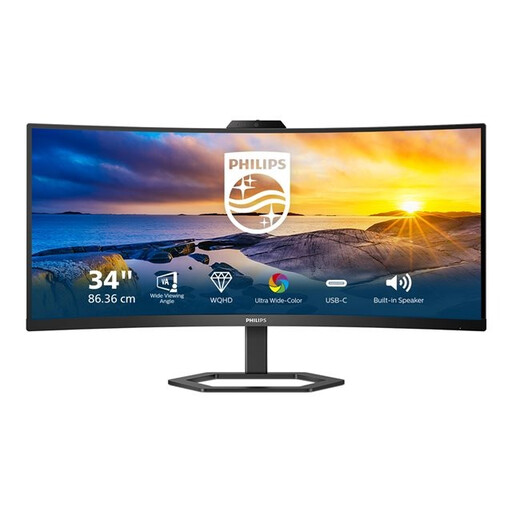 Image unavailable
Philips 34E1C5600HE/00 34-inch ultrawide monitor
For anyone who wants to keep documents open alongside the video window during calls and has room for an ultrawide screen.
3440 × 1440 pixels and a 21:9 aspect ratio, with an integrated Windows Hello webcam. Stated specifications include 300 cd/m², 4 ms, HDMI, USB and DisplayPort; the monitor supports tilt adjustment.
View at Joybuy
Frequently asked questions
Can a monitor automatically hide my busy background?
No, a webcam built into a monitor won’t automatically blur the background. Teams and Zoom offer background features, but their availability also depends on your device and setup. Check the result in the preview before joining a call.
Is background blur enough to protect confidential information?
No, don’t rely on it. Microsoft Support warns that blurring or replacing your background may not prevent confidential information from remaining visible. Keep it out of the camera frame as well.
What should I check when connecting to a shared laptop workspace?
Compare the video ports on the laptop and monitor. If you want to use a single USB-C cable for video and power, also check that your laptop supports this and what charging power it needs.
What are the rules in the Netherlands for prolonged screen work?
Arboportaal outlines employers’ obligations on matters including screen positioning, adjustability, reflections and lighting. For more than two hours of screen work a day, the screen and keyboard must also not be attached to each other; this is not a general buying requirement for every user.
What about privacy during business video calls?
The Dutch Data Protection Authority says that organisations must offer secure options for video calls or chat. A background effect is no substitute for secure communication tools.
Are you entitled to exactly two years of legal guarantee on a monitor in the Netherlands?
No. ACM ConsuWijzer explains that there is no fixed statutory guarantee period in the Netherlands; this partly depends on the product’s expected lifespan under normal use. The manufacturer’s guarantee is separate. Contact the retailer if something goes wrong.


