What should you consider when choosing?
For a version-controlled music log, your choice comes down to readable screen space, a well-arranged workspace, laptop connections and the space available on your desk.
| What to consider |
What to look for |
Who is this important for? |
| Room for text and versions |
Test your window layout and text scaling. Compare the horizontal and vertical space you need. |
If I want to read my log, notes and version differences at the same time, a suitable window layout is my first requirement. Around 40% of consumers give readable space for multiple windows top priority. |
| Screen position |
Check the adjustment options and whether the stand or arm will fit on your desk. |
For long writing and reading sessions, I want to be able to adjust the screen position to suit my workspace. Around 30% of consumers prioritise adjustability and a comfortable reading setup. |
| Connecting a laptop |
Check separately whether the chosen connection supports video, charging and any peripherals you want to use. |
When I connect my laptop, I want to know in advance which features will work through the monitor and cable. Around 20% of consumers make laptop connectivity their top priority. |
| Size and desk space |
Measure the space, including the stand or arm, and work out how many windows you usually have open. |
At a compact desk, I don’t want to choose screen space I won’t use. Around 10% of consumers give top priority to a simple setup that fits their desk. |
Monitors at Joybuy
This selection includes 27-inch QHD and 4K monitors, plus a 34-inch ultrawide option for viewing a log, notes and version differences. When choosing, also check the connections, adjustability and available desk space.
 No image available
MSI Pro MP275Q
A 27-inch QHD option if you want to view music log software and text windows on one screen.
2560 × 1440 pixels; IPS panel; tilt adjustment; HDMI and DisplayPort connections.
View at Joybuy
 No image available
MSI Modern MD272UPHG
A 27-inch 4K option if you want to view multiple sources of information and need an adjustable stand.
3840 × 2160 pixels; PIP/PBP; USB-C power delivery up to 98 W; KVM; height, swivel and tilt adjustment.
View at Joybuy
 No image available
Dell Plus S2725QC
A 27-inch 4K option if you want to view text windows and need USB-C power delivery.
3840 × 2160 pixels; USB-C power delivery up to 65 W; HDMI and USB connections; height-adjustable, tilting stand.
View at Joybuy
 No image available
ASUS ProArt PA278CV
A 27-inch QHD option for a laptop workspace with USB-C and an adjustable screen position.
2560 × 1440 pixels; USB-C power delivery up to 65 W; USB hub; HDMI and DisplayPort connections; height and tilt adjustment.
View at Joybuy
 No image available
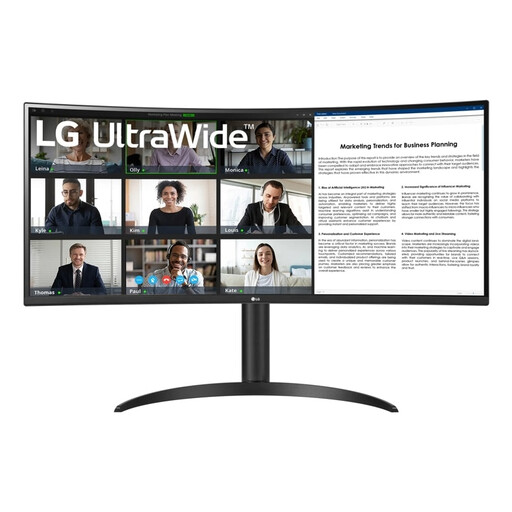
LG 34WR55QK-B
A 34-inch ultrawide option if you want to view your log and version differences side by side horizontally. Check that it will fit on your desk.
3440 × 1440 pixels; PBP; USB-C; HDMI and DisplayPort connections; height, tilt and swivel adjustment; width 809 mm.
View at Joybuy
Frequently asked questions
Does a monitor save earlier versions of your practice log?
No. Version history is part of your software or file workflow, not the monitor. GitHub Docs describes Git as a version control system for tracking and comparing changes; the monitor determines how you view that information.
Should you choose a QHD, 4K or ultrawide monitor?
Choose based on the windows you want to read at the same time, your preferred text scaling and the space on your desk. The Philips QHD monitor reviewed has 2560 × 1440 pixels, the Dell P2725QE has 3840 × 2160 pixels and the Philips 34B1U5600CH/00 has 3440 × 1440 pixels. These resolutions represent different screen layouts and don’t, by themselves, indicate which is more productive.
Is USB-C enough for video and charging your laptop?
Not without checking the combination of laptop, cable and monitor. Compare the video and charging features you need with the specifications for the exact model; the monitors reviewed vary in their USB-C support and charging power.
What should you consider for longer writing and reading sessions?
Check whether you can adjust the screen position and whether the text is easy to read at your chosen scaling. Arboportaal outlines workspace requirements and the need to alternate tasks where rules for employees who work with display screens apply; these rules don’t automatically apply to a personal hobby setup.
What if a monitor bought online doesn’t fit or turns out to be faulty?
For an online consumer purchase, you generally have 14 days from delivery to change your mind, subject to legal exceptions. You may also have statutory rights if the product doesn’t meet what you could reasonably expect; ACM ConsuWijzer explains that these rights are separate from any manufacturer’s warranty.


