Choose a monitor with USB-C video and enough Power Delivery for your laptop if you want to do without a separate laptop charger; the monitor itself will still need a socket. Then compare the colour settings and resolution with the type of vector illustrations you review. More pixels or a wider colour gamut aren’t automatically more useful than the right colour mode and settings.
Who is this choice relevant to?
Illustrators with a laptop and few sockets
If you’d rather not use a separate laptop charger, you’ll need a laptop that can output video over USB-C and charge at the power supplied by the monitor. BenQ Netherlands and ASUS Netherlands describe these connection and charging features for specific models.
Designers who need colour approval
When assessing colour, it’s important to check the intended colour space, the active colour mode and the corresponding ICC profile. Adobe explains why it’s important to use a profile that matches your monitor.
People who assess fine details
If you work with fine lines, icons or small text, you can weigh the resolution against the screen size. The 27-inch 4K models mentioned here offer more pixels than QHD models.
What should you look for?
First, check whether your laptop can output video over USB-C and receive enough power from the monitor. Then look at colour management and resolution. The best balance depends on what you need to assess in your illustrations.
| Consideration |
What should you check? |
Who is this important for? |
| Connecting your laptop and monitor |
Check that your laptop supports USB-C video, the Power Delivery rating of the exact monitor model and your laptop’s charging requirements. A USB-C port alone doesn’t tell you whether video and sufficient charging power are supported. |
If I want to do without a separate laptop charger, the connection needs to work with my laptop. Around 29% of consumers prioritise using a single connection for their laptop and monitor. |
| Assessing colour |
Compare the stated colour gamut with the intended use of your work, and match the monitor settings to the ICC profile in your operating system. Adobe explains why it’s important to use a suitable monitor profile. |
If I want to assess the colours in vector illustrations within their intended colour space, I look at both the colour mode and the profile. Around 29% of consumers prioritise colour consistency. |
| Viewing fine details |
Balance the resolution against the screen size and the display scaling you find comfortable. More pixels don’t replace suitable colour settings or a compatible laptop connection. |
When I check small shapes and text up close, resolution can influence my choice. Around 24% of consumers prioritise detail. |
| Workspace and energy information |
Check the model’s adjustment options and compare the EU energy labels of specific monitors. The European Commission explains energy labelling for electronic displays. |
If I want to set up my screen practically and compare energy information, I look at adjustability and the label. Around 18% of consumers prioritise these points. |
Common buying mistakes
-
Assuming every USB-C port supports video and provides enough power for a laptop
The benefit of using one cable depends on both your laptop’s capabilities and the monitor’s power output. If they aren’t compatible, you may still need a separate laptop charger.
Check USB-C video and Power Delivery on both devices, and compare the monitor’s stated power output with your laptop’s charging requirements.
-
Assuming a wide colour gamut guarantees accurate colour assessment
A coverage percentage alone won’t tell you whether the active colour mode and system profile are right for the document you’re reviewing.
Compare the specifications with the intended colour space, and make sure the monitor settings and ICC profile match.
-
Assuming a regional model variant is identical without checking
A different model code could mean you’re expecting the wrong specifications or connections.
Compare the full model code and product specifications before treating a regional variant as the same purchase.
Relevant brands to compare
BenQ
The Creative Pro PD2705Q is a QHD option for vector work where sRGB and USB-C laptop charging matter.
- BenQ lists 100% sRGB, a factory calibration report and USB-C Power Delivery up to 65 W for the PD2705Q.
- These are manufacturer specifications, not independent measurements. Check that 65 W and USB-C video are suitable for your laptop.
ASUS
The ProArt PA278CGRV combines QHD and stated sRGB specifications with a higher stated USB-C charging capacity.
- ASUS lists 100% sRGB, factory calibration and USB-C Power Delivery up to 96 W for this model.
- Check your laptop’s charging requirements and USB-C support. These specifications apply to the PA278CGRV and not automatically to other ProArt models.
LG
The 27UP850K-W is a 27-inch 4K option with USB-C for those who want to view details and are considering charging their laptop through the monitor.
- LG lists a typical 95% DCI-P3 and USB-C charging up to 96 W for this model.
- A P3 specification doesn’t prove that sRGB will be displayed accurately with your settings. LG also notes that calibration software isn’t included.
Philips
The 27E1N1600AE/00 is a general-purpose QHD USB-C option for a workspace where a single cable matters.
- Philips describes this model as featuring QHD, IPS and USB-C with power delivery.
- Check the charging capacity and colour requirements before choosing this model for colour-critical approval.
Dell
The UltraSharp U2725QE combines 4K with a Thunderbolt hub for anyone looking for extra connectivity too.
- Dell lists 4K, IPS Black and a Thunderbolt hub for this model.
- Consider the connections in relation to what your laptop actually supports and which hub features you need.
Monitors at Joybuy
This selection of Joybuy products includes monitors for viewing detail and using with a laptop. Check which connections and features suit your workspace for each model.
 No image available
LG UltraFine 27U711B-B 27-inch 4K IPS monitor
Could be a good fit if you want to view small vector shapes on a high-resolution 27-inch screen. Check the colour settings and laptop connection separately.
27 inches; 4K; IPS panel.
View at Joybuy
 No image available
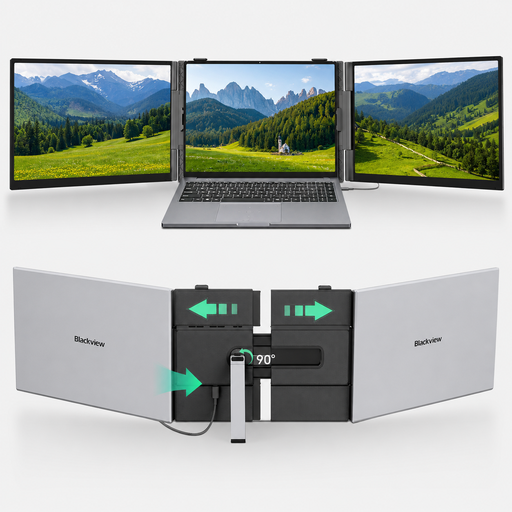
Blackview DCM8 Pro 15.3-inch FHD dual-screen monitor
A portable dual-screen option to consider if you want to view vector work on an additional screen. Check that the USB-C set-up works with your laptop.
15.3 inches; FHD; one-cable USB-C set-up according to the product name.
View at Joybuy
 No image available
Dell Pro P3426WEV 34.1-inch curved WQHD monitor
Could be a good fit if you’re looking for a curved WQHD screen and a USB-C connection for laptop use. Compare its stated charging capacity with your laptop’s requirements.
34.1 inches; curved WQHD; USB-C hub; Power Delivery up to 90 W.
View at Joybuy
 No image available
Philips 27E1N1800AE/00 27-inch 4K UHD IPS monitor
Could be a good fit if you want to assess fine details on a 27-inch 4K screen. Check separately that the connections are compatible with your laptop.
3840 × 2160 pixels; IPS panel; 60 Hz.
View at Joybuy
 No image available
MSI Modern MD272UPHG 27-inch 4K monitor
Could be a good fit if you want to combine 4K detail with USB-C laptop charging. Check that the stated power output and colour information suit the way you work.
3840 × 2160 pixels; USB-C Power Delivery up to 98 W; factory calibration and 94% Adobe RGB according to the product description.
View at Joybuy
Frequently asked questions
Does a USB-C monitor always save you a socket?
No, the monitor itself needs power. You may be able to do without a separate laptop charger only if your laptop supports video through the USB-C connection in question and can run on the stated Power Delivery output.
How should I set up a monitor before assessing colours in vector work?
Match the active colour mode and the ICC profile in your operating system to the work you have in mind. Adobe explains why it’s important to use a profile that matches your monitor.
Are calibration tools always included with a monitor that has calibration features?
No, it varies by model. LG states that LG Calibration Studio isn’t included with the 27UP850K-W. Check what’s available or needed separately for your chosen model and the way you work.
What rights do I have when buying a monitor online in the Netherlands?
For a distance contract with a business, a 14-day cooling-off period applies in many cases, according to the Dutch government. A purchase from a private seller isn’t automatically covered by this scheme. If there’s a fault, your statutory consumer rights in relation to the seller are relevant.
Do EU energy-labelling rules also apply to computer monitors?
Yes, the European Commission states that energy labelling and ecodesign rules cover electronic displays, with some exceptions under the scheme. Use the information for the specific model to compare monitors.


