What should you look for when choosing?
First, measure the space needed for the screen and stand, then consider which windows you want to view at the same time. Next, check your laptop’s connection and how you can adjust the screen to suit your workspace.
| What to consider |
What should you look for? |
Who is this important for? |
| Space for code and tests |
Compare screen size and native resolution, and check whether text remains legible at your preferred scaling. |
If I want to view code, test output and documentation at the same time more often, I look at the available screen space. Around 33% of consumers make workspace their top priority. |
| Desk space |
Measure the available width and depth, then compare them with the monitor’s dimensions, including the stand. |
With a small desk, I want the screen to fit without making the workspace awkward to use. Around 27% of consumers make compactness their top priority. |
| Connecting a laptop |
Check for USB-C video, the charging power required in watts and whether the necessary cable is included. |
If I connect my laptop regularly, I want to know whether one cable can carry video and provide enough power. Around 20% of consumers prioritise easy laptop connectivity. |
| Adjustability and readability |
Check for height adjustment, tilt or pivot, and whether you can set the text size and brightness comfortably. |
During longer sessions, I want to adjust the screen to suit my seated position and read the text easily. Around 20% of consumers prioritise adjustability and readability. |
Joybuy monitors for more screen space
This selection from Joybuy focuses on 27-inch monitors for anyone who wants more room on screen for code and test results. Measure your desk space first and check which connections your laptop needs.
 No image available
MSI MAG 272QPF E20, 27-inch WQHD monitor, 200 Hz
A good fit if you’re looking for a 27-inch screen with more room to view code and test output side by side; bear in mind how much desk space it will take up.
According to the product name: 27 inches, 2K WQHD, 200 Hz and Rapid IPS.
View at Joybuy
 No image available
AOC Gaming Q27G42XNE, 27-inch Quad HD monitor, 180 Hz
A potential option if you’re considering a 27-inch screen for code and multiple windows; check that the monitor, including its stand, will fit on your desk.
According to the product name: 2560 × 1440 pixels, 180 Hz, FreeSync Premium and HDR10. The listed connections are 2 × HDMI 2.0 and 1 × DisplayPort 1.4.
View at Joybuy
 No image available
Philips 27E1N1800AE/00, 27-inch 4K UHD IPS monitor
A good fit if you want to display plenty of content on a 27-inch screen; check in advance that it will fit your available desk space.
According to the product name: 3840 × 2160 pixels, 60 Hz, 4 ms, HDMI, DisplayPort and a height-adjustable stand.
View at Joybuy
 No image available
MSI Pro MP275Q, 27-inch Wide Quad HD monitor
A potential option if you want to view code and test results on a 27-inch screen; bear in mind how much desk space it needs.
According to the product name: 2560 × 1440 pixels. The product description lists an IPS panel and 100 Hz.
View at Joybuy
 No image available
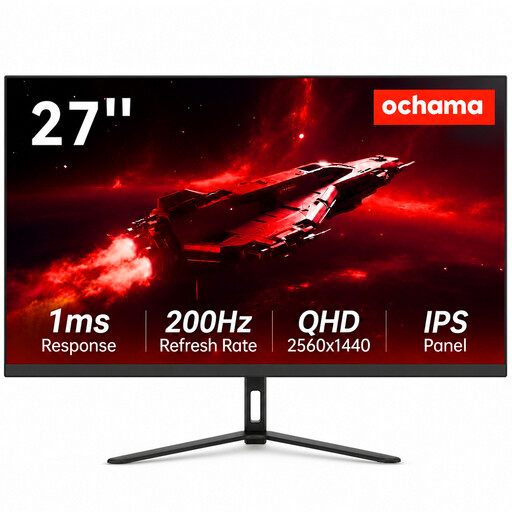
Ochama 27-inch gaming and office monitor, 2K, 200 Hz
The product name mentions office use; the 27-inch size could suit anyone looking for more screen space who has room for it.
According to the product name: 2K Ultra HD and a 200 Hz refresh rate.
View at Joybuy
Frequently asked questions
Do I need a 27-inch QHD monitor for unit testing?
Not necessarily. If you want to view several windows at once and have enough desk space, the 27-inch QHD model reviewed offers more native pixels than the 23.8-inch Full HD models reviewed. Lenovo Netherlands highlights screen space as a consideration for students who code; also check that text remains easy to read at your preferred scaling.
Will every USB-C monitor charge my laptop?
No. Check whether your laptop can output video via USB-C and how much power it needs. LG specifies power delivery of up to 65 W for the 27BA65QB-B reviewed; Philips states that the 243S1/00 requires a compatible laptop.
How should I adjust my screen for longer coding sessions?
Adjust the screen to suit your body measurements, make text easy to read, reduce reflections and ensure the ambient lighting is suitable. Arboportaal recommends varying your activities and taking short breaks; an adjustable monitor alone will not prevent discomfort.
Do Dutch workplace health and safety rules for screen work automatically apply if I study in my room?
No. Arboportaal describes employers’ obligations and the conditions for employees who work with screens; studying alone does not automatically make you an employee. However, its advice on adjusting your screen and taking breaks can still help you set up your workspace.
What are my rights if I buy a monitor online in the Netherlands?
According to the Dutch government, online purchases from a business usually come with a 14-day cooling-off period. You are also entitled to a product that is fit for purpose, and there is no fixed statutory warranty period in the Netherlands. A manufacturer’s warranty or additional warranty scheme does not replace these statutory rights.


