
Designer who checks as they work
You want to edit the contact form while keeping the browser preview visible. Start by deciding on your preferred layout, then check how many external screens your computer supports.


If you want to view the contact form and browser preview on two separate screens, consider an adjustable second monitor; 27-inch QHD is one possible starting point, not a requirement. An ultrawide monitor is suitable only if two windows on one physical screen are enough for you. Before buying, check how many screens your computer supports, which connections you need and how much space you have on your desk.
You want to edit the contact form while keeping the browser preview visible. Start by deciding on your preferred layout, then check how many external screens your computer supports.
You work with your screens for extended periods and want to adjust their position and height, so you don’t have to keep looking at the preview with your body turned.
You also check colours and other visual details in the interface, and want to compare the colour mode and specifications of the exact monitor model.
First choose between two separate screens and two windows on one ultrawide screen. Then compare the setup, readability and connections that work with your computer.
| What to consider | What to look for | Who is this important for? |
|---|---|---|
| Space for the design and preview | Try your own windows at your preferred text size and measure the desk space available. Decide whether you need two physical screens. | If you want to keep the form and browser view readable at the same time, layout is your main priority; around 36% of consumers prioritise it. |
| Adjustability | Check whether the exact model is height-adjustable and can be tilted, if needed. | If you work with both screens for extended periods, you’ll want to tailor the setup to your workspace; around 29% of consumers prioritise adjustability. |
| Readability and colour | Check that text remains comfortable to read at your usual scaling, and see which colour mode the model specifies. | If you also assess colours and small interface elements, readability and colour settings matter; around 21% of consumers prioritise these visual checks. |
| Connections and power | Check the number of external screens supported, the video ports and the cables required. Don’t assume that having USB-C guarantees compatibility. | If you want to connect an extra screen and perhaps power your laptop through the same cable, check your computer’s capabilities first; around 14% of consumers prioritise connections and power. |
An ultrawide model is still one physical screen. You can place windows side by side, but that’s not the same as a two-monitor setup.
Choose this option only if one screen meets your needs. If you want two physical screens, also check that your computer supports them.
Video output, the number of screens supported and the available charging power also depend on your computer and its connection.
Check your exact computer model, its ports, the cables required and its charging power before choosing a monitor.
The Government of the Netherlands explains that there is no fixed two-year statutory warranty period in the Netherlands. A manufacturer’s warranty does not replace your statutory rights.
Compare any additional warranty terms with your rights against the seller.
The Dell Pro Plus P2725DE is a 27-inch QHD USB-C hub monitor worth comparing if you’re looking for a separate screen with a range of connections.
The 27E1N1600AE/00 and 346E2CUAE/00 models offer two different options: a separate 27-inch QHD monitor and a 34-inch ultrawide screen.
The ProArt PA278CV is a QHD model worth comparing if you also want to consider its stated sRGB settings when assessing the interface.
The UltraFine 27UP850K-W is a 27-inch 4K option worth comparing if detail matters and you find the chosen scaling comfortable to read.
This product selection includes separate QHD and 4K monitors, a portable screen extender and an ultrawide model for anyone who wants to use two windows on one physical screen.
 No image available
A separate 27-inch WQHD monitor to compare as a second screen for your form and browser preview.
The product description lists a resolution of 2560 × 1440 pixels and an IPS panel. Check that your computer supports an extra screen.
 No image available
A separate 27-inch Quad HD monitor to compare for a setup with the design on one screen and the preview on the other.
The product title lists a resolution of 2560 × 1440 pixels, two HDMI 2.0 inputs and one DisplayPort 1.4 input. Check which connection your computer uses.
 No image available
A separate 27-inch monitor to compare if you also want to view fine visual details while designing.
The product title lists 4K resolution and an IPS panel. Choose a text size that you find comfortable to read.
 No image available
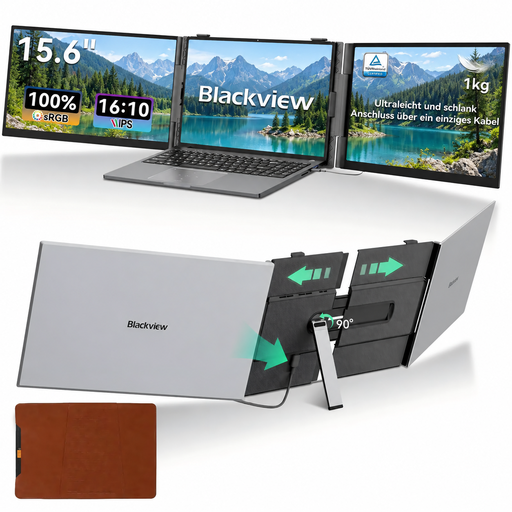
A portable screen extender to compare if you want to use an extra display with your laptop.
The product title lists Full HD and compatibility with 13–17.3-inch laptops. Check that your laptop falls within the stated size range and supports the connection.
 No image available
An ultrawide screen to compare if having two windows side by side on one physical screen is enough for you.
The product title lists a resolution of 3440 × 1440 pixels, USB-C, a webcam, 100 Hz and 90 W Power Delivery. Check that your computer supports this connection and power delivery.
This is one physical screen, so choose this option only if two windows on one monitor meet your needs.
Connect the screens, let Windows detect them and adjust their positions in display settings to match your actual setup. Then choose your preferred display mode and place each window on the intended screen, as described by Microsoft Support.
No, don’t assume there’s a standard number. Apple Support recommends checking how many external screens your exact Mac model supports, which video ports are available and which cables or adapters you need.
Position the screen you use most directly in front of you and try to keep its top edge just below eye level. The Dutch Working Conditions Portal (Arboportaal) gives this as workplace advice; it isn’t a guarantee that a particular monitor will prevent discomfort.
For an applicable distance purchase by a consumer, you’ll generally have a 14-day cooling-off period, according to the Government of the Netherlands. You’re also entitled to a product that works as it should; there’s no fixed two-year statutory warranty period in the Netherlands. A manufacturer’s warranty or additional cover is on top of your statutory rights.
For employees who work at a screen for more than two hours a day, the Dutch Working Conditions Portal (Arboportaal) describes requirements for workplace setup, including a height-adjustable screen. According to Arboportaal, exceptions may be possible under certain conditions if health and safety are safeguarded. Whether these rules apply to your situation depends on your working relationship and how you use the screens.