Who is this for?

Retouchers preparing images for print

If you’re assessing an old portrait with the final print in mind, a suitable colour space and control over your display’s colour reproduction can make a difference. Adobe and EIZO Netherlands describe factors such as paper, ambient light and calibration that can affect how colours appear.

Restorers working on fine portrait details

If you’re retouching damage and subtle tonal transitions, you’ll want to view the image at a good size and resolution without letting tool panels take up too much of your workspace. RTINGS.com notes that high resolution is useful for viewing fine image details.

Editors working with two displays

If you want to keep the photo on one display and tools or references on the other, check the connections, display layout and colour settings for each screen. Microsoft Support explains how to adjust the arrangement of multiple displays in Windows.

What should you look for when choosing?

Specialist photo-editing monitor as your main display

Choose this if: you retouch with colour accuracy in mind or prepare portraits for print. Compare the colour gamut with your intended output and consider how calibration will fit into your workflow.

Bear in mind: display colour reproduction still depends on the settings and calibration status. EIZO and BenQ list hardware calibration for the ColorEdge CS2740 and PhotoVue SW272U respectively.

Versatile monitor as your main display

Choose this if: you keep lots of tools or references open alongside your photo and want to weigh up screen size, resolution and connectivity. ASUS lists a 27-inch 4K display and DisplayPort daisy-chaining for the PA279CRV.

Bear in mind: a stated sRGB coverage is not the same as Adobe RGB coverage, so choose according to your intended output. BenQ lists a 31.5-inch 4K display for the PD3205U.

Add one new display alongside your existing monitor

Choose this if: your existing display is still useful for tools or references, and you want to focus your purchase on the main screen.

Bear in mind: displays of different ages and calibration statuses may show the same photo differently. Judge colour on your chosen main display.

What to consider What should you check? Who should prioritise this?
Colour for print Compare the colour space of your intended output with the stated coverage, and check the calibration method and equipment required. If I’m assessing the portrait for print, I want the display settings to suit my output. Around 31% of consumers put print colour first.
Fine details Compare both the resolution and screen size, and check that the scaling setting on your computer remains comfortable to read. When restoring small areas of damage, I want to see the details without awkwardly arranging my workspace. Around 25% of consumers put detail assessment first.
Setting up two displays Check the video outputs, support for USB-C video or DisplayPort daisy-chaining, cables and colour settings for each display. If I want to see the photo on one display and tools on the other, my computer needs to support the setup. Around 25% of consumers give display layout top priority.
Digital output First decide whether your workflow is based on sRGB, then compare the relevant colour features. For a portrait used digitally in an sRGB workflow, I want to choose features that suit that output. Around 19% of consumers prioritise straightforward digital output.

Common buying mistakes

  • Treating two displays as a single colour reference

    Displays can reproduce colours differently, and their age and calibration status also play a part. As a result, the same portrait colour may look different on each screen.

    Choose one display for your final colour assessment and check the settings on both screens.

    Checking separate settings takes time, and calibration may require additional equipment.

  • Assuming USB-C or daisy-chaining works with every computer

    A monitor’s connection options don’t guarantee that your computer supports the video output or display combination you need.

    Before buying, check the video and power capabilities of your computer, monitor and connection.

    Depending on the connections available, you may need a different cable or adapter.

  • Choosing an Adobe RGB display without deciding on your output

    If your workflow is focused solely on digital sRGB output, a wider Adobe RGB gamut isn’t automatically necessary.

    First decide how the portrait will be used, then compare sRGB, Adobe RGB and calibration features.

Brands to compare

EIZO

The ColorEdge CS2740 is a 27-inch 4K model for anyone considering a colour-managed main display for photo retouching.

  • EIZO lists more than 99% AdobeRGB coverage and hardware calibration for this model.
  • Check what calibration equipment your workflow requires; the stated coverage is not a measurement of an individual display.

BenQ

The PhotoVue SW272U and DesignVue PD3205U offer different approaches: colour work for photography, and a larger display geared towards sRGB.

  • BenQ lists 99% Adobe RGB coverage and hardware calibration for the SW272U; for the PD3205U, BenQ lists a 31.5-inch 4K display with 99% sRGB coverage.
  • These features apply to the models named and are not general characteristics of the entire BenQ range.

ASUS

The ProArt PA279CRV is a 27-inch 4K model with connectivity that may be useful for a multi-display workstation.

  • ASUS lists 99% Adobe RGB coverage, DisplayPort daisy-chaining and USB-C with 96 W power delivery.
  • Two-display connectivity also depends on your computer; the stated colour space is not a measurement of the display you receive.

Dell

The UltraSharp U2723QE is an example of a 27-inch 4K hub monitor as a possible option for a versatile two-display workstation.

  • Dell lists DisplayPort out, USB-C power delivery up to 90 W and 100% sRGB coverage for this model.
  • Check that the features suit your computer and workflow; these specifications don’t automatically apply to other Dell monitors.

Joybuy product picks

These monitors are possible choices for a main display when retouching portraits at a two-screen workstation. Check that your computer supports the combination of connections you need.

Dell UltraSharp U3226Q 32-inch 4K UHD 120Hz QD-OLED monitor

Dell UltraSharp U3226Q 32-inch 4K UHD 120Hz QD-OLED monitor

A possible choice if you’re looking for a large main display with stated colour coverage and automatic calibration.

The product information lists a 32-inch 4K UHD 120Hz QD-OLED display, 100% sRGB, 94% Adobe RGB and an integrated automatic colourimeter.

The Thunderbolt daisy-chaining mentioned requires a computer that supports the necessary features.

View at Joybuy

Philips 27E1N1800AE/00 27-inch 4K UHD IPS monitor

Philips 27E1N1800AE/00 27-inch 4K UHD IPS monitor

A possible choice if you’re looking for a 27-inch 4K display to use alongside an existing monitor.

The product information lists an IPS display with 3840 × 2160 pixels, 60Hz, two HDMI ports, DisplayPort and a height-adjustable stand.

View at Joybuy
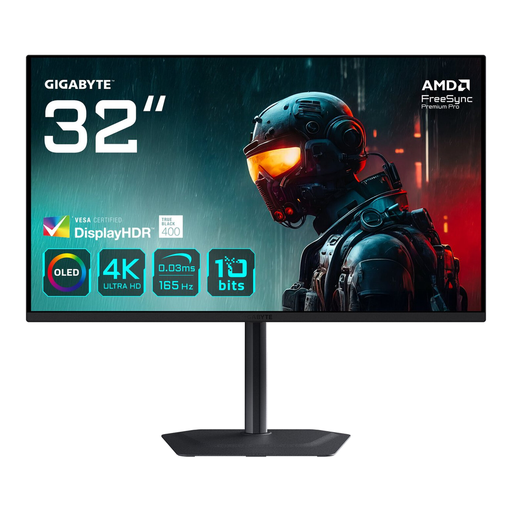
GIGABYTE MO32U 31.5-inch 4K Ultra HD OLED monitor

GIGABYTE MO32U 31.5-inch 4K Ultra HD OLED monitor

A possible choice if you want to connect a 31.5-inch 4K display as your main monitor alongside an existing screen.

The product information lists an OLED display with 3840 × 2160 pixels, DisplayPort and two HDMI inputs.

View at Joybuy

INNOCN CB27U1 27-inch 4K UHD IPS monitor

INNOCN CB27U1 27-inch 4K UHD IPS monitor

A possible choice if you want to compare colour coverage and features for viewing multiple sources side by side.

The product information lists 3840 × 2160 pixels, 120Hz, 100% sRGB, 99% Adobe RGB, Delta E < 1, PIP and PBP.

Support for two displays also depends on your computer and the connections you use.

View at Joybuy
Dell Pro Plus P3225QE 31.5-inch 4K monitor

Dell Pro Plus P3225QE 31.5-inch 4K monitor

A possible choice if you’re considering a larger 4K main display with USB-C connectivity for your workstation.

The product information lists an IPS panel, 3840 × 2160 pixels, USB-C with 90 W power delivery, RJ45 and an adjustable stand.

USB-C power delivery and connecting a second display depend on your computer’s capabilities.

View at Joybuy

Frequently asked questions

Do both displays need to show exactly the same colours in a photo?

No. Don’t assume that two displays will automatically show a photo identically. Choose one main display for critical colour assessment and set the colour reproduction for each screen. Adobe cites differences between displays, age and calibration status among the factors that can cause variation.

How do you position the second display correctly in Windows?

Once connected, you can detect the displays in Windows and adjust their arrangement. Select the display in question before changing its resolution or scaling, as Microsoft Support advises.

Can one USB-C cable connect your laptop to two monitors?

That depends on the capabilities of your computer and monitors. Check separately whether your computer supports USB-C video and the required output to the second display. USB-C video or laptop charging through one monitor doesn’t guarantee that this setup will work.

Who should you contact about a faulty monitor bought in the Netherlands?

According to the Dutch government, the seller must provide a solution if a product is faulty. This legal responsibility is separate from any manufacturer’s warranty or paid extended warranty.

Is there automatically a set returns period when you buy online?

According to the Dutch government, when you buy at a distance the seller must provide information about matters including the cooling-off period, which is usually 14 days. Check the terms of the specific purchase, and don’t confuse a voluntary extended returns policy with the basic legal requirement.
