
Working with two editors
You want to read code and a second file at the same time. Microsoft Support explains how to snap windows side by side in Windows.


An adjustable 27-inch QHD monitor may be enough for two editor windows. Choose a 34-inch ultrawide model if you also want to keep documentation or a preview window readable alongside them. Dell specifies a resolution of 2560 × 1440 pixels for the P2725DE, while Philips and LG list 3440 × 1440 pixels for their respective 34-inch models. However, resolution alone doesn’t determine whether text will be comfortable to read at your preferred size. If you use a laptop, check video output, charging capacity and the cable separately: a USB-C port alone doesn’t guarantee both display output and charging over a single cable.
You want to read code and a second file at the same time. Microsoft Support explains how to snap windows side by side in Windows.
You switch between working on the go and at a desk, and want to check that your monitor and laptop are compatible for display, charging and peripherals. Dell Netherlands lists a USB-C hub and 90 W Power Delivery for the P2725DE.
You want room for code without the screen and stand taking over your workspace. Arboportaal highlights height adjustment and reducing reflections in its guidance on screen-based work for employees.
Start with the windows you want to read at the same time. Then check that the screen, stand and connections suit your desk and laptop.
| What to consider | What to look for | Who is this important for? |
|---|---|---|
| Readable windows side by side | Compare 2560 × 1440 with 3440 × 1440, and try your usual window layout at your preferred text size. | When I’m reading code and a second file at the same time, I want to see both windows at my usual scaling. Around 36% of consumers give having room to read side by side top priority. |
| Connecting a laptop | Check video output, monitor input, USB-C Power Delivery, the cable and whether you need Ethernet or KVM. | For my laptop workstation, I want to know whether the port provides video and enough power. Around 29% of consumers are mainly looking for a suitable laptop connection. |
| Setting up your workspace | Check the height, tilt and swivel range, the stand’s footprint and, if needed, VESA compatibility. | When I work at a desk for long periods, I want to adjust the screen position to suit my workspace. Around 21% of consumers prioritise a suitable workspace setup. |
| A simple, suitable setup | Choose connections and adjustment options you’ll actually use, and check the EU energy label too. | I don’t want to choose features I won’t use for a simple programming task. Around 14% of consumers prioritise a straightforward option tailored to the task. |
Display, charging and peripherals will work only if the monitor, laptop and cable support the necessary functions.
Before buying, check your laptop’s video output, the charging power you need and which cable is included.
If the connection isn’t suitable, you may still need another cable, an adapter or a dock.
An ultrawide screen won’t automatically fit every desk. LG lists tilt adjustment for the 34WR50QK-B; extra width alone doesn’t tell you whether the height can be adjusted.
Measure the space available for the screen and stand, and check the adjustment options for the exact model.
You may need to rearrange your desk or use a suitable monitor arm to position the screen properly.
There is no fixed statutory warranty period in the Netherlands. The Dutch government says that the retailer must provide a solution if a product is faulty.
Read what additional cover is offered and compare its terms with your existing rights.
The P2725DE is a specific example of a 27-inch QHD monitor with adjustment options and a USB-C hub.
The 346E2CUAE/00 is an example of a 34-inch ultrawide monitor with USB-C.
The 34WR50QK-B is a 34-inch ultrawide model with HDMI and DisplayPort connections.
The ThinkVision P27h-30 is an example of a 27-inch QHD monitor with features for a laptop workstation.
The ProArt PA32QCV is a 31.5-inch model with 6K resolution and Thunderbolt 4.
Below are Joybuy monitors for coding and viewing windows side by side: 27-inch models for a more compact setup, and wider screens for extra horizontal workspace. Compare the stand, adjustment options and connections with your own desk and laptop too.
 No image available
A 27-inch screen with 3840 × 2160 pixels for arranging editor windows side by side. Check that text remains readable at your preferred scaling.
60 Hz, 4 ms, HDMI, DisplayPort and height-adjustable stand.
 No image available
A 27-inch QHD option for using two editor windows at a fixed workstation. Check that your own editor layout is easy to read.
Dell specifies 2560 × 1440 pixels, a USB-C hub, 90 W Power Delivery and an adjustable design. Check compatibility with your laptop and cable.
 No image available
A 34-inch ultrawide model for arranging editors alongside documentation or a preview window. Measure the available space first.
3440 × 1440 pixels, USB-C dock, LAN, KVM and a height-adjustable stand with 15 cm of adjustment.
 No image available
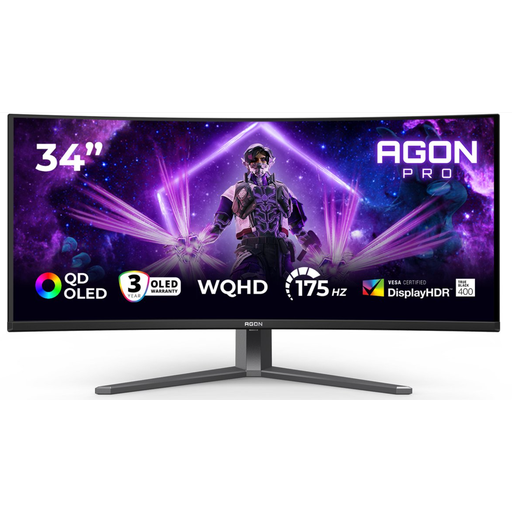
The 34-inch aspect ratio and 3440 × 1440 resolution give you room to arrange several windows across the screen. Check that this size will fit your desk.
The product name lists DisplayPort up to 175 Hz, HDMI up to 100 Hz, two HDMI connections, DisplayPort, and height, swivel and tilt adjustment.
 No image available
An extra-wide screen for using several windows at once. Carefully check that it will fit your desk setup.
It lists 5120 × 1440 pixels, KVM and USB-C with 90 W Power Delivery. Check that your laptop supports the connection and charging capacity.
Not necessarily. Microsoft Support explains how to snap two windows side by side in Windows 10 and 11. Choose a screen resolution and text size that keep your code readable; this doesn’t establish whether the feature is supported in other operating systems.
No. Check whether your laptop supports video through the port you plan to use, whether the monitor supplies power, and whether the power output and cable are suitable. Dell specifies 90 W for the P2725DE; that figure alone doesn’t tell you how much power your laptop needs.
Adjust the screen position to suit your workspace and watch out for distracting reflections. Arboportaal sets out guidance for employees who work with screens; don’t present it as a legal requirement for everyone studying at home.
No. According to the Dutch government, there is no fixed statutory warranty period in the Netherlands, and the retailer must provide a solution if a product is faulty. Read what additional cover is offered and compare its terms with your existing rights.
According to the Dutch government, when you buy from a business at a distance, you will often have a 14-day cooling-off period. Check the applicable terms; its guidance explains that an online purchase from a private seller doesn’t count as a distance sale in this sense.