Who is this guide for?

Writer with two documents open

You want to read and edit a draft and booking information at the same time. First, consider how much space you need at your workstation for two easy-to-read windows. Microsoft Support describes snapping windows as a way to arrange them on your screen.

Writer who spends long periods at the screen

You want an adjustable workstation and a screen that doesn’t cause distracting reflections. Arboportaal outlines rules for employees who work with display screen equipment; how these apply depends on the working situation.

Laptop user with limited desk space

You want a more compact setup or fewer separate connections. Compare the screen size with the space available, and check which video connection and USB-C power delivery your laptop needs.

What should you look for when choosing?

What to consider What to look for Who should pay particular attention?
Space for windows Try your usual window layout and compare the screen’s aspect ratio and resolution. The stated resolution alone won’t tell you whether the text will be a comfortable size to read. If you want to read a draft and source or booking information at the same time while writing, space for two windows is your main consideration. Around 38% of consumers prioritise this window space when making their choice.
Adjustability Check whether the monitor is height-adjustable or can be mounted appropriately, and see if you can position it to avoid distracting reflections. If you work at a screen for long periods, you’ll want to adjust your setup to suit your reading position. Around 23% of consumers consider adjustability their main priority.
Laptop connection Check the laptop output, supported video resolution, cable and any required charging wattage separately. The 90 W power delivery for the AOC Q27E4CV and 65 W for the LG 34WR55QK-B are specified by the manufacturer for those models. If you want to connect your laptop to the monitor and possibly charge it using the same cable, the connection must be suitable for both devices. Around 23% of consumers put this connection first.
Desk space Measure the space for the screen and try your operating system or word processor’s window layout first. This can help you decide whether you need a new monitor. If your workspace is small or your existing screen might already be enough, you won’t want to choose a larger screen than you need. Around 16% of consumers prioritise a compact, practical setup.

Common pitfalls

  • Confusing MultiView with viewing two documents from one computer

    You don’t need a feature for displaying multiple devices to put two regular windows from the same computer side by side.

    First try the window feature in your operating system or word processor. Then decide whether you need more screen width.

  • Assuming every USB-C monitor provides both a picture and enough power

    The stated Power Delivery wattage applies to a specific monitor model. Your laptop also needs to support the connection.

    Compare the port specifications and the charging wattage required by both devices before choosing a cable setup.

    Depending on the combination, you may still need a separate laptop charger or a suitable cable.

  • Choosing based on screen size alone

    An ultrawide screen needs room, and adjustability and positioning also matter if you work for long periods.

    Measure your desk and check the exact model’s adjustability before you decide.

    A suitable mount or alternative setup may require extra space or adjustments.

  • Mistaking an extra warranty for your full statutory protection

    An optional additional warranty is separate from your statutory rights. According to the Dutch government, the retailer is your point of contact if a product is faulty.

    Check what an optional additional warranty offers before paying for it.

Brands to compare

Philips

The E Line 346E2CUAE/00 is a researched ultrawide model for anyone looking for more horizontal space.

  • Philips lists a 34-inch screen, 3440 × 1440 pixels, USB-C and an ergonomic stand for this model.
  • Check the width of your desk and compatibility with your laptop. MultiView is not the same as placing two windows from one computer side by side.

AOC

The Q27E4CV is a researched 27-inch QHD model with docking features; the Q27E4U is a separate model.

  • According to AOC, the Q27E4CV is height-adjustable and offers 90 W USB-C Power Delivery.
  • AOC lists a five-year manufacturer’s warranty for the Q27E4U. Don’t assume this warranty also applies to the Q27E4CV without checking.

Dell

The UltraSharp U2724D is a researched 27-inch QHD alternative for anyone who doesn’t need an ultrawide panel.

  • Dell specifies a resolution of 2560 × 1440 pixels and height adjustment for the U2724D.
  • Don’t assume the U2724D provides the same USB-C laptop power delivery as the separate U2724DE hub monitor.

LG

The 34WR55QK-B is a researched ultrawide alternative with USB-C.

  • LG specifies 3440 × 1440 pixels, height adjustment and 65 W USB-C Power Delivery.
  • LG Netherlands marks the consumer product page for this model as discontinued. Check its current availability; a product listing doesn’t guarantee that new stock will remain available.

Joybuy monitors for viewing documents side by side

These Joybuy picks focus on a single monitor with extra horizontal space for documents open at the same time.

Philips 34B2U5900C/00 curved dual-mode business monitor, 34 inch

Philips 34B2U5900C/00 Curved Dual-Mode Business Monitor, 34 inch

An option for anyone who wants to use one ultrawide screen to view documents side by side.

The product name specifies a curved 34-inch monitor.

View at Joybuy

LG 34WR50QK-B monitor, 34 inch, 3440 × 1440 pixels

LG 34WR50QK-B, 34 inch, 3440 × 1440 pixels

An option for anyone considering an ultrawide screen to view a draft and booking information side by side.

The product name specifies 34 inch and 3440 × 1440 pixels.

View at Joybuy

Philips E Line 346E2CUAE/00, 34 inch, 3440 × 1440 pixels

Philips E Line 346E2CUAE/00, 34 inch, 3440 × 1440 pixels

An ultrawide option for anyone who wants to view two documents on one monitor.

The product name specifies 34 inch and 3440 × 1440 pixels.

View at Joybuy

Dell UltraSharp U4924DW, 49 inch, 5120 × 1440 pixels

Dell UltraSharp U4924DW, 49 inch, 5120 × 1440 pixels

For anyone looking for lots of horizontal space on one screen; measure first to check that the size suits your workspace.

The product name specifies 49 inch and 5120 × 1440 pixels. The stated product width is 121,49 cm.

View at Joybuy
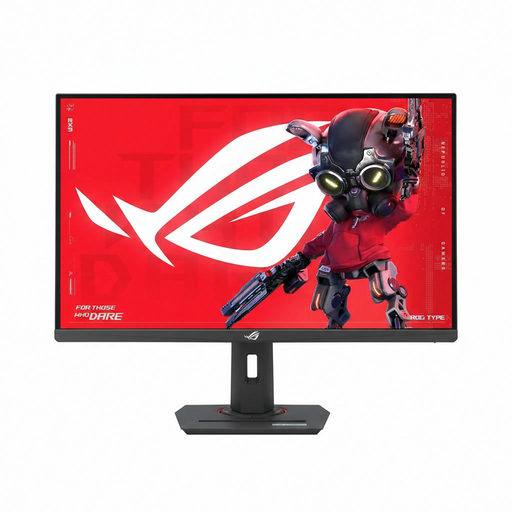
ASUS ROG Strix XG27ACMS, 27 inch, 2560 × 1440 pixels

ASUS ROG Strix XG27ACMS, 27 inch, 2560 × 1440 pixels

A 27-inch QHD option to compare if you’re looking for a narrower screen than an ultrawide model.

The product name specifies 27 inch and 2560 × 1440 pixels.

View at Joybuy

Frequently asked questions

Do you need special screen software to put two documents side by side?

Not necessarily: Microsoft Support explains how to snap windows in Windows and use the ‘View Side by Side’ feature in Word. Check whether your operating system and document programme offer these features; they don’t depend on a particular monitor brand.

Can you connect an extra monitor to your laptop?

It depends on your laptop’s outputs and display support, as well as the monitor’s inputs. Microsoft Support explains how to arrange multiple screens in Windows; check beforehand that your laptop supports the setup you have in mind. The presence of a USB-C port alone doesn’t confirm that it can output video or charge your laptop.

Who can help if a monitor you bought in the Netherlands turns out to be faulty?

According to the Dutch government, the retailer is your point of contact if there’s a problem with a product. The Netherlands has no fixed statutory warranty period; the product’s circumstances and how it is used are taken into account. Check what any additional warranty offers on top of your statutory rights.

Are there requirements for your monitor when working from home?

An employer’s duty of care also applies when employees work from home. Arboportaal states that employees who work with display screen equipment for more than 2 hours a day are subject to requirements including those for the workstation and a height-adjustable screen. There may be circumstances in which the rules can be varied, provided health and safety are protected; these aren’t general product specifications for every private buyer.

Should you take breaks when working at a screen for long periods?

Arboportaal says that employees who work with display screen equipment should regularly alternate this with other work or a break. A new monitor doesn’t replace the need to organise your work in this way.
