Start by considering how much space you need for two documents at your usual text size. A 27-inch QHD monitor is a common starting point, while an ultrawide gives you more horizontal space. A 27-inch 4K monitor could be worth considering if you also review images. Check that the screen fits on your desk and that your computer supports the resolution you want, as well as any USB-C video features. Two separate screens are another option if you prefer to keep your source material and draft apart.
Who is this choice relevant to?
Writer working with two documents
You refer to a camera manual while writing a quick-start guide and want both windows to remain easy to read. The Dell P2725D and Samsung ViewFinity S6 give you different screen sizes and aspect ratios to compare for this layout.
Editor working with images and instructions
You also review screenshots, photos or the layout of instruction steps, while still wanting to read the text. LG lists the 27UP850K-W as having a 4K resolution of 3840 × 2160 pixels.
Laptop writer with a permanent workstation
You regularly connect a laptop and want to know whether one connection can handle video, data and charging. Dell and Philips describe USB-C features for specific monitor models; check your laptop’s connection and power requirements.
What should you look for when choosing?
One 27-inch QHD monitor
A good fit if: you mainly want to place two text windows on one adjustable screen.
Bear in mind: resolution alone won’t tell you whether the windows will be comfortable to read at your preferred text size.
One 27-inch 4K monitor
A good fit if: you regularly check details in camera images, screenshots or layouts as well as working with documents.
Bear in mind: more pixels won’t automatically give you more usable document space if you increase display scaling to make text easier to read.
One 34-inch ultrawide monitor
A good fit if: extra horizontal space for two wide documents is your main priority.
Bear in mind: check that the physical width and curved design of a model such as the Samsung ViewFinity S6 suit your desk and preferences.
Two separate screens
A good fit if: you want to view your source material and draft on separate screens.
Bear in mind: you’ll need space and connections for two screens; Microsoft explains how to set up multiple monitors in Windows.
When writing a camera quick-start guide, your choice mainly comes down to document space, image review, screen positioning and how you connect your laptop.
| What to consider |
What to look for |
Who should pay extra attention? |
| Two document windows |
Compare screen width and resolution; try your usual text size and window layout. |
If I want to read the manual and my draft side by side, usable space matters more than extra features. Around 36% of consumers prioritise document space. |
| Images and instructions |
Check the resolution and see whether text and images are both easy to review at your chosen display scaling. |
When I review screenshots or camera images while writing, I want to check the details without losing sight of the text. Around 29% of consumers prioritise image review. |
| Screen positioning |
Check the height and tilt adjustment, any pivot function and the space available on your desk. |
If I’m reading and writing for long periods, I want to position the screen comfortably. A pivot function can help with a long document, but gives you less width for two windows. Around 21% of consumers focus mainly on their workstation setup. |
| Connecting a laptop |
Check USB-C video support, the power output required and the connections for other equipment on both devices. |
If I want to connect my laptop with as few cables as possible, the monitor needs to meet my laptop’s video and charging requirements. Around 14% of consumers prioritise ease of connection. |
Common mistakes
-
Comparing screen diagonal alone
A 27-inch QHD screen, a 27-inch 4K screen and a 34-inch 21:9 screen differ in resolution and shape. So the diagonal alone won’t tell you how two documents will look at your preferred text size.
Compare the resolution and physical width, and try the window layout you plan to use while writing.
-
Assuming USB-C always means one cable
Video and charging over USB-C depend on the capabilities of both the monitor and the laptop. Dell specifies USB-C power delivery of up to 90 W for the P2725DE; this doesn’t guarantee that every laptop will work with this model using a single cable.
Check your laptop’s video support and charging requirements before choosing a monitor with a built-in hub.
If the combination isn’t compatible, you may need an additional connection or a separate laptop charger.
-
Overlooking adjustability and workstation setup
A useful window layout won’t automatically solve the question of where to position your screen on your desk. Adjustability is no substitute for taking breaks from extended screen work, either.
Check the stand and the space on your desk, and arrange your workstation to suit how you work.
Brands to compare
Dell
The Pro Plus P2725D and P2725DE offer different options: a 27-inch QHD monitor and a QHD model with a USB-C hub.
- Dell specifies USB-C power delivery of up to 90 W and an RJ45 connection for the P2725DE.
- The P2725D and P2725DE are different models. Choose hub features only if they suit your laptop setup.
LG
The UltraFine 27UP850K-W is a 27-inch 4K model for anyone who reviews images as well as documents.
- LG lists a resolution of 3840 × 2160 pixels and a stand with height, tilt and pivot adjustment.
- Usable text space also depends on your display scaling settings; specifications aren’t an independent usage test.
Philips
According to Philips, the Philips 27E1N5600HE/00 combines QHD resolution with USB-C features for a compatible device.
- Philips describes video, data transfer and charging over USB-C.
- Check your laptop’s connection and power requirements; the model description doesn’t mean that every laptop will work with a single cable.
Samsung
The ViewFinity S6 S65VC is a 34-inch, 21:9 alternative if two document windows call for extra horizontal space.
- Samsung specifies a 1000R curvature for this model.
- Whether a curved screen works well for document layouts depends on your preference; comfort claims aren’t based on independent measurements.
Joybuy monitors for this workstation
This selection includes QHD, 4K and ultrawide monitors to compare for document work and image review at a permanent workstation.
 No image available
Dell UltraSharp U3226Q 32" 4K UHD 120Hz QD-OLED monitor
A 32-inch screen could suit you if you want to compare document space on a single monitor; check that this size will fit on your desk first.
32 inches, 4K UHD, 120 Hz and QD-OLED according to the product name.
Joybuy
 No image available
Philips 27E1N1800AE/00 27-inch 4K UHD IPS monitor
This 27-inch 4K option could be worth considering if you also look at camera images and text while writing; check which display scaling feels comfortable for you.
3840 × 2160 pixels, 60 Hz and IPS according to the product name.
Joybuy
 No image available
MSI Modern MD272UPHG 27-inch 4K Ultra HD monitor
A 27-inch 4K model is one option for viewing documents and camera images on the same screen; check whether the window layout works at your preferred text size.
3840 × 2160 pixels and 4K Ultra HD according to the product name.
Joybuy
 No image available
Dell UltraSharp U2724D 27-inch QHD monitor
This 27-inch QHD option is worth comparing if you mainly want to use two text windows on one screen.
2560 × 1440 pixels according to the product name.
Joybuy
 No image available
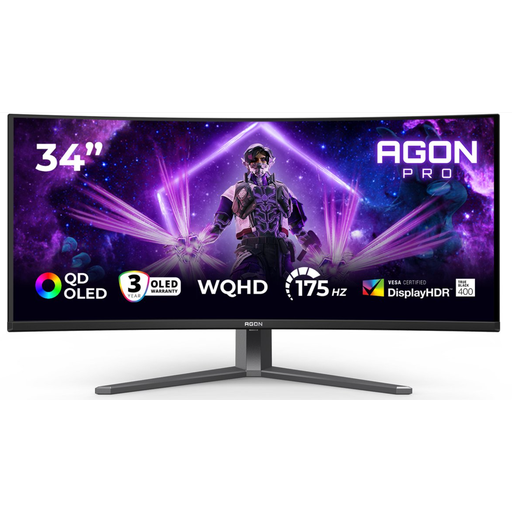
AOC AGON PRO AG346UCD 34-inch ultrawide monitor
An ultrawide model could be a good choice if you want to place two wide documents side by side; check that the screen width suits your desk.
3440 × 1440 pixels; the product name lists DisplayPort up to 175 Hz and HDMI up to 100 Hz.
Joybuy
Frequently asked questions
Do you need two monitors to work with two documents?
No, Windows can arrange windows side by side on one screen. Two physical screens are an alternative if you prefer to keep your source material and draft apart; if so, check that your computer can run both screens.
Will video and charging work over a single USB-C cable with every laptop?
No, having a USB-C port alone doesn’t guarantee this. Philips describes the combination for a compatible device, while Dell specifies a maximum power output for the P2725DE. Compare your laptop’s video and power requirements with the exact model.
What should you consider if you spend a long time working on your quick-start guide?
Adjust your screen and workstation to suit you, and take breaks from extended screen work. Arboportaal outlines workplace requirements for employees who work at a screen for more than two hours a day; whether these apply to you depends on your work and how you use your screen.
What are your rights if a monitor bought online isn’t as expected?
For many online purchases from a business, you have a 14-day cooling-off period, according to the Dutch government. If a product is faulty, contact the seller to find a solution; assess the specific purchase and any exceptions separately.
What should you do with an old monitor?
For consumer electronics, the Dutch government describes a free take-back scheme when you buy a similar appliance, including for online purchases. You can also check your local recycling options.


