
Writer with a small desk
You mainly write and organise text, and want to position the screen comfortably without giving up too much desk space.


If you mainly write and organise text at a small desk, start with a compact, adjustable screen. For regular photo editing, a 27-inch QHD monitor with specified colour features may be worth considering; choose 4K if the extra photo detail is worth the space it takes up. With any option, check that the video connection and power delivery suit your laptop: a USB-C port does not automatically support video.
You mainly write and organise text, and want to position the screen comfortably without giving up too much desk space.
You regularly edit photos for your journal and want to compare specified colour coverage and any factory calibration. Manufacturer specifications are not an independent measurement of the individual unit.
You switch between your laptop and monitor and want to know in advance whether you can connect the display and, if possible, power through the same cable.
First measure the available space, then decide how much screen space you need for text and photos. Check the connections on both the monitor and laptop before relying on a single cable.
The percentages below show consumers’ top buying priorities when looking for a monitor to edit a travel journal in a student room.
| What to consider | What should you check? | Who should pay particular attention? |
|---|---|---|
| Colour for photo editing | Compare the specified colour space and any calibration for the exact model; consider these details alongside screen size and connections. | If travel photos are an important part of my journal, I want to know which colour features are specified for the exact model. Around 29% of consumers make photo colour their top buying priority. |
| Positioning on your desk | Measure the width and depth, and check the dimensions with the stand; also look at the height adjustment. | At a small student desk, I want to know in advance whether the screen and stand will fit and whether I can adjust the viewing height. For around 29% of consumers, positioning is the top buying priority. |
| Space for text and photos | Compare the screen size and native resolution with the windows you want to view at the same time. | When I want to see text, photos and editing tools side by side, I compare the physical screen space and resolution. Around 21% of consumers prioritise this workspace. |
| Connecting and charging your laptop | Check video output and power delivery on both devices. Dell lists the P2425’s USB-C port for downstream data; Philips describes video and power via USB-C for a compatible device. | If I want to use my laptop with as few cables as possible, I check that both the laptop and monitor support the video and power features I need. For around 21% of consumers, the laptop connection is the top buying priority. |
Features vary by model. Dell specifies the P2425’s USB-C port as a downstream data port, while Philips describes USB-C video and power for a compatible device with the 27E1N5600AE/00.
Check the port functionality of the exact monitor model, along with your laptop’s video and charging capabilities, before choosing a cable.
Depending on the connections, you may need a different cable or adapter, or have to charge your laptop separately.
A 27-inch monitor with a stand takes up more desk space than a more compact model; the position of windows can also affect your setup.
Measure the available width and depth, then compare them with the monitor’s dimensions, including the stand. Also check the adjustment options on the exact model.
BenQ and ASUS specify colour coverage and factory calibration for particular models. These manufacturer specifications are not an independent measurement of the individual unit in your workspace.
Compare the specified colour space of the exact model with your photo work, and don’t base your choice on general colour terms alone.
For more extensive colour checks of your own, you may need additional calibration equipment.
These models illustrate different screen sizes, colour features and connections. The features listed apply to the specific models, not automatically to every product range from each brand.
The P2425 is a more compact option to compare if you’re looking for an adjustable screen for a smaller desk.
The PD2705Q is a 27-inch QHD model to compare if specified colour features for travel photos are important to you.
The 27UP850K-W is a 27-inch 4K model to compare if extra photo detail and an adjustable stand are important to you.
The ProArt PA278QV is a 27-inch QHD model to compare if you’re looking for specified sRGB coverage and factory calibration.
The 27E1N5600AE/00 is a QHD model to compare if you want to connect a compatible laptop using a single USB-C cable.
These models are suited to writing at a student desk and comparing or editing travel photos, from compact screens to larger QHD and 4K options.
 No image available
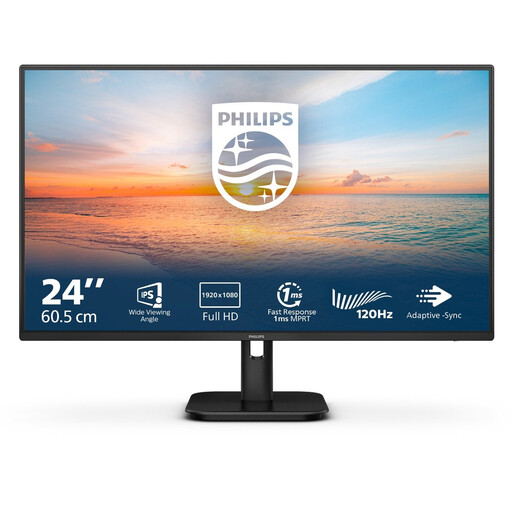
A 24-inch screen to compare for working with text at a smaller desk.
Full HD, 1920 × 1080 pixels, IPS panel and 100 Hz; the product name also mentions speakers.
 No image available
The portable 16-inch size and built-in stand could suit a workspace where you want to use a second screen.
2560 × 1600 pixels, IPS panel and USB-C and HDMI connections. The specified sRGB figure is 123%; this is a product specification, not an independent measurement.
 No image available
A 27-inch 4K option to compare if you want to view highly detailed photos and have room for a larger screen.
3840 × 2160 pixels; specified colour figures are 97% DCI-P3 and 94% Adobe RGB. The product information mentions factory calibration and USB-C with up to 98 W Power Delivery.
 No image available
A larger screen to compare if you want to view photos and layouts in fine detail.
3840 × 2160 pixels and IPS panel. The product information mentions a height-adjustable stand and USB-C video and power delivery of up to 65 W for a compatible laptop.
 No image available
A 27-inch QHD option to compare if you want to view photos alongside text and layouts.
2560 × 1440 pixels; specified colour figures are 100% sRGB and 95% DCI-P3. The product information mentions USB-C with up to 90 W Power Delivery.
No, 4K isn’t essential for every travel-journal workflow. If you mainly write and occasionally select photos, first compare screen size, positioning and a resolution that suits your work. If you regularly assess fine photo details, you could compare a 4K model with QHD models; the specified resolutions don’t prove that 4K is better for everyone.
First check that the screen and stand fit on your desk, then adjust an adjustable model to suit your workspace. When positioning it, also consider distracting reflections from windows or sunlight. Arboportaal discusses workplace considerations for employees; this doesn’t automatically mean the same requirements apply to a student editing a travel journal for personal use.
No, it depends on the features supported by both the laptop and the monitor. For the 27E1N5600AE/00, Philips describes video and power via USB-C for a compatible device, while Dell specifies the P2425’s USB-C port as a downstream data port. Check your laptop’s video output and required charging power.
According to ACM ConsuWijzer, online consumer purchases generally come with a 14-day cooling-off period after delivery, subject to exceptions. You’re also entitled to a legal guarantee for as long as the product should last under normal use, based on what you could reasonably expect. If it develops a fault that falls short of this, contact the seller for an appropriate solution at no extra cost.
According to EUR-Lex, the EU Low Voltage Directive applies to electrical equipment designed for 50–1,000 V AC or 75–1,500 V DC. Check the electrical specifications of the exact version before deciding whether the directive applies. A CE mark is not, by itself, an independent assessment of display or colour performance.