
Editor of long transcripts
You spend long periods reading and correcting running text, and want enough vertical space, legible characters and a screen that’s positioned appropriately.


When editing transcripts and checking references, your choice will depend largely on how you arrange your windows: a 27-inch 4K monitor is one option for detailed text, 3:2 gives you more vertical screen space, and an ultrawide monitor provides more room for side-by-side windows. Dell, BenQ and LG list these resolutions and aspect ratios for specific models; on their own, they don’t prove that a monitor is easier to read or more productive. Also check text size, desk and stand space, and whether the ports and charging capabilities suit your laptop.
You spend long periods reading and correcting running text, and want enough vertical space, legible characters and a screen that’s positioned appropriately.
You compare statements with scans, notes or references and want to see multiple windows at once. How well this works depends on your text scaling and window layout.
You want to connect your display and, if needed, charge your laptop through a suitable port, without overlooking adjustability and readability.
Choose this layout if: you mainly want to view one transcript or document in detail and can rearrange your windows. Dell lists the P2725QE as having 3840 × 2160 pixels on a 27-inch screen.
Bear in mind: text scaling; the stated resolution alone doesn’t guarantee comfortable reading.
Choose this layout if: you often scroll through long transcripts or footnotes. BenQ lists the RD280UA as having 3840 × 2560 pixels and a 3:2 aspect ratio.
Bear in mind: measure the space needed for the stand or arm, and check that the screen width suits your windows.
Choose this layout if: you need the transcript, source and notes side by side at your preferred text size. LG lists the 34WR55QK-B as having a 21:9 aspect ratio and 3440 × 1440 pixels.
Bear in mind: LG marks this model as discontinued; a product page doesn’t tell you whether it will remain available.
Set up your usual window layout at the text size you want to work with. Also measure the available desk space and, if you use a laptop, compare the ports and charging power you need.
| What to consider | What should you check? | Who is this important for? |
|---|---|---|
| Readability | Compare the resolution and screen size; try text at your preferred size and watch out for reflections. | I want to read transcripts and references at a comfortable text size. Around 33% of consumers rank readability above other buying priorities. |
| Source windows side by side | Set up your window layout at your preferred text size and measure the available desk width. | I want to see the transcript, source and notes at the same time, so I don’t have to keep switching between windows. Around 27% of consumers give having source windows open simultaneously their highest priority. |
| Workspace setup | Check the adjustment options on the exact model, its position in relation to windows, and the space needed for a stand or arm. | I want to position the screen comfortably and minimise distracting reflections. For around 20% of consumers, workspace setup comes first. |
| Connecting and powering a laptop | Compare your laptop’s video output and charging requirements with the port features and stated power delivery of the monitor model. | I want to connect my laptop for both display and charging through a port that suits it. Around 20% of consumers give a suitable laptop connection their highest priority. |
Character size, contrast, glare and lighting also affect readability. The Arboportaal lists these factors in relation to screen work.
Assess a transcript with real references at the size you intend to work with.
USB-C features and charging power vary by model. The presence of a port alone doesn’t confirm that your laptop can output video and charge appropriately at the same time.
Compare your laptop’s video output and charging requirements with the features and power delivery of the exact monitor model.
Depending on your laptop and existing accessories, you may need a different cable, an adapter or a separate charger.
According to LG, the LG 34WR55QK-B is 809 mm wide with its stand, so it may take up a different amount of desk space than you’d expect from the diagonal measurement.
Measure your desk and preferred viewing setup before comparing a 21:9 screen with a standard or 3:2 layout.
ACM ConsuWijzer distinguishes between statutory consumer rights and a voluntary warranty from the manufacturer or seller.
Keep your proof of purchase and, if there’s a fault, contact the seller about your rights as well.
The Pro Plus models include a 27-inch 4K option and a 27-inch QHD docking option.
The RD280UA is a 3:2 option for anyone looking for extra document height; BenQ positions it as a monitor for programming.
The UltraWide 34WR55QK-B is an example of a layout that gives you room for multiple windows side by side.
The business-focused 27B2G5601/00 is a 27-inch QHD model with USB-C docking.
This selection mainly features 27-inch 4K monitors for detailed text, alongside a 34-inch ultrawide model for side-by-side windows.
 Image unavailable
The 27-inch 4K layout is one option for detailed transcripts; check the text scaling to make sure it’s comfortable to read.
3840 × 2160 pixels; 60 Hz; 4 ms; HDMI and DisplayPort; height-adjustable stand.
 Image unavailable
The 27-inch 4K layout may suit detailed documents; adjust the text scaling to a size you find comfortable to read.
3840 × 2160 pixels; 4K Ultra HD.
 Image unavailable
The 27-inch 4K mode is one option for detailed documents; check which mode and connections suit the way you use it.
4K UHD at 160 Hz or FHD at 320 Hz; the stated 320 Hz does not apply to 4K. Type-C with 65 W power delivery.
 Image unavailable
The 27-inch 4K layout is one option for transcripts with detailed references; resolution alone doesn’t determine how easy the text will be for you to read.
3840 × 2160 pixels; 4K Ultra HD.
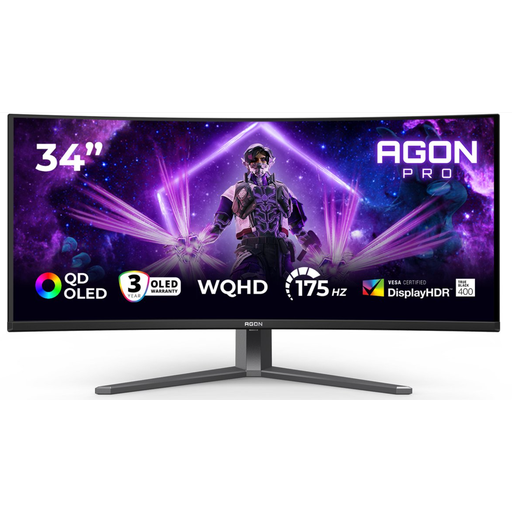 Image unavailable
A 34-inch ultrawide layout may suit you if you want your transcript and sources side by side; measure your available desk space first.
3440 × 1440 pixels; DisplayPort 175 Hz and HDMI 100 Hz; two HDMI ports and DisplayPort; height, swivel and tilt adjustment.
No, 4K isn’t a general requirement. Compare text at the size you intend to work with; the Arboportaal also lists character size, contrast and glare as factors affecting readability.
Adjust the height, contrast and lighting to suit you, and avoid distracting glare. For employees, the Arboportaal says screen work should be alternated at set intervals with other work or a break; a monitor doesn’t replace the need to vary your activities.
According to ACM ConsuWijzer, statutory consumer rights apply alongside any manufacturer’s warranty. If a product doesn’t perform as you could reasonably expect under normal use, the seller is responsible for providing an appropriate solution; a stated manufacturer’s warranty period doesn’t automatically limit that right.
For an online consumer purchase, ACM ConsuWijzer says you’ll often have a statutory cooling-off period of up to 14 days after delivery, with some exceptions. Check the terms for trying and returning the monitor before you buy; this consumer rule doesn’t necessarily apply to business purchases.
Certain rules on screen-based workstations apply to employees. The Arboportaal states that if you work at a screen for more than two hours a day, the screen and keyboard must not be attached to each other. This isn’t a uniform product specification for every private buyer.