
Writers reviewing edits
You mainly work on one manual and want to keep track of the text, tracked changes and comments at the same time. Microsoft Support explains that tracked changes can be displayed using different text colours and lines.


If you mainly work in one document, an adjustable 27-inch QHD monitor could be a useful starting point. If you want to view a manual and source material at the same time, an ultrawide monitor or two screens may be a better fit. Before buying, check readability at your preferred text size, the space available on your desk, and whether the monitor’s video connection and power supply are compatible with your laptop.
You mainly work on one manual and want to keep track of the text, tracked changes and comments at the same time. Microsoft Support explains that tracked changes can be displayed using different text colours and lines.
You keep a manual open alongside an earlier version or a source document, and want to view both files side by side. Microsoft Support explains how to display Word documents side by side.
You regularly connect a laptop and want to adjust the screen position and connections at your desk. Arboportaal offers guidance on positioning a monitor.
A good fit if: you mainly edit one manual and want to read revisions or comments alongside it. Philips and Dell specify a QHD resolution of 2560 × 1440 pixels for the 27-inch models mentioned here.
Bear in mind: a standard 16:9 screen offers less width for two large document windows than a 21:9 model. Text scaling can also reduce the usable space.
A good fit if: you regularly place a manual and source material side by side and have enough desk space. LG specifies a 34-inch 21:9 screen with 3440 × 1440 pixels for the 34WR55QC-B.
Bear in mind: measure the space on your desk and check that both windows remain readable at your preferred text size. A wide screen alone won’t ensure a good working posture.
A good fit if: you want to keep the manual and a second document on separate screens. Microsoft Support explains how to display two Word documents side by side.
Bear in mind: two screens need extra desk space, connections and cables. Check that your computer can support two external screens, and place the document you’re working on directly in front of you.
| What to consider | What should you check? | Who is this important for? |
|---|---|---|
| Room for revisions | View a representative document with mark-ups and the comments pane open at your preferred text size. Consider screen size and resolution together. | If I want to follow revisions and comments as I write, I check that the text remains readable at my chosen scale. Around 40% of consumers prioritise space for revision text and comments. |
| Documents side by side | Check whether two windows fit at your preferred text size, and compare an ultrawide screen with the space and connections needed for two separate screens. | When I compare a manual with a source or earlier version, I want to switch between windows as little as possible. Around 30% of consumers prioritise being able to see two documents at once. |
| Screen position and reflections | Check the height adjustment, where the screen will sit on your desk and how light from windows falls on it. | If I write for long periods, I want to position the screen comfortably and reduce distracting reflections. Around 20% of consumers prioritise their workspace set-up. |
| Connecting to your laptop | Compare your laptop’s video output and required charging power with the monitor specifications and the cable you plan to use. | When I connect my laptop at a permanent workstation, I want to know whether one connection will provide a picture and enough power to charge it. Around 10% of consumers prioritise having a suitable laptop connection. |
Resolution alone doesn’t tell you how much of your document will remain comfortable to read at your preferred text size. Space for revision mark-ups and comments matters too.
Assess screen size, text scaling and the position of the comments pane together, using a representative document.
USB-C features and charging power vary between monitors. The connector alone doesn’t confirm that your laptop will receive a picture and enough power to charge.
Before buying, compare the specifications for your laptop, monitor and cable, including the video and charging support required.
You may need a compatible cable, a different connection or a separate laptop power supply.
The extra width for windows needs to fit on your desk and work with a screen position you can adjust.
Measure the available space, decide where your main document will go, and check the height adjustment and how light falls on the screen.
The 27E1N1600AE/00 is a 27-inch QHD monitor you can use as a comparison point for working on one document.
The P2725DE is a 27-inch QHD monitor with a USB-C hub for a laptop workspace.
The 34WR55QC-B is an ultrawide alternative for viewing windows side by side.
The ThinkVision T27h-30 is a 27-inch QHD office monitor with USB-C docking capabilities.
These Joybuy picks are ultrawide monitors for viewing a manual and source material side by side. For each model, check that the screen will fit on your desk and that its laptop connection meets your requirements.
 No image available
An ultrawide option for viewing a manual and source material in separate windows.
21:9 aspect ratio and 3440 × 1440 pixels.
USB-C with DisplayPort Alt Mode and up to 90 W Power Delivery; your laptop and cable must be compatible.
The stand is height-adjustable, tiltable and swivels. The monitor also has a USB hub, KVM and ethernet.
 No image available
A 34-inch ultrawide option for viewing several windows side by side.
21:9 aspect ratio with a specified WUHD mode of 5120 × 2160 pixels.
USB-C up to 140 W, a USB hub, KVM and ethernet are listed; check that your laptop and cable support the required standards.
The stand supports height, swivel and tilt adjustment.
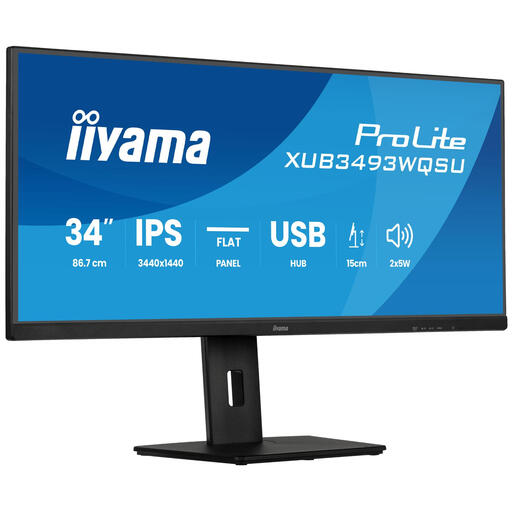 No image available
An option for displaying documents or sources in separate windows side by side.
34 inches and 3440 × 1440 pixels; PiP and PbP are listed.
The product description states that the stand offers 15 cm of height adjustment.
 No image available
A 34-inch screen for viewing documents side by side.
21:9 aspect ratio and 3440 × 1440 pixels.
Picture-by-Picture is listed for viewing two sources.
 No image available
An ultrawide option for viewing a manual and source window side by side.
21:9 aspect ratio and 3440 × 1440 pixels.
USB-C with up to 65 W Power Delivery and MultiView are listed; video and charging depend on laptop and cable compatibility.
The stand is height-adjustable.
No, you don’t need an ultrawide monitor to view tracked changes. Microsoft Support describes different ways to view changes and comments in Word. Choose a monitor based on your document, text size and how many windows you want to see at once.
Position the screen so you can look straight ahead and adjust its height to suit you. Arboportaal also recommends changing your posture while working at a screen, looking away regularly and taking short breaks.
No. Check that your laptop, monitor and cable support the required video connection and charging power. The maximum power stated for a monitor doesn’t guarantee that it will be available for every laptop.
According to the Dutch government, consumers buying from a business online generally have a 14-day cooling-off period. Check the terms and any applicable exceptions for your purchase.
For the exact models, compare the information on the EU energy label and product information sheet. The European Commission provides the public EPREL database for electronic displays. Compare products on the same basis rather than looking only at screen size.