
Comparing several timetables
You want to view departure times, connections and source information at the same time. The screen width you need depends on how you arrange your windows and what text size you find comfortable to read.


A height-adjustable 27-inch QHD monitor is a compact choice if you usually compare a timetable with one other window. A 34-inch ultrawide screen gives you more horizontal space for several windows. Dell lists the P2725D as having a 27-inch screen, 2560 × 1440 pixels and height adjustment; Philips specifies a 34-inch screen and 3440 × 1440 pixels for the 346B1C/00. If you want to connect a laptop with a single cable, check the video and charging support of the monitor, laptop and cable separately. These options are based on product specifications, not on a practical test using timetables.
You want to view departure times, connections and source information at the same time. The screen width you need depends on how you arrange your windows and what text size you find comfortable to read.
You change your working position and want to position the screen comfortably whether sitting or standing. It’s also worth thinking about reflections in your workspace.
You want to make connecting easier, so you’ll need to check that your laptop, monitor and cable support the video and power functions you need.
Start by working out how many windows you want to be able to read at once, then measure the space available on your desk. Next, check that you can position the monitor comfortably when sitting and standing, and that its connections are compatible with your laptop.
| What to consider | What to look for | Who is it important for? |
|---|---|---|
| Viewing several timetables at once | Decide how many windows you use at once and measure the width of your available desk space. | If I want to compare timetables, or a timetable and a map side by side, I need enough space without making the text too small to read. Around 33% of consumers prioritise viewing several windows at once. |
| Adjusting the screen for sitting and standing | Check the height adjustment and assess the screen position in both working positions. | I want to be able to adjust the screen when I change position, rather than working at an awkward viewing angle. Around 27% of consumers prioritise adjustability. |
| Connecting a laptop | Check video support, charging power and laptop compatibility for the complete model variant and cable. | When I connect my laptop, I want to know in advance whether the connection provides a picture and the power I need. Around 20% of consumers prioritise laptop connectivity. |
| Keeping small text readable | Test your preferred text size and display scaling, and watch out for reflections from your workspace. | I want to read departure times and station names without having to sacrifice a comfortable text size for maximum screen space. Around 20% of consumers prioritise readability. |
The Dell P2725D and P2725DE are different models; Dell specifically describes the P2725DE as a USB-C hub monitor. The connectivity features of that variant are not automatically available on the P2725D.
Check the full model number and compare its video, USB and charging features with the support offered by your laptop and cable.
Depending on the connections you need, you may also require a separate cable, power adapter or dock.
An ultrawide screen gives you room for more windows, but it also takes up more desk space and needs to remain easy to adjust when you change position.
Measure the available space and check the screen position and window layout when sitting and standing.
If the stand doesn’t suit your setup, you may need to position the monitor differently or use a monitor arm.
A stated manufacturer’s warranty doesn’t, by itself, tell you what additional cover applies. According to the Dutch government, there is no fixed statutory warranty period in the Netherlands.
Read the terms of any additional warranty and check exactly what extra cover it provides.
Dell describes the Pro Plus P2725D and P2725DE as 27-inch QHD monitors with height adjustment.
The Philips B Line 346B1C/00 is an ultrawide option for viewing several windows side by side.
The LG UltraFine 27UP850K-W combines a 27-inch 4K screen with USB-C.
The EIZO FlexScan EV2740X is a 27-inch 4K monitor with docking features.
These Joybuy products are ultrawide monitors for viewing several timetables or information windows side by side. Check that the screen size and stand suit your sit-stand desk.
 Image unavailable
Suited to those who want a wide workspace for several timetables; measure the available desk width first.
34.1 inches; 3440 × 1440 pixels; 21:9 display; USB-C with video, data and power delivery of up to 90 W; USB hub and RJ-45; stand with height, tilt and swivel adjustment.
 Image unavailable
May suit those who want to arrange several windows side by side and choose their preferred resolution and refresh rate in advance.
34 inches; Dual Mode: WUHD 5120 × 2160 at 120 Hz or WFHD 2560 × 1080 at 240 Hz; USB-C power delivery of up to 140 W; USB hub, KVM and 2.5 Gigabit Ethernet; stand with height, swivel and tilt adjustment.
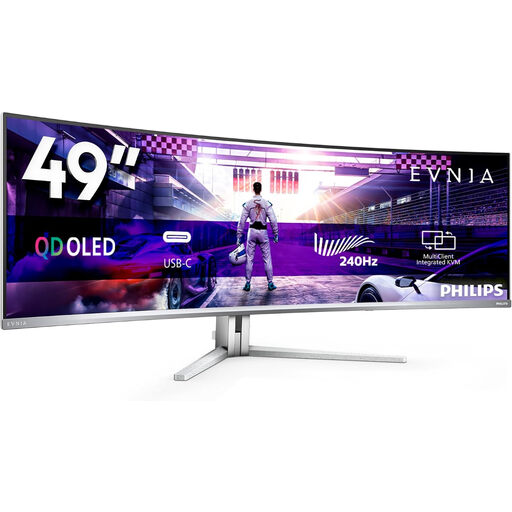 Image unavailable
The wide layout may suit those who want to keep lots of information windows open side by side; check that the dimensions fit your desk.
49 inches; 5120 × 1440 pixels; 32:9; USB-C power delivery of up to 90 W and KVM; stated product width 1195 mm.
 Image unavailable
A 34-inch ultrawide screen may suit those who want to view several windows at once; measure the available desk width.
3440 × 1440 pixels; 21:9; DisplayPort up to 180 Hz and HDMI up to 100 Hz; the product description lists height, swivel and tilt adjustment.
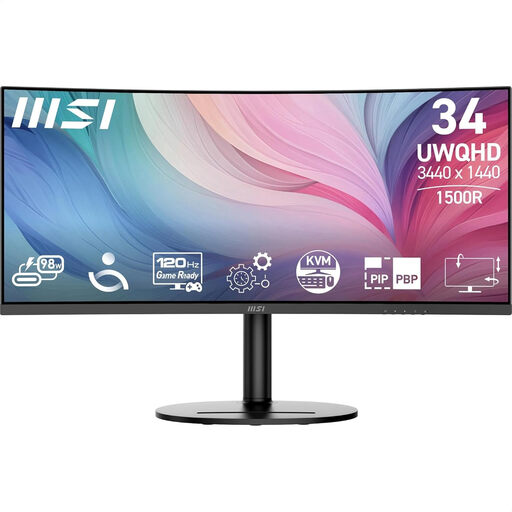 Image unavailable
May suit those who want to view timetables side by side and need an adjustable stand for changing working positions.
34 inches; 3440 × 1440 pixels; 21:9; USB-C power delivery of up to 98 W; HDMI and DisplayPort; stand with height, tilt and swivel adjustment.
Having a sit-stand desk doesn’t, by itself, make a monitor a legal requirement for every private buyer. For employees, Arboportaal, part of the Ministry of Social Affairs and Employment, explains that if you work at a screen for more than 2 hours a day, the screen and keyboard must not be attached to each other. Discuss suitable workplace arrangements with your employer.
No. Standing doesn’t replace changing position and taking breaks. Arboportaal recommends changing your posture while working at a screen, looking away regularly and taking microbreaks. A sit-stand desk makes it possible to alternate positions, but it doesn’t replace this advice.
Compare the energy labels and model information on a like-for-like basis. The European Commission states that computer monitors are covered by the energy labelling rules for electronic displays, with a scale from A to G. To compare your personal costs, you’ll also need to take your hours of use and applicable electricity tariff into account.
Additional cover isn’t automatically necessary; first compare what extra protection it offers. According to the Dutch government, there is no fixed statutory warranty period in the Netherlands. Read the terms and check which situations and repairs are covered by the additional protection.