If you often compare several timetables at once, start by considering how much screen space you need for your windows and whether the times remain readable at your preferred text size. A 27-inch QHD monitor offers a middle ground; an ultrawide gives you more horizontal space if your desk can accommodate it, while a compact screen may be enough for one main window. Also check that the connections and any laptop charging support are compatible with your laptop.
Which monitor is right for you?
For comparing several connections
If you want to keep two or more timetables or journey planners open at the same time, focus on usable space for your windows. For example, Philips specifies a 34-inch ultrawide with 3440 × 1440 pixels, while Samsung discusses larger screen sizes for working with multiple windows.
For reading small times
If you want to read times and connections comfortably, consider text scaling and how adjustable your workstation is. BenQ specifies height adjustment for the GW2790QT, but the right screen settings still depend on your own workspace.
For connecting a laptop
Check whether the monitor you choose can display your laptop’s output and, if needed, charge it too. The port and charging power required depend on your laptop; Dell and BenQ list different USB-C specifications for their models.
What should you look for when choosing?
Choose a screen size that suits your window layout and desk, then check readability and laptop connectivity.
Compact screen around 24 inches
Best for: one timetable at a time, using a laptop as a second screen, or limited desk space.
Bear in mind: there’s less room to display several tables side by side while keeping them easy to read.
27-inch QHD
Best for: comparing two windows without setting up an ultrawide screen. Dell and BenQ specify 2560 × 1440 pixels for the models mentioned here.
Bear in mind: there’s less horizontal space than with a 3440 × 1440 ultrawide; USB-C video and charging power vary by model.
34-inch ultrawide
Best for: keeping several timetables, or a timetable and journey planner, side by side. Philips specifies a 21:9 screen with 3440 × 1440 pixels for the 346E2CUAE/00.
Bear in mind: its wider design needs plenty of desk space; also check that text is readable at your chosen scale.
| What to consider |
What should you look for? |
Who should pay particular attention? |
| Several timetables side by side |
Measure the available width and view the windows at a text size you find comfortable to read. |
If I want to compare several connections at once, I prioritise space for windows. Around 36% of consumers put space for windows first. |
| Keeping small times readable |
Try an actual timetable at your preferred text scale; also check height adjustment, reflections and lighting. |
If you read small times for long periods, you’ll want text that’s comfortable to view. Around 29% of consumers prioritise readability. |
| Laptop connectivity |
Check that your laptop can output video through the chosen port and that the USB-C charging power is sufficient. |
If I want to connect my laptop through the monitor, I check both video output and any charging requirements. Around 21% of consumers prioritise laptop compatibility. |
| Fitting on a small desk |
Measure the space needed for both the screen and its stand; decide whether one window alongside your laptop screen will be enough. |
If you have limited desk space, you’ll want a setup that fits, even if that means less room for windows. Around 14% of consumers prioritise saving space. |
Common buying pitfalls
-
Choosing an ultrawide based on resolution alone
Extra horizontal space is only useful if the monitor fits on your desk and the tables remain readable at your chosen text size.
Measure the available space and view two timetable windows at the scale you’ll actually use.
-
Assuming every USB-C port supports video and provides enough power
USB-C video and laptop charging depend on the capabilities of both the monitor and the laptop.
Compare your laptop’s port and power requirements with the full specifications of the exact monitor model. You may need a different cable, power adapter or connection.
Brands to consider
Dell
The Pro Plus P2725DE is an example of a 27-inch QHD office monitor with a USB-C hub.
- Dell specifies 2560 × 1440 pixels, height adjustment, USB-C charging up to 90 W and RJ45 for this model.
- Ports and charging power vary by model; check that the monitor is compatible with your laptop.
BenQ
The GW2790QT is a 27-inch QHD option with adjustment features and USB-C, designed for a home office.
- BenQ specifies 110 mm of height adjustment and USB-C with DisplayPort Alt Mode and 65 W Power Delivery.
- BenQ lists Eye-Care features, but that doesn’t guarantee that individual users won’t experience eye strain.
Philips
The models mentioned illustrate both an ultrawide and a more compact screen setup.
- Philips specifies a 34-inch screen with 3440 × 1440 pixels for the 346E2CUAE/00, and a 23.8-inch screen with 1920 × 1080 pixels for the 242B1G/00.
- This is a trade-off between horizontal workspace and a more compact size, not a ranking of the models’ quality.
LG
The 34WR55QK-B shows the range of specifications a 34-inch ultrawide can combine with USB-C.
- LG lists 3440 × 1440 pixels, 21:9 and 65 W USB-C Power Delivery for this model.
- LG lists the model as discontinued on its Dutch product page; the specifications don’t indicate current availability.
Samsung
Samsung’s Dutch home office guide discusses compact sizes and larger screens for working with multiple windows.
- Samsung recommends 24–27 inches for focused tasks and 32–34 inches for using multiple windows.
- This is the manufacturer’s advice on usage scenarios, not an independent test of a specific model.
Joybuy monitors for timetables
This Joybuy selection includes ultrawide, 27-inch and more compact monitors for comparing timetables at home. Before choosing, check that the dimensions, stand and connections suit your desk and laptop.
 No image available
Dell Pro P3426WEV 34.1-inch Curved WQHD IPS USB-C Hub Monitor
The ultrawide aspect ratio may suit you if you want to view several timetables at once; measure your desk space first.
34.1 inches, 21:9 and 3440 × 1440 pixels. USB-C with DisplayPort Alt Mode and up to 90 W Power Delivery; video and charging require a compatible laptop.
The stand is height-adjustable, tiltable and swivel-adjustable.
View at Joybuy
 No image available
Philips Evnia 27M2N3500NF 27-inch QHD IPS Gaming Monitor
A 27-inch QHD screen offers a possible middle ground if you want to compare windows without choosing an ultrawide format.
2560 × 1440 pixels, IPS and 144 Hz. The listed connections are DisplayPort 1.4 and HDMI 2.0.
Check that the stand and adjustment options suit your workspace.
View at Joybuy
 No image available
INNOCN CB27U1 27-inch 4K UHD IPS Monitor
This 27-inch model lists PIP and PBP features for displaying multiple video sources; check whether this layout suits the way you work.
3840 × 2160 pixels, IPS and USB-C with 90 W Power Delivery.
Check that your laptop supports the intended USB-C video connection and charging.
View at Joybuy
 No image available
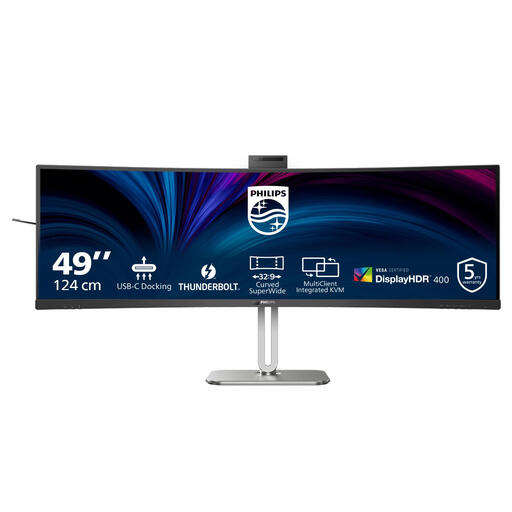
Philips 49B2U6903CH/00 49-inch Dual QHD Monitor
The wide 32:9 format may work well for displaying several tables side by side, but it needs plenty of desk space.
49 inches and 5120 × 1440 pixels. Thunderbolt 4 and USB-C Power Delivery up to 100 W are listed.
The monitor is approximately 119.3 cm wide including the stand; measure your available space.
View at Joybuy
 No image available
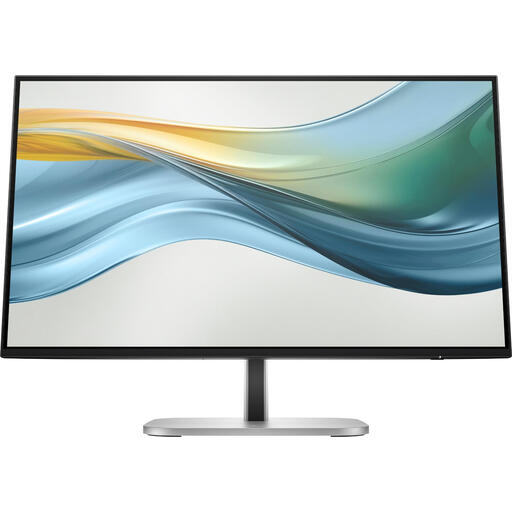
HP Series 5 Pro 524pu 23.8-inch Full HD USB-C Monitor
The more compact size may suit a smaller desk or a setup with one main window.
23.8 inches, Full HD and USB-C Power Delivery up to 100 W. According to the product description, the stand has four adjustment positions.
According to the product description, the charger is not included and must be purchased separately.
View at Joybuy
Frequently asked questions
Do I need an ultrawide monitor to compare two timetables?
No, an ultrawide isn’t the only option. Two monitors or an ultrawide can both keep multiple windows in view; choose based on the space available, your preferred text size and your existing setup.
Will every USB-C monitor charge my laptop?
No. Check whether your laptop can output video through its USB-C port, whether the monitor supports USB-C video and whether its Power Delivery output is sufficient. The Dell P2725DE lists 90 W and the BenQ GW2790QT 65 W; compare these figures with your own laptop’s requirements.
What should I look for to keep timetables easy to read?
Try an actual timetable at the text scale you want to use, then adjust the screen height, lighting and contrast to suit your workspace. Arboportaal outlines the risks of prolonged screen work; a monitor mode alone is no substitute for a suitable workstation setup or taking breaks and varying your activities.
Are there special screen rules for employees working from home?
Arboportaal states that for employees who work at a screen for more than two hours a day, the screen and keyboard must not be joined together. This applies to employees in that situation and is not a general product requirement for everyone buying a monitor for home.


