
Designer working beside a window
You lay out text, show dates and images at a workstation where daylight may fall on or behind the screen. Arboportaal recommends positioning your viewing direction parallel to the window.


Start by considering the light: Arboportaal recommends positioning your viewing direction parallel to the window; blinds can help block out daylight. Then choose an anti-glare screen with enough workspace for your layout. If you’re comparing colours with a printed proof, calibration options and consistent, suitable lighting are important. Published monitor specifications aren’t a comparative measurement of performance at your workstation.
You lay out text, show dates and images at a workstation where daylight may fall on or behind the screen. Arboportaal recommends positioning your viewing direction parallel to the window.
You want to compare the colours in photos or designs with a printed programme. EIZO recommends controlled lighting for this; suitable calibration options can be part of your colour workflow.
You want to see pages and layout panels clearly, and are looking for an adjustable monitor that connects to your laptop. Check that your laptop and monitor support video and the required power through the connection you plan to use.
The light, the purpose of your colour checks and the connection to your laptop all determine which features should take priority.
| What to consider | What should you check? | Who is this important for? |
|---|---|---|
| Reflections | Check the screen coating and how you can position the screen in relation to the window; a stated brightness level doesn’t prove that reflections will disappear. | If I work beside a bright window, I want to read text and see images without reflections getting in the way. Around 33% of consumers put readability in daylight first. |
| Colour for print | Check the colour-space modes and calibration options; agree with the printer on how to assess the proof, and use suitable, consistent lighting. | If I’m comparing colours with a printed programme, I want to assess my screen and proof under suitable conditions. Around 25% of consumers put print colour first. |
| Layout workspace | Compare the screen size and resolution with your desk space and the size of your interface text; also check the adjustment options you need. | If I want to see pages and tools at the same time, the available workspace matters. Around 25% of consumers put an overview of the page first. |
| Laptop connection | Check that your laptop, cable and monitor support video over USB-C, and that the stated charging power is suitable for your laptop. | If I want to use my laptop with as few connections as possible, video and power both need to work through the connection I choose. Around 17% of consumers put laptop connectivity first. |
The ASUS PA279CRV has a typical brightness of 350 cd/m² and an HDR peak of 400 cd/m². Neither figure, on its own, tells you how much the window will reflect on the screen.
Compare brightness figures that use the same definition, check the coating and first work out how to position your screen and blinds.
A colour-space specification doesn’t tell you how a print will look in changing window light. Hardware calibration won’t remove the influence of your viewing environment either.
Ask the printer about the output profile, then assess the proof and screen under suitable, consistent lighting.
Monitor names can vary between versions. Check that the full model name and specifications match what you need.
Compare the exact version on the product page before you order.
The SW272U is worth considering if colour management and shielding from ambient light are important to you.
The ColorEdge CS2740 is worth comparing for a colour-managed graphics workflow.
According to ASUS, the ProArt PA279CRV combines an anti-glare 4K screen with connections suited to a laptop workstation.
The UltraFine 27UP850K-W is a 27-inch 4K option to compare if you’re looking for an adjustable screen with USB-C.
The UltraSharp U2723QE is worth comparing if you’re looking for a 4K layout screen with a wide range of connections.
This selection includes monitors for layout work where screen space, adjustability and laptop connections may be important. If you’re working with print, check separately whether the colour features meet your printer’s requirements.
 No image available
Worth comparing if you need a 27-inch 4K workspace and an adjustable stand.
27 inch; 3840 × 2160 pixels; IPS; 120 Hz; 99% Adobe RGB; 90 W USB-C power; height adjustment, pivot and swivel.
 No image available
Worth comparing if you’re looking for a 27-inch 4K screen with an adjustable stand.
27 inch; 4K UHD; MiniLED; 65 W USB-C power; height adjustment, tilt and swivel.
 No image available
Worth comparing if you’re looking for a 27-inch screen with QHD resolution; check that this resolution gives you the workspace you need.
27 inch; 2560 × 1440 pixels; 2 × HDMI 2.0; 1 × DisplayPort 1.4.
 No image available
An ultrawide screen worth comparing if you want to place pages and windows side by side; its stated resolution isn’t 4K.
34 inch; 3440 × 1440 pixels; 99% sRGB; up to 90 W USB-C power.
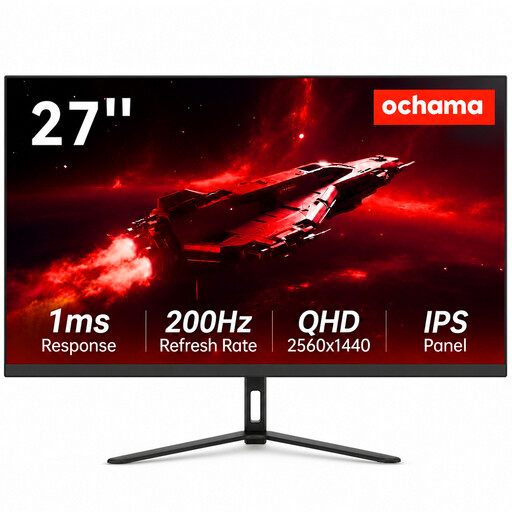 No image available
Worth comparing if you’re looking for a 27-inch screen for layout work or using multiple windows.
27 inch; 2K resolution; 200 Hz; narrow bezel.
Start with your setup: for screen-based work, Arboportaal recommends positioning your viewing direction parallel to the window and using blinds if needed. Then compare the screen coating; a model’s stated brightness doesn’t prove that reflections will disappear.
Compare the print under controlled lighting and agree your colour workflow with the printer. EIZO explains that daylight changes how the colours in a print are perceived and recommends lighting of around 5000 K for print comparisons. This is the manufacturer’s advice, not a general legal requirement.
No. Check that your laptop supports video over USB-C, how much charging power it needs and whether the cable is suitable. BenQ lists DisplayPort Alt Mode and 90 W Power Delivery for the SW272U; ASUS lists USB-C with DisplayPort Alt Mode and 96 W Power Delivery for the PA279CRV.
According to the European Commission, electronic displays are covered by EU energy-labelling rules, with a scale from A to G; compare the label for the exact model. The Dutch government says that products bought by consumers must be of satisfactory quality, and that you should contact the seller if something is faulty. The Netherlands has no fixed statutory warranty period of two years.
This may apply to a workplace covered by the relevant rules. Arboportaal outlines employers’ obligations for screen-based work, including requirements relating to reflections and workstation setup. These aren’t general product requirements for every private buyer.