
Layout editor
Checks text, headings and page details, while considering readability and whether the screen can be adjusted to suit the workstation.


Choose a screen that lets you review text and page details comfortably and can be adjusted to the right height by each user. Arboportaal recommends height adjustment and avoiding reflections for applicable display screen work. Then choose between 4K, QHD and a specialist colour monitor based on your laptop connections and print workflow: resolution or colour coverage claims alone cannot guarantee a match with printed output.
Checks text, headings and page details, while considering readability and whether the screen can be adjusted to suit the workstation.
Switches between users or laptops, so looks for height adjustment, connections and, where useful, a KVM function.
Also makes colour decisions for a printed publication and assesses screen settings alongside colour profiles and proofs. Adobe describes monitor profiling as part of colour management.
Choose this option: if you want to review small text and page details and connect a laptop through a suitable USB-C port. Dell specifies 4K resolution and power delivery of up to 90 W for the P2725QE.
Trade-off: check that your laptop supports video over USB-C and that the stated power delivery is sufficient; 4K alone says nothing about suitability for colour proofing.
Choose this option: if adjustability and a USB-C connection matter more to you than 4K. LG lists a QHD screen, adjustable stand and 65 W USB-C power delivery for the 27BA65QB-B.
Trade-off: the 27-inch QHD models mentioned have fewer pixels than the 27-inch 4K models mentioned; check the connection and power requirements of each laptop too.
Choose this option: if users also want to switch a keyboard and mouse between computers. BenQ specifies 4K resolution, height adjustment, KVM and 65 W USB-C power delivery for the PD2705U.
Trade-off: BenQ’s stated colour gamut coverage does not guarantee a match with a print run; also check which colour profiles and proofing method will be used.
Choose this option: if you make genuinely colour-critical decisions for print and can use profiling and a proofing method in your workflow. EIZO specifies hardware calibration for the ColorEdge CS2740.
Trade-off: EIZO lists the measuring device as an optional accessory and states USB-C power delivery of up to 60 W; calibration does not replace checking the final printed output.
First decide which task takes priority at the shared desk. Then check the connections, adjustability and any colour workflow required for it.
| What to consider | What to check before buying | Who is this most relevant to? |
|---|---|---|
| Text and page details | Compare the stated resolution at the same screen size and assess text at the scale you work at. | If I want to check small lettering and layout details, readability comes first. Around 36% of consumers give checking text and layout top priority. |
| Adjustability | Check height adjustment and reflections where the screen will be positioned; if you are an employee, also check the applicable health and safety regulations. | When several people use the screen, I want to be able to adjust it for each workstation. Around 29% of consumers prioritise adjustability for a shared desk. |
| Switching between laptops and peripherals | Check video over USB-C, the power delivery required, cables and whether you need KVM to switch peripherals between computers. | If I switch between laptops or connected peripherals, I want to know in advance which connections I’ll need. Around 21% of consumers prioritise switching between laptops and peripherals. |
| Colour for print | Ask which print profiles and proofing method are used, and check whether a measuring device is needed and included. | When I make colour-critical decisions for a printed publication, I look at the whole workflow, not just the screen. Around 14% of consumers give print colour top priority. |
A screen specification does not describe the entire process from monitor to print. EIZO lists the measuring device for the CS2740 as an optional accessory.
First decide whether you make colour-critical print decisions, then agree suitable profiling and a proofing method with your printer.
Bear in mind that the measuring device for the CS2740 is optional, so it may need to be added to your workflow separately.
The models reviewed list varying maximum USB-C power delivery: 60 W, 65 W and 90 W.
For each laptop, check whether its USB-C port supports video, how much power it needs and whether the cable you use is suitable.
Depending on the connection, you may need a suitable cable, adapter or separate laptop charger.
Users may need different screen settings. For applicable display screen work, Arboportaal recommends, among other things, height adjustment and avoiding reflections.
Check the adjustment options and reflections at the intended desk; if employees will use the screen, find out which health and safety regulations apply.
If the stand does not offer enough adjustment, you may need a different stand or monitor arm.
The P2725QE is worth considering for a shared 27-inch 4K workstation with a USB-C hub.
The PD2705U is a design monitor to compare if layout work and shared peripherals go hand in hand.
The ColorEdge CS2740 is a specialist option for a workflow that includes actual colour management for print.
The 27BA65QB-B is a 27-inch QHD work monitor to compare if adjustability and USB-C matter to you.
The 27E1N1800AE/00 is a 27-inch 4K IPS alternative for text and page layout.
These Joybuy monitors are suited to checking text and page details; compare the stated screen size and resolution with the scale you work at.
 No image available
A 27-inch 4K model to compare if resolution is a key consideration for text and page layout.
27 inches; 4K; IPS.
 No image available
A QHD option to include in your comparison if 4K is not a top priority.
27 inches; 2560 × 1440; Wide Quad HD; LED; black.
 No image available
The listed height-adjustable stand is worth considering if different users will be adjusting the screen.
27 inches; QHD (2560 × 1440); height-adjustable stand.
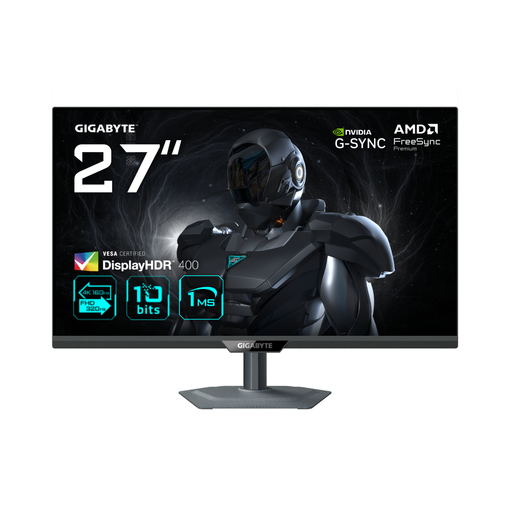 No image available
Include the two stated resolution modes in your comparison if you are considering using the monitor in both modes.
27 inches; 4K 160Hz / FHD 320Hz Dual Mode; IPS.
 No image available
A 27-inch 4K model to compare if you want to review text and page details at this resolution.
27 inches; 3840 × 2160; 4K Ultra HD; LCD; silver.
No, 4K is not essential for layout work. The 27-inch models mentioned are available in QHD and 4K; choose the text display and working scale that feel comfortable for you. A higher pixel resolution does not guarantee better print results.
Check whether the screen is height-adjustable and assess reflections at the workstation. Arboportaal sets out specific workstation requirements for employees who spend more than 2 hours a day working with display screens; check whether they apply to the employees concerned.
Do not assume so. Adobe describes monitor profiling and profiles for output devices as part of consistent colour reproduction; for a colour-critical print run, agree with your printer which proofing method will be used.
No, check each combination individually. Check whether your laptop’s USB-C port supports video, how much power the laptop needs and whether the monitor can provide it; also check which cable is being used.
Compare the energy label and model specifications, including power consumption information. The European Commission includes computer monitors in its energy labelling scheme for electronic displays.