
Editor who also grades colour
You assess the final colour of the theatre recording yourself and adjust your monitor settings for SDR or HDR output. Adobe describes Direct Rec.709 as an SDR setting in Premiere.


Start by choosing according to your intended SDR or HDR output, then decide whether you’ll mainly be editing or also doing critical colour grading. For SDR, Adobe describes Direct Rec.709 as a setting for a Rec.709 workflow; if you regularly assess colour critically, calibration options are worth considering. A larger screen doesn’t automatically mean more pixels or more accurate colour, and the right screen size and USB-C power delivery depend on your workspace and computer.
You assess the final colour of the theatre recording yourself and adjust your monitor settings for SDR or HDR output. Adobe describes Direct Rec.709 as an SDR setting in Premiere.
You want to assess scenes with changing stage lighting and dark areas. Compare contrast claims as model specifications, not as a guarantee of how your footage will look.
You want to view your footage, timeline and detailed reference material side by side. Screen size, resolution and the connection to your editing computer all help determine which layout will work best.
First, decide whether you’re delivering in SDR or HDR. Then compare colour settings, space for your windows and connectivity with your editing computer.
| What to consider | What to look for | Who is this important for? |
|---|---|---|
| Colour and output format | Decide whether you’re delivering in SDR/Rec.709 or HDR; compare colour modes and calibration options separately. | If I assess the final colour myself, I want settings that suit my output format; around 33% of consumers put colour grading first. |
| Dark stage scenes | Compare contrast claims on a like-for-like basis and check HDR support against your intended output. | For scenes with dark areas and bright stage lighting, I want to be able to assess shadow detail; around 27% of consumers prioritise evaluating dark scenes. |
| Space for reference material | Compare screen size and resolution separately, and check that your preferred window layout will fit on your desk. | If I keep my footage, timeline and references open at the same time, the layout on my desk matters; around 20% of consumers prioritise workspace. |
| Connectivity and power | Check the video output and input; if you’re using a laptop, compare its power requirements with the charging capacity of the exact model. | When I connect my editing computer, I want to know whether the video and power connections are compatible; around 20% of consumers prioritise connectivity. |
HDR support alone doesn’t tell you whether a screen is suitable for your assessment workflow. The output workflow and how you use it determine which features matter.
First, decide whether you’re delivering in SDR or HDR. Then compare the specifications that are relevant to that output.
A stated coverage percentage doesn’t, by itself, show how an individual monitor has been set up or calibrated for editing.
Compare the colour mode of the exact model and, for critical colour work, check its calibration options too.
According to their manufacturers, the 27-inch ASUS PA279CRV and 31.5-inch BenQ PD3205U both have a resolution of 3840 × 2160 pixels. The larger screen does, however, need more desk space.
Compare your preferred window layout and the space available, not just the screen size.
The stated charging capacity varies by model. EIZO lists up to 60 W for the CS2740, while ASUS lists 96 W for the PA279CRV.
Check both your computer’s video output support and its power requirements.
The PD3205U is worth comparing if you’re looking for a larger 4K screen for editing and reference material.
The ColorEdge CS2740 is worth comparing if hardware calibration is important for regular colour checks.
According to the manufacturer, the ProArt PA279CRV combines a 27-inch 4K screen with colour presets and USB-C.
The UltraFine 27UQ850V-W is worth comparing if you’re considering a 27-inch 4K screen for dark scenes.
The UltraSharp U2723QE is a 27-inch 4K USB-C hub monitor to compare with other workspace options.
This selection focuses on editing with footage, a timeline and reference material side by side; screen size, resolution and connections vary by model.
 No image available
The 27-inch 4K format may suit an editing workspace where you view footage and references side by side. The product information lists factory calibration, 97% DCI-P3 and USB-C with DP Alt Mode.
 No image available
The ultrawide screen may suit you if you want to arrange several editing windows side by side. The product information lists a 40-inch screen, 5120 × 2160 pixels, IPS, 100 Hz and PIP/PBP; it also lists sRGB 99%, ΔE below 2 and USB-C with 65 W Power Delivery.
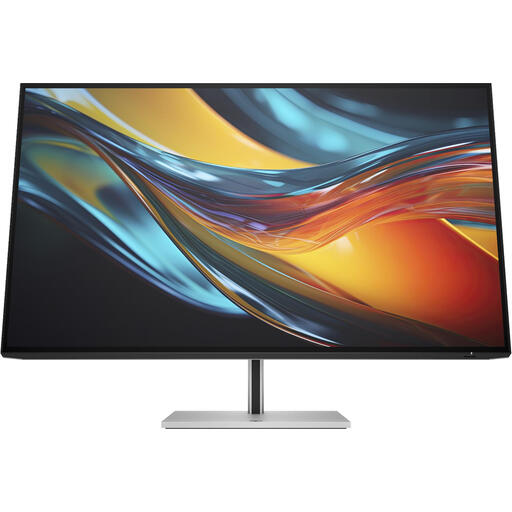 No image available
The 31.5-inch 4K model offers a larger workspace for viewing references alongside your timeline. The product information lists Thunderbolt 4, up to 100 W laptop power delivery, IPS Black and 98% DCI-P3. According to that information, a charger isn’t included as standard; check whether your own power supply is sufficient.
 No image available
This 32-inch 4K model may suit you if you’re looking for more workspace for footage and references. The product information lists Thunderbolt 3 with 85 W power delivery, KVM and a 2000:1 contrast ratio.
 No image available
The 31.5-inch 4K model may suit an editing setup with several references on screen. BenQ lists 99% Rec.709 coverage; the product information also mentions 90 W USB-C power delivery and a built-in KVM switch. Coverage alone doesn’t tell you the current colour accuracy of your individual monitor.
No, not just because it has an HDR logo. Adobe describes Direct Rec.709 as a setting for SDR output in a Rec.709 workflow. Choose HDR only if that’s also your intended output format; HDR support alone doesn’t prove that a monitor is suitable as an HDR reference display.
Adobe explains that you can enable Mercury Transmit in the playback preferences, then select the second monitor for Program Monitor output. Also check your project’s colour settings.
Check that your computer’s video output is compatible with the monitor, and compare the power required with the specifications of the exact model. ASUS lists DisplayPort Alt Mode and 96 W Power Delivery for the PA279CRV; EIZO lists a DisplayPort signal and up to 60 W power delivery for the CS2740.
No. A stated coverage percentage doesn’t, by itself, tell you how accurately your individual monitor is set up when you’re using it. Compare the colour mode and calibration options of the exact model, and match them to your output format.