What should you consider when choosing?
First, choose the screen space and colour settings your texture work calls for. Then check that the connections and setup suit your home workstation.
| What to consider |
What should you check? |
Who should take this into account? |
| Fine seams and details |
Compare screen size and native resolution, and check that your model and tool panels fit comfortably on screen. |
If I want to assess small seams without making my working window awkwardly small, inspecting details is my priority. This is the main concern for around 42% of consumers. |
| Colour consistency |
Match the screen mode to your project’s colour space, and check the monitor profile and calibration. Adobe stresses the importance of a properly calibrated display for colour management. |
When I compare colours across applications or output formats, I want a colour-managed workflow that suits my needs. Colour consistency is the top priority for around 33% of consumers. |
| Home workstation setup |
Check the video connection, the USB-C power delivery of the exact model and how much adjustment the stand allows. |
If I combine creative work with other tasks, the connections and placement need to work with my desk. Workstation setup is the top priority for around 17% of consumers. |
| Features and support |
Consider whether you really need calibration features, and ask about your statutory guarantee rights if something goes wrong. ACM ConsuWijzer explains that these depend on what you can reasonably expect from the product. |
When I weigh up the purchase and support against how I’ll use the monitor, I want to pay for features I need and know where to turn if something goes wrong. Cost and aftercare are the top priorities for around 8% of consumers. |
Joybuy products
These models are 4K monitors for assessing fine texture details and using at a home workstation. Check that the connections and features listed for each model suit your workflow.
 No image available
LG UltraFine 27U711B-B 27-inch 4K IPS monitor
An option for viewing fine texture details on a 27-inch 4K IPS screen.
The product name specifies 27 inches, 4K and IPS.
View at Joybuy
 No image available
Philips 27E1N1800AE/00 27-inch 4K UHD IPS monitor
A 27-inch model for viewing details and setting up at a home workstation.
The product name specifies 4K UHD, 3840 × 2160 pixels, 60 Hz, 4 ms and a height-adjustable stand.
View at Joybuy
 No image available
MSI Modern MD272UPHG 27-inch 4K UHD monitor
A 27-inch model for viewing fine details on a 4K UHD screen.
The product name specifies 3840 × 2160 pixels and a black finish.
View at Joybuy
 No image available
INNOCN CB27U1 27-inch 4K UHD IPS monitor
An option for inspecting details, where the stated adjustability or USB-C connection may also be worth considering.
The product name specifies 3840 × 2160, 120 Hz, HDR500, USB-C power delivery of up to 90 W and a height-adjustable stand.
View at Joybuy
 No image available
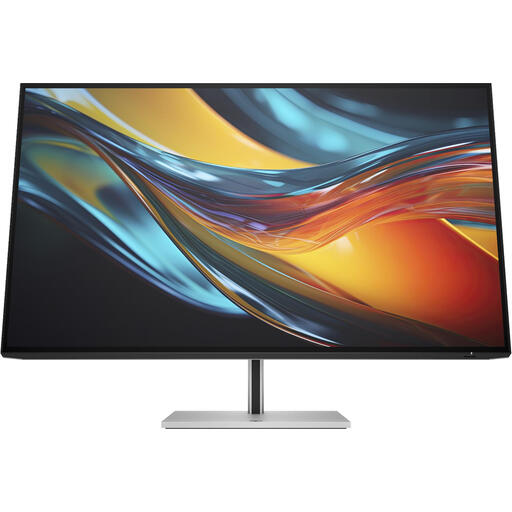
HP Series 7 Pro 732pk 31.5-inch 4K monitor
The larger stated screen size may be useful if you want to view your model and tool panels together.
The product name specifies 31.5 inches, 4K and Thunderbolt 4.
View at Joybuy
Frequently asked questions
Can a sharper screen fix a visible UV or normal map seam?
No. A screen can help you inspect the seam, but Adobe highlights UV alignment, texture resolution and shader settings as possible causes or factors to consider with normal map seams. Check the asset and rendering separately.
What should I do after installation to assess colour?
Choose the appropriate colour mode and check that the monitor profile in your operating system matches the screen. Adobe stresses that effective colour management requires a properly calibrated display.
Should I check padding on exported textures too?
Yes, if you see colour bleeding or artefacts around UV islands. Adobe explains that padding helps prevent incorrect colours from bleeding into the UVs at lower mipmap resolutions.
Am I always entitled to exactly two years of statutory guarantee on a monitor in the Netherlands?
No. ACM ConsuWijzer explains that your statutory guarantee rights depend on what you can reasonably expect from the product under normal use. The seller is responsible for providing an appropriate solution if a product is faulty; this is separate from any commercial manufacturer’s warranty.
Are there legal requirements for a screen at my home workstation?
For employees, Arboportaal outlines employers’ obligations regarding screen-based work. These include requirements for the workstation when an employee spends more than two hours a day working at a screen. These rules are not automatically a general product specification for every consumer buying a monitor.


