
Photo editor for the guide
Edits reference photos and wants to assess colours before sharing or printing images. Adobe points out that monitor settings, ambient light and paper all affect how prints look.


Choose a monitor to suit your main task. For assessing photo colours, the right colour space and a well-managed colour workflow matter; for text and layout, resolution, readability and screen space may be more important. Check that the stand suits your workspace and that the connection and any USB-C power delivery work with your laptop. A wide colour gamut alone won’t guarantee a match with printed output.
Edits reference photos and wants to assess colours before sharing or printing images. Adobe points out that monitor settings, ambient light and paper all affect how prints look.
Works with text, images and page layouts at the same time, so readability and the space to view different elements side by side are important.
Often spends extended periods working on the guide and wants to assess screen position, reflections and readability in their own workspace. Arboportaal lists reflections and poor ambient lighting among the factors that can reduce readability.
Choose this if: you mainly write text and view reference images alongside it. A 27-inch QHD model may suit this combination, provided the available desk space and connections work for your setup.
Trade-off: At the same screen size, QHD has fewer pixels than 4K for viewing fine image details.
Choose this if: you often zoom in on details in plants or text, or review images and layouts side by side.
Trade-off: Check that your computer’s scaling settings keep text comfortable to read.
Choose this if: you edit photos critically or prepare work for print, and want the colour space and calibration options to suit your workflow.
Trade-off: Claimed colour-space coverage doesn’t guarantee the final result; calibration, ambient light and the printing process all play a part too.
Start by comparing the work you do most often, then check readability, setup and how the monitor connects to your laptop.
| What to consider | What should you check? | Who should prioritise this? |
|---|---|---|
| Assessing colour | Compare the stated colour space and colour modes with your digital or print workflow; also check calibration and colour profiles. | If I want to edit reference photos carefully, I’ll focus on colour settings that suit my intended output. Around 36% of consumers say colour assessment is their top priority. |
| Space for text and layout | Compare screen size and resolution with your software, desk space and preferred scaling settings. | If I want to view text and reference images side by side, I need usable space without making text too small to read. Around 29% of consumers prioritise space for text and layout. |
| Ergonomics and reflections | Check the height and tilt adjustments, and assess windows, lamps and readability where you work. | For longer writing sessions, I want to position the screen properly at my desk and assess any distracting reflections. Around 21% of consumers say ergonomics and readability are their top priority. |
| Connecting a laptop | Check video support, the cable and the power required by your laptop, as well as the exact monitor model. | If I want to connect my existing laptop and potentially charge it through the same connection, I’ll check that everything supports this. Around 14% of consumers choose connectivity as their first consideration. |
A screen specification doesn’t describe the whole process from image file to paper. Adobe explains that calibration, ambient light and paper all affect prints, alongside colour management.
First decide how the images will be used, then work with suitable colour profiles and calibration, and use a proof preview if needed.
Calibration and checking proof prints can take extra time and resources.
The presence of a USB-C port doesn’t, by itself, mean that your laptop supports video output or will receive enough power.
Compare video support, cable specifications and charging requirements with the details for the exact monitor model.
You may need a suitable cable or a separate laptop power supply for the connection you want.
A commercial warranty period doesn’t automatically remove your statutory rights if a product is faulty. ACM ConsuWijzer points out that the seller is responsible for a product that doesn’t meet expectations.
Keep your proof of purchase and contact the seller if something is wrong; check any additional warranty terms separately.
The PD2705Q reviewed here is a 27-inch QHD option for sRGB-focused image editing alongside writing.
The UltraFine 27UP850K-W reviewed here combines a 27-inch 4K screen with a range of connection and adjustment options.
The ProArt PA279CRV reviewed here is designed for a 27-inch 4K imaging workflow, with a stated wide colour gamut.
The ColorEdge CS2740 reviewed here is a 4K option for those who prioritise image editing and calibration.
The 27E1N5600AE/00 reviewed here is a QHD option for writing and layout work with a USB-C laptop.
These Joybuy products are options for text, layout and reference images on a desktop monitor. Check each model’s specifications to make sure they suit your colour workflow and laptop.
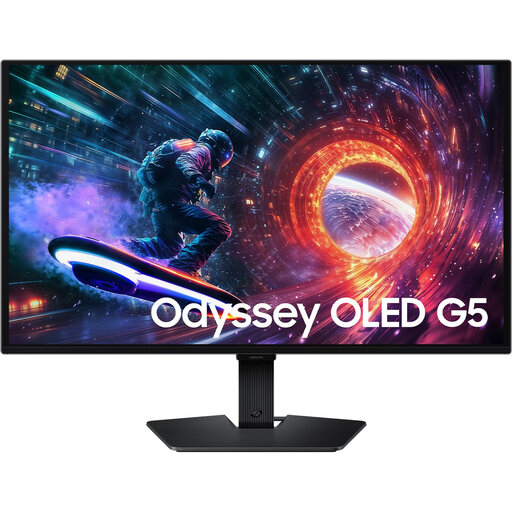 No image available
Could suit you if you’re looking for a 27-inch Quad HD screen for text and reference images; assess its readability and colour settings for your own workflow.
The product name lists OLED and 180 Hz.
 No image available
Could suit text and layout work on a 27-inch screen; check for yourself that the text and images are comfortable to read.
The product name lists 2560 × 1440, 180 Hz, two HDMI 2.0 inputs and one DisplayPort 1.4 input.
 No image available
Could suit you if you want to view details in reference photos while writing; check that the scaling settings keep text easy to read.
The product name lists a 27-inch 4K IPS screen.
 No image available
Could suit documents with images on a 27-inch screen; assess the colour reproduction for your own image or print workflow.
The product name lists IPS, 144 Hz, HDR10, DisplayPort 1.4 and HDMI 2.0.
 No image available
Could suit you if you want to view text and reference images on a QHD desktop screen; check that the listed connections are compatible with your computer.
The product name lists 2560 × 1440, an IPS panel, and HDMI and DisplayPort connections.
No. A stated colour gamut alone doesn’t prove that a print will match what you see on screen. Also consider calibration, ambient light and colour profiles, and use a proof preview for your intended output if needed.
No. First check that your laptop supports video output through the port, then compare its power requirements with the output of the exact monitor model. You’ll also need a suitable cable; the USB-C connector alone doesn’t guarantee these features.
Adjust the screen position and readability to suit your workspace, and check for distracting reflections. Arboportaal highlights reflections, poor ambient lighting and text that’s difficult to read; the right setup depends on where you work.
For a distance purchase by a consumer, you generally have 14 days to change your mind, according to the Dutch government. Your statutory rights if a product is faulty are separate from the manufacturer’s warranty: ACM ConsuWijzer points out that there is no fixed statutory warranty period of exactly two years for every monitor, and that you should contact the seller if there’s a fault.
The European Commission states that computer monitors are covered by the energy-labelling rules for electronic displays. Compare the energy information for the exact model, and don’t assign an energy label or rating without checking the product-specific details.