Start with what you most often want to see side by side: text and chapter layouts, or text and fine illustration details. A 27-inch QHD monitor is one option for working with documents; 27-inch 4K gives you more pixels across the same screen size, but check that the text scaling feels comfortable too. Philips, Dell, EIZO and LG publish specifications for the models mentioned; those figures alone do not prove colour accuracy for your workflow.
Who is this guide for?
Writer who keeps chapter layouts open
You write chapters with a contents page and reference text on screen. A clear layout and easy-to-read text matter more to you than image detail alone. This need is reflected in information from Tweakers and Philips Netherlands.
Creator who reviews illustrations
You switch between text, images and captions, and want to inspect fine details. Assess colour claims separately to see what they mean for your workflow. Dell Netherlands and LG Netherlands describe monitor options for images and detail.
Frequent laptop user
You spend long periods working at a screen or regularly connect a laptop. In that case, adjustment options and connections may also matter; EIZO Netherlands, Dell Netherlands and the Arboportaal provide relevant information about models and screen-based work.
What should you look for when choosing?
Start by considering the balance between text and illustrations. Then look at text scaling and your desk setup, and check the laptop connection if you plan to connect one.
| What to consider |
What to look for |
Who it suits |
| Text and chapter layouts |
Compare 27-inch models with 2560 × 1440 pixels, such as the Philips option mentioned, with 27-inch 4K models from Dell, EIZO and LG. Try your own window layout at your preferred text size. |
I want to see chapter text, headings and references all at once. Around 36% of consumers prioritise text and chapter layouts. |
| Illustration detail and colour |
Compare the resolution and specifications of the exact model. LG lists typical DCI-P3 coverage of 95% for the 27UP850K-W; separately consider whether your workflow calls for proof checking or calibration. |
If I want to examine fine lines and captions in illustrations, detail matters alongside text comfort. Around 29% of consumers prioritise illustration detail. |
| Adjustability |
Check the adjustment options of the specific stand and whether it suits your desk. Models and adjustment ranges vary. |
For long writing sessions, I want to be able to adjust the screen position to suit my workspace. Around 21% of consumers prioritise adjustability. |
| Connecting and charging a laptop |
Check whether your laptop can output video through the USB-C port you plan to use, and compare its charging requirements with the monitor's power delivery. EIZO lists up to 94 W for the EV2740X; Dell quotes 90 W for the P2725QE. |
If I regularly connect a laptop, I want to know whether the connection can deliver both a picture and enough power. Around 14% of consumers prioritise laptop connectivity. |
Common pitfalls
-
Assuming 4K guarantees accurate colours
Resolution and a manufacturer’s stated colour gamut coverage describe different features. Higher resolution alone does not tell you how colours will appear in your illustration or print workflow.
Choose a resolution that suits the details you want to inspect, and assess colour requirements separately. If your publishing process calls for it, include checking or calibration in your workflow.
Checking or calibration can take extra time if your publishing process requires it.
-
Assuming every USB-C port provides video and enough charging power
The port name alone does not tell you whether a laptop outputs video over USB-C or how much charging power is available. Capabilities vary between laptops and monitors.
Before buying, compare your laptop’s video output and charging requirements with the monitor’s capabilities, and check which cable you need.
Depending on the combination, you may need a different cable, an adapter or a separate charger.
-
Confusing the manufacturer's warranty with your full statutory rights
A warranty period quoted by the manufacturer is not the same as your statutory rights when buying as a consumer in the Netherlands. ACM ConsuWijzer explains that if a product is faulty, you should contact the retailer; what you could reasonably expect from the product is relevant.
Keep your proof of purchase and contact the retailer if the product is faulty. Check any additional manufacturer’s cover separately.
Brands to consider
Philips
The models mentioned include a 27-inch QHD USB-C version and a separate 27-inch 4K USB-C version.
- Philips lists a resolution of 2560 × 1440 pixels and laptop charging via USB-C for the 27E1N5600AE/00.
- These details do not automatically apply to other Philips models. Check the exact model and the connections you need.
LG
According to LG, the UltraFine 27UP850K-W combines a 27-inch 4K IPS screen with USB-C and an adjustable stand.
- LG says this model’s stand can be adjusted for height, tilt and pivot.
- LG lists typical DCI-P3 coverage of 95%. This is a manufacturer’s specification, not independent confirmation of colour accuracy for your workflow.
Dell
The Pro Plus P2725QE mentioned is a 27-inch 4K USB-C hub monitor for a laptop workspace.
- Dell specifies 3840 × 2160 pixels, 100 Hz and 90 W power delivery for this version.
- Check that your laptop’s video output and charging requirements are compatible with this monitor; these details do not automatically apply to other Dell models.
EIZO
According to EIZO, the FlexScan EV2740X is a 27-inch 4K monitor with USB-C docking, network and KVM functions.
- EIZO specifies up to 94 W via USB-C and lists a five-year warranty for the FlexScan range.
- Check the terms for the specific model and consider whether you will actually use the extra connections.
Joybuy products
This selection focuses on 27-inch 4K monitors for anyone who wants to assess text alongside illustration details. Check which text scaling, connections and adjustment options suit your workspace.
 Image unavailable
LG UltraFine 27U711B-B 27-inch 4K IPS monitor
Suited to anyone looking for a 27-inch 4K IPS monitor to view text and illustration details side by side.
Specifications according to the product name: 27 inches, 4K, IPS.
View at Joybuy
 Image unavailable
LG UltraGear 27G810A-B 27-inch 4K UHD IPS monitor
An option to compare if you want a 27-inch 4K monitor for working with text and illustrations.
Specifications according to the product name: 27 inches, 4K UHD, IPS and 180 Hz.
View at Joybuy
 Image unavailable
Philips 27E1N1800AE/00 27-inch 4K UHD IPS monitor
Suited to anyone looking for a 27-inch 4K monitor who wants to adjust the screen height to suit their workspace.
Specifications according to the product name: 3840 × 2160 pixels, 60 Hz, 4 ms, HDMI, DisplayPort and a height-adjustable stand.
View at Joybuy
 Image unavailable
KTC M27P6 27-inch 4K MiniLED monitor, Dual Mode White
An option to compare if you want to view text and fine illustration details on a 27-inch screen.
Specifications according to the product name: 4K 160 Hz/FHD 320 Hz, HDR1400, Fast IPS, USB-C 65 W and KVM.
View at Joybuy
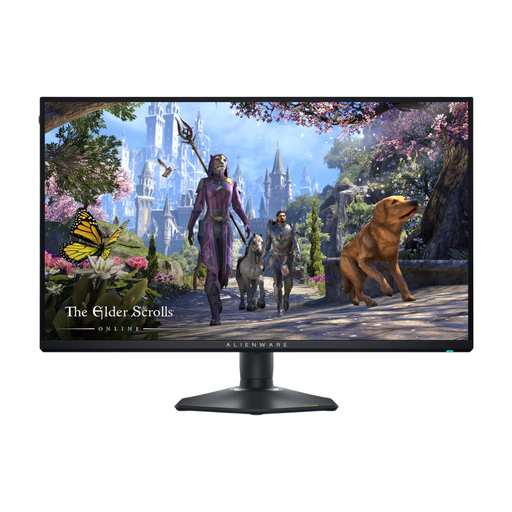 Image unavailable
Alienware AW2725QF 27-inch 4K Ultra HD monitor
Suited to anyone wanting to include a 27-inch 4K monitor in their comparison for text and illustration details.
Specifications according to the product name: 3840 × 2160 pixels, 4K Ultra HD and LCD.
View at Joybuy
Frequently asked questions
Should I choose QHD or 4K for an illustrated field guide?
If text and chapter layouts are your main focus, compare a 27-inch QHD screen with your preferred window layout. If you often inspect small illustration details, compare 27-inch 4K models too, and try your preferred text scaling on both options before deciding.
Can any USB-C monitor connect to and charge my laptop with one cable?
No. First check whether your laptop outputs video through the USB-C port in question, then compare its charging requirements with the monitor’s power delivery. EIZO lists USB-C DisplayPort Alt Mode and up to 94 W for the EV2740X; Dell quotes 90 W for the P2725QE.
How should I set up a monitor for long writing sessions?
Adjust the screen position and text size to suit your workspace, and break up long periods of screen work. The Dutch Arboportaal says that employers are required under Article 5.10 of the Working Conditions Decree to alternate screen work with other tasks or a break; this is not a purchasing requirement for every individual user.
How can I compare energy use, and what if the monitor breaks too soon?
Compare the EU energy label and product information for the models you are considering; according to the European Commission, the label for electronic displays runs from A to G. When you buy as a consumer in the Netherlands, you also have statutory protection based on what you could reasonably expect from the product. ACM ConsuWijzer identifies the retailer as your point of contact if a product is faulty.


