
Tester with limited desk space
Wants to view the app on a separate screen without the monitor stand, keyboard and mouse getting in each other’s way.


Start by checking the available desk depth, the monitor stand and your computer’s connections: screen size alone won’t tell you whether the setup will fit. Choose Full HD to assess an interface at 1920 × 1080, QHD for more pixels at a similar screen size, or 16:10 for extra vertical space. More pixels don’t prove that a desktop app will display correctly at different DPI settings; test its scaling behaviour separately.
Wants to view the app on a separate screen without the monitor stand, keyboard and mouse getting in each other’s way.
Assesses readability, window layout and potential issues when the app runs on screens with different pixel densities.
Needs a workstation that can be set up and adjusted to suit extended screen use.
Choose this option: if you mainly want to assess the app at 1920 × 1080 and a tidy setup matters more to you than having extra pixels.
Bear in mind: Full HD offers fewer pixels than QHD or 1920 × 1200; stands and ports vary by model.
Choose this option: if you want to assess more detail at roughly the same screen size and can also test the desktop app’s scaling settings.
Bear in mind: Microsoft Learn explains that Windows desktop apps can appear blurry or incorrectly scaled when DPI settings change.
Choose this option: if extra vertical space for the app, logs or test documentation matters more than QHD detail.
Bear in mind: 1920 × 1200 provides more vertical pixels than 1920 × 1080, but fewer pixels overall than 2560 × 1440.
| What to consider | What should you check? | Who is this important to? |
|---|---|---|
| Desk space | Measure the width and depth, including the stand, and compare them with the space available. Check VESA and arm compatibility if you’re considering a monitor arm. | On a small desk, I want to position the monitor without losing space for my keyboard and mouse; around 33% of consumers prioritise placement above all else. |
| Resolution and scaling | Note the resolutions and scaling settings you want to test, and check the app at those settings. Also test it after moving it between screens if relevant. | When testing readability and window layout, I want to assess how the app behaves at different scaling settings; around 27% of consumers prioritise detail and scaling behaviour. |
| Adjustability | Check the exact model’s height adjustment, tilt, reflections and position in relation to light sources. | When carrying out lengthy tests, I want to position the screen to suit my workspace; around 20% of consumers prioritise adjustability for extended use. |
| Connections | Compare your computer’s video output with the monitor’s inputs and check which cables are included. Check USB-C features separately if you need them. | For my test setup, I want to make sure I can connect my computer and monitor in the way I need; around 20% of consumers prioritise connectivity. |
A monitor may look compact, but its stand can take up a large part of your available desk space.
Measure your setup in advance, including the monitor stand, keyboard and mouse.
You may still need a different stand or a suitable monitor arm.
The scaling setting and the app’s DPI behaviour also affect how large and sharp the interface appears.
Test the relevant scaling settings and look out for clipped text, blurring and misplaced windows.
Dell lists the P2425 as having a USB-C downstream data port supporting up to 15 W; this specification does not confirm USB-C video input.
Check the exact model’s video inputs, data features, power delivery and included cables.
You may need a different cable or a suitable connection.
The Pro Plus P2425 is a 24.07-inch 16:10 model that offers extra vertical workspace on a compact desk.
The ThinkVision P24q-30 is a 23.8-inch QHD model for anyone who wants to assess more detail on a compact screen.
The 24E1N1100A/00 is a 23.8-inch Full HD model for assessing an interface at 1920 × 1080.
This selection at Joybuy includes portable and compact monitors for assessing Full HD, QHD and 16:10 desktop app layouts.
 No image available
A portable 16:10 screen with a built-in kickstand, ideal for a test setup with limited desk space.
The product name lists 2.5K, 144 Hz, IPS, 2 USB-C ports and Mini HDMI. Check that the connections are compatible with your computer.
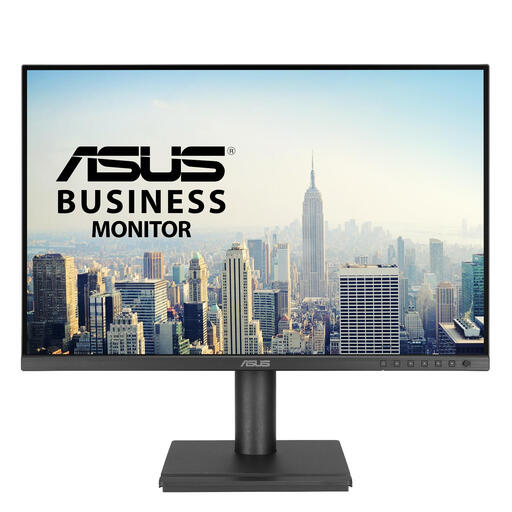 No image available
The 16:10 aspect ratio and 1920 × 1200 resolution are worth considering if you want to assess an app with extra vertical space.
The product information lists height adjustment of up to 13 cm and VESA mounting. Check the available space and your preferred mounting option.
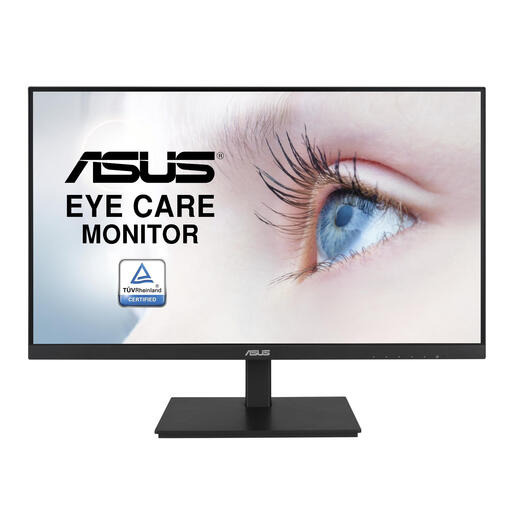 No image available
A 23.8-inch screen with a 1920 × 1080 resolution for assessing a desktop app in a Full HD setup.
The product information lists an IPS panel, height adjustment and VESA mounting. Compare the connections with those on your computer.
 No image available
With a 2560 × 1440 resolution on a 23.8-inch screen, this model is worth considering for testing QHD layouts and scaling behaviour.
The product information lists HDMI, DisplayPort and USB-C, as well as height and tilt adjustment. Check which connections and cables your computer needs.
No. Test the app at the resolutions and scaling settings that matter to users. Microsoft Learn explains that desktop apps can appear blurry or incorrectly scaled when DPI settings change, for example when you move between two screens.
Consider height, reflections, lighting, and the position of your keyboard and mouse as parts of one workstation. Arboportaal outlines specific requirements for employees who spend more than two hours a day working with screens; this does not automatically apply to every buyer.
For distance purchases, you’ll often have a 14-day cooling-off period. The Dutch government explains that terms and exceptions apply, so check the seller’s returns information and measure your desk and the monitor stand in advance.
When you buy as a consumer, you’re covered by statutory rights, and the seller must provide a solution if something goes wrong. Any manufacturer’s warranty is separate; read the terms before paying for an extended warranty.
European rules for electronic displays generally include computer monitors too. Some types of display are exempt, so check the product information for the exact model.