
Teachers creating slides
If you want to see text, images and toolbars clearly while editing, compare resolution and screen size rather than looking only at the refresh rate.


Start with a screen that makes slides, notes and toolbars easy to read, and that different users can adjust in a shared workspace. A QHD monitor may be all you need for documents and slides; choose 4K if extra image detail matters. A USB-C hub is most useful when the laptops being used support the required display, data and charging features.
If you want to see text, images and toolbars clearly while editing, compare resolution and screen size rather than looking only at the refresh rate.
When users take turns, it’s useful to be able to adjust the screen position and take reflections and light sources into account.
If you regularly connect a different laptop, ports and features that work with that particular laptop are what matter most.
Best for: mainly editing slides and documents using your existing connections.
Check: the ports on the exact model; resolution doesn’t tell you whether it can charge a laptop over USB-C.
Best for: a shared workspace where users connect compatible laptops.
Check: the display signal, charging capacity and cable for each laptop individually.
Best for: anyone who wants extra image detail and the flexibility to adjust the screen position.
Check: that the clamp fits your desk and that the USB-C power delivery suits your laptop.
When choosing a monitor for teaching slides in a shared office, your priorities depend on what you do most often: reviewing slides, adjusting the setup, connecting laptops or viewing content together.
| What to consider | What should you check? | Who is this important for? |
|---|---|---|
| Slide readability | Compare screen size and resolution, and view your own slides at the scale you want to use. | I want to be able to assess text, images and editing panels clearly while creating slides. Around 33% of consumers in this situation put readability first. |
| Adjustability | Check height and tilt adjustment, desk space, and the position of windows or light sources. | At a shared desk, I want to adjust the screen position for different users and reduce distracting reflections. Around 27% of consumers prioritise adjustability. |
| Laptop connection | Check for video over USB-C, the required charging capacity and whether the cable is suitable. | When I switch between laptops, I want to know whether each one will work with the monitor and receive enough power. Around 27% of consumers make connectivity their top priority. |
| Viewing together | Check whether the screen can rotate or swivel and whether there’s space for both viewing positions. | If a colleague is looking at the screen with me, I want to be able to angle it towards both of us. Around 13% of consumers prioritise viewing slides together. |
USB-C alone doesn’t guarantee that a laptop can send a video signal or receive enough charge.
For each laptop, check video signal support, charging requirements and the right cable for the exact monitor model.
If the connection isn’t suitable for your laptop, you may still need a different cable, adapter or docking solution.
The Dell P2725D is a QHD model; the P2725QE is a separate 4K USB-C hub version.
Compare the full model code and ports, not just the brand, screen size or a similar model name.
High resolution can’t make up for an unsuitable screen position, hard-to-read icons or a setup affected by reflections.
Check the adjustment options and available desk space. If you’re using a clamp-mounted arm, make sure the edge of your desk is suitable too.
If you need a separate stand or arm later, you’ll need a suitable place to mount it.
Dell offers, among other options, a 27-inch QHD model and a separate 27-inch 4K USB-C hub version.
According to Lenovo, the ThinkVision T27h-30 combines QHD with USB-C docking, a USB hub and ethernet.
The 27UN880P-B combines 4K with an adjustable arm and C-clamp.
The Business Monitor 27B2U3601/00 is a 27-inch QHD IPS model with SmartErgoBase and USB-C.
The GW2790QT is a QHD USB-C monitor with an integrated hub.
This selection includes QHD and 4K monitors for editing slides and adjusting or connecting screens in a shared workspace.
 No image available
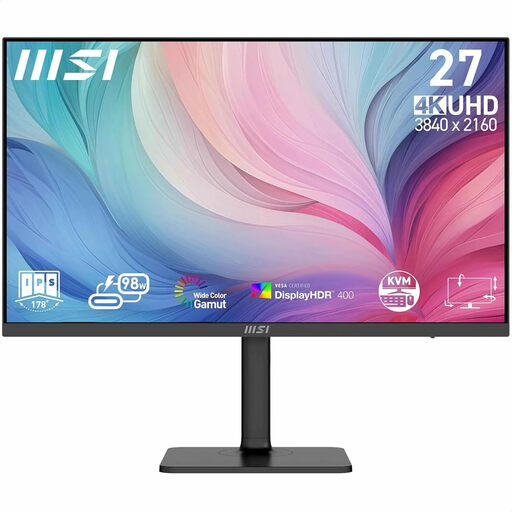
An option for anyone who wants to edit slides in 4K and connect different laptops in a shared workspace.
27 inches; 3840 × 2160 pixels; USB-C with 98 W power delivery; KVM; height, tilt and swivel adjustment.
 No image available
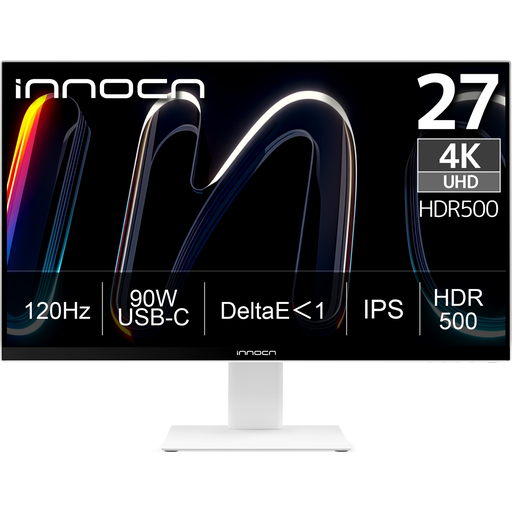
An option for anyone who wants 4K detail and height adjustment at a shared desk.
27 inches; 3840 × 2160 pixels; IPS; USB-C with 90 W power delivery; 150 mm height adjustment; PIP and PBP.
 No image available
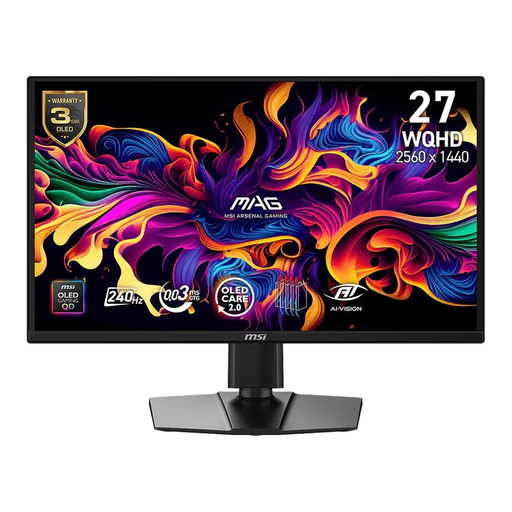
A QHD option for anyone who wants to adjust the screen position in a shared workspace.
26.5 inches; WQHD; QD-OLED; anti-glare screen; 178° viewing angle; stand with height, tilt, swivel and pivot adjustment.
 No image available
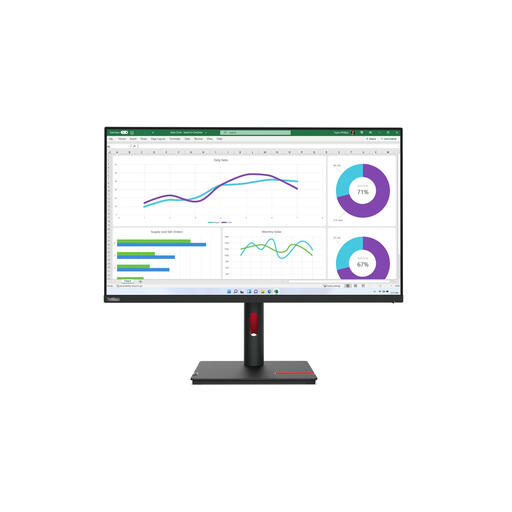
A larger QHD option for slides and documents in a shared workspace with laptops.
31.5 inches; 2560 × 1440 pixels; USB-C with up to 90 W power delivery; 15.5 cm height adjustment; VESA mounting. The power adapter must be purchased separately.
 No image available
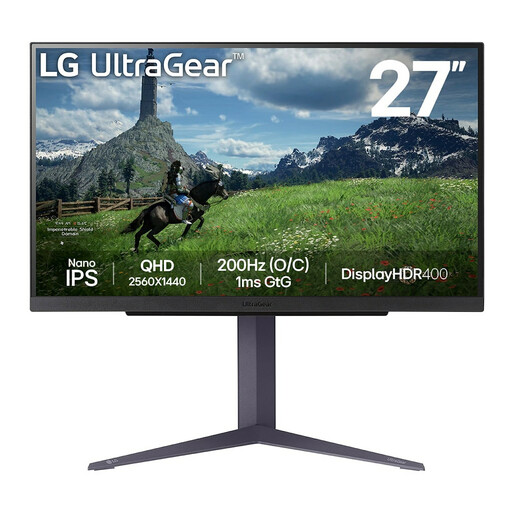
A 27-inch QHD option for slides at a shared desk where screen adjustment comes in handy.
2560 × 1440 pixels; matte anti-glare screen; stand with height adjustment and tilt.
No, 4K isn’t essential for everyone. A 27-inch QHD model such as the Dell P2725D has 2560 × 1440 pixels; the 27-inch LG 27UN880P-B has 3840 × 2160 pixels. View your own slides at the scale you want to use, and take the available workspace into account.
Adjust the screen position for each user, keep icons easy to read, and avoid reflections and light sources in your field of view. Arboportaal lists these points as guidance for display screen work; the precise setup depends on the workspace and its users.
According to Arboportaal, for employees who work at a screen for more than 2 hours a day, the monitor and keyboard must not be attached to each other. Exceptions may be permitted under certain conditions, provided health and safety are protected. This doesn’t mean that every buyer has to choose a particular monitor model.
A consumer purchase may also be covered by the Dutch statutory guarantee. ACM ConsuWijzer explains that the law doesn’t set a fixed two-year period: what you can expect from a product depends, among other things, on the product, its price and normal use. The retailer is your point of contact when making a claim under the statutory guarantee.
Compare the energy label and product information for the exact model. European rules for electronic displays cover monitors and provide for energy labels and additional product information. Don’t infer one model’s energy consumption from another’s.