
Multitasker with teaching materials
You regularly keep reference materials, your schedule and notes open at the same time. Readable window space matters more than having one very large window.


Start by deciding how many teaching documents you want to read at once, then measure the space available on your desk. A compact screen suits focused document work, while a larger QHD or ultrawide screen gives you more room for side-by-side windows. Check the adjustability and whether the connections suit your computer, too. Screen size and resolution alone tell you nothing about the noise levels of your complete workspace.
You regularly keep reference materials, your schedule and notes open at the same time. Readable window space matters more than having one very large window.
You spend a lot of time reading and preparing, and want to position your screen comfortably, with manageable reflections and a pleasant text size.
You want a clear view without filling your desk, and take distracting noise seriously. Assess noise from each device and from the whole set-up, rather than relying on a screen specification.
Good for: focused document work, a smaller desk and extra vertical space for text. Dell lists the P2425 as 24.07 inches with a resolution of 1920 × 1200 pixels.
Trade-off: there is less horizontal space for multiple windows than with larger screens.
Good for: frequently using two teaching resources, or a document and notes, side by side, provided your computer supports the required USB-C video connection.
Trade-off: measure the space available for the screen and check that the charging power suits your laptop. Dell lists the P2725DE as having a resolution of 2560 × 1440 pixels and USB-C power delivery of up to 90 W.
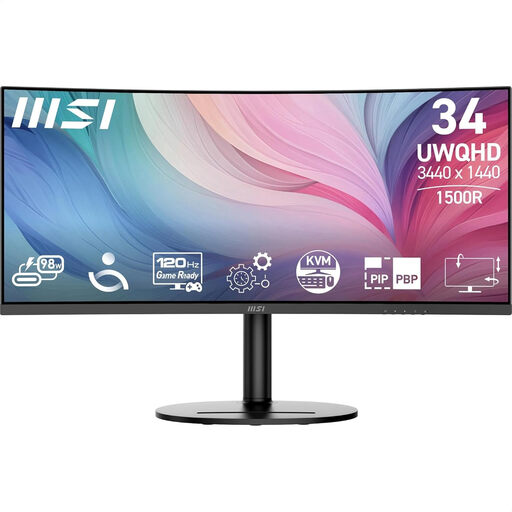
Good for: keeping several resources, lesson plans and notes in view at once, if your desk is wide enough. Philips specifies a resolution of 3440 × 1440 pixels for the 346B1C/00.
Trade-off: the wide format needs space. Check how the layout works at the text size you actually use.
Good for: anyone who values fine text or image detail on a 27-inch screen. Dell specifies a resolution of 3840 × 2160 pixels for the P2725QE.
Trade-off: 4K does not guarantee that more windows will fit at a comfortable text size; check the scaling setting.
| What to consider | What should you check? | Which consumers does this matter to? |
|---|---|---|
| Room for several teaching resources | Measure the available width and try arranging your windows at a readable scale. | If I want to see resources, my schedule and notes at the same time, a wide, readable layout matters more than a compact screen; around 36% of consumers prioritise an overview of their windows. |
| Reading comfort and positioning | Check the height adjustment, screen finish and text size; also consider incoming daylight. | If I read for long periods, I want to position the screen well and keep text comfortable to read; around 29% of consumers prioritise reading comfort. |
| Compact, quiet workspace | Measure the screen and stand, including the space needed for papers. Assess noise from the monitor, computer and accessories separately. | At a small desk, I want to keep some space free and avoid distracting noise; around 21% of consumers prioritise a compact, quiet set-up. |
| Connecting and charging | Compare your computer's video output, the monitor input, the cable and the charging power required. | If I want to use my laptop with as few separate cables as possible, the connection needs to suit my devices; around 14% of consumers prioritise easy connectivity. |
Dell describes the USB-C port on the P2425 as a downstream data port. A USB-C port on your computer will only carry video if that specific connection supports video transmission.
Before buying, check what both ports do and how much charging power you need.
The models mentioned illustrate a compact 16:10 set-up, a 27-inch QHD model with USB-C hub, and a 27-inch 4K model with hub.
The 346B1C/00 is an ultrawide example; the 27B2U3601/00 is a 27-inch QHD alternative.
The UltraFine 27US550-W is an example of a 27-inch 4K screen with adjustable positioning.
The E27u G5 is a 27-inch QHD USB-C example for an adjustable document-work set-up.
Samsung's home office guide discusses how screen size relates to desk space and the type of work you do.
This Joybuy selection includes ultrawide and compact screens, as well as 27-inch QHD and 4K models for viewing teaching materials side by side or focused document work.
 No image available
Suitable if you want to keep several teaching resources in view at once and have enough desk width.
34 inches; 21:9; 3440 × 1440 pixels; USB-C; height, tilt and swivel adjustment.
 No image available
Suitable if you want a 27-inch screen and plan to use the stated picture-in-picture or split-screen features for multiple sources.
3840 × 2160 pixels; 120 Hz; USB-C with 90 W power delivery; PIP and PBP features; height adjustment. Check that the text scaling you choose is comfortable for you.
 No image available
Suitable if you want to work with documents and notes side by side on a 27-inch QHD screen.
2560 × 1440 pixels; USB-C; ComfortView Plus; ambient light sensor.
 No image available
Suitable if you want to use teaching resources, or a document and notes, side by side, and your computer is compatible with the USB-C video connection.
2560 × 1440 pixels; USB-C for video and data with up to 90 W power delivery; RJ45 connection; adjustable stand for height, tilt and swivel.
 No image available
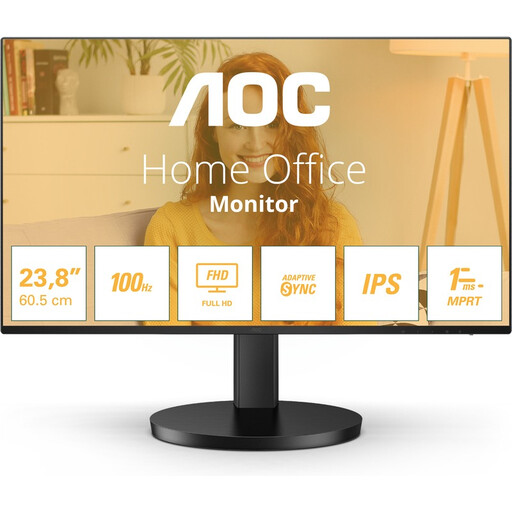
Suitable for focused document work at a smaller desk. There is less horizontal space for several side-by-side sources than with larger screens.
1920 × 1080 pixels; IPS; 120 Hz; Low Blue Light and Flicker-Free features; tilt-adjustable stand and VESA mounting.
Connect a supported video connection and select extend rather than duplicate in your display settings. Check the ports on your computer and monitor first: a USB-C connection alone does not confirm that it supports video.
Arboportaal states that for employees who work at a screen for more than two hours a day, the screen and keyboard must not be attached to one another. This is not a general product specification for every private buyer; speak to your employer if you have questions about your workspace set-up.
Follow the instructions for the specific model. Dell advises against spraying liquid directly onto its monitors' screens, recommending that you apply it to a suitable soft cloth instead.
For a distance sale to a consumer in the Netherlands, you generally have a 14-day cooling-off period from delivery, subject to legal exceptions, according to ACM ConsuWijzer. If a product is faulty or does not perform as you could reasonably expect during normal use, contact the seller about your statutory guarantee; a manufacturer's warranty does not replace this right.
Compare the EU energy label and product information for the exact models. The European Commission states that computer monitors fall under the rules for electronic displays and are given a label on a scale from A to G; screen size alone does not indicate power consumption.