Start by considering how many windows need to be readable at once, and whether users will share one computer or also switch a keyboard and mouse between two computers. An adjustable QHD screen could suit text editing on a smaller desk, while an ultrawide gives you more room for multiple windows. A 4K monitor with suitable colour settings is most relevant if users also review teaching videos.
Who is this choice relevant to?
Teaching materials editor
You compare a lesson document with comments or reference materials and want to read windows side by side. The screen’s aspect ratio and the space available on your desk will help you decide whether compact QHD or an ultrawide is a better fit for your setup.
User of two work computers
You switch between computers at the same workstation and may want to share a keyboard and mouse too. Check whether the monitor explicitly offers KVM: having multiple video inputs alone isn’t enough to switch peripherals.
Teaching video editor
You review video as well as text and adjust the screen settings to suit SDR or HDR output. Manufacturers’ claims about colour are not the same as an independent measurement of colour accuracy.
What should you look for when choosing?
| What to consider |
What should you check? |
Who is this important for? |
| Readable space for documents and reference materials |
Compare screen size and resolution, measure your desk and check your window layout at a comfortable text size. |
If I want to read a lesson document, comments and reference materials at the same time, I look at both usable width and text legibility. Around 30% of consumers prioritise space for readable windows. |
| Switching between computers |
Check the video and USB connections for each computer, the laptop charging power required and explicit support for sharing a keyboard and mouse. |
If two computers need to use the same peripherals, I want to know how switching works and which connections are needed. For around 30% of consumers, switching between computers is their main requirement. |
| Colour reproduction for teaching videos |
Decide whether you review SDR or HDR video and check the relevant colour settings and calibration options. |
If I also review video, I want to be able to adjust the colour settings to suit the intended output. An HDR label alone doesn’t prove accurate SDR colour reproduction. Around 20% of consumers give video colour their highest priority. |
| Adjustability for different users |
Check the height and tilt adjustments, and whether each user can reposition the screen. |
If several people take turns working at the same desk, I want to be able to adjust the screen to my viewing height. Around 20% of consumers consider adjustability for different users most important. |
Common purchasing mistakes
-
Assuming USB-C is a complete solution for two computers
Display, laptop charging and switching USB peripherals are separate functions. USB-C video or power doesn’t automatically mean the monitor has a KVM.
Check the connection diagram for each computer and look for explicit KVM support if you need to switch between a keyboard and mouse.
If the computers don’t share the connections you need, you may need extra cables or a separate switching solution.
-
Choosing based only on screen size
An ultrawide mainly gives you more width. That won’t necessarily suit a desk with limited space or work where you mostly use one application at a time.
Compare the resolution, aspect ratio and desk dimensions, and try out your intended window layout at your preferred text size.
-
Assuming an HDR label means suitable SDR colour correction
The right colour settings depend on the intended video output. HDR support is not an independent measurement of colour accuracy for SDR video.
First decide whether you’ll be doing colour-critical video work, then match the picture mode and any calibration to the output.
Setting up a colour workflow can take extra time and, depending on how you work, may require additional equipment.
Brands to consider
Philips
Philips describes the 34B2U3600C/00 as a 34-inch WQHD monitor with Smart KVM, for a workstation where extra width and switching between sources are useful.
- Philips lists a resolution of 3440 × 1440 pixels and Smart KVM.
- The 34-inch size needs desk space; the product description is not an independent performance test.
HP
The HP Series 5 Pro 527pm is a QHD conferencing monitor for a workstation where video calls and two computers are part of the setup.
- HP lists a retractable 5MP webcam and connectivity for two computers.
- Check the connection for each computer; the webcam adds little if the monitor is only used for document editing.
Dell
The Dell Pro Plus P2425DE is a compact 23.8-inch QHD model with a USB-C hub and height adjustment, worth considering for a smaller desk.
- Dell lists a resolution of 2560 × 1440 pixels and adjustable height.
- Its limited physical width may be less suitable if you need to place many windows side by side. The listed specifications don’t confirm KVM.
LG
LG describes the 27UP850K-W as a 27-inch 4K monitor with USB-C and hardware calibration support.
- LG lists hardware calibration support and up to 96 W USB-C power delivery.
- The listed display and HDR features are not independent confirmation of colour accuracy for a particular teaching video.
BenQ
According to its own product information, BenQ’s Creative Pro PV2750U is designed for Rec.709 video editing.
- BenQ lists hardware calibration with a 16-bit 3D LUT.
- These specialist features are most relevant if SDR colour correction is part of your work; the manufacturer’s description is not an independent test for this workstation.
Joybuy monitors for this workstation
This Joybuy selection includes 4K and ultrawide monitors for editing teaching materials with extra screen space or viewing visual content. Check the connections and features of each model to make sure they suit your shared workstation.
 No image available
LG UltraFine 27U711B-B 27-inch 4K IPS monitor
A 27-inch 4K IPS monitor to consider if you also want to view visual content in detail while editing teaching materials.
The product description lists a resolution of 3840 × 2160 pixels and a 16:9 aspect ratio.
View at Joybuy
 No image available
Dell Pro P3426WEV 34.1-inch curved WQHD monitor
An ultrawide monitor to consider if you want to view lesson documents and other windows at the same time, or share peripherals between computers.
The product description lists a resolution of 3440 × 1440 pixels, a 21:9 aspect ratio, a built-in KVM switch and USB-C power delivery up to 90 W. Make sure you have enough desk width.
View at Joybuy
 No image available
Dell UltraSharp U3226Q 32-inch 4K UHD 120Hz QD-OLED monitor
A 4K monitor to consider if you also review highly detailed visual content while editing teaching materials.
The product name lists 4K UHD, 120 Hz and QD-OLED. The product description lists a KVM feature and USB-C power delivery up to 140 W.
View at Joybuy
 No image available
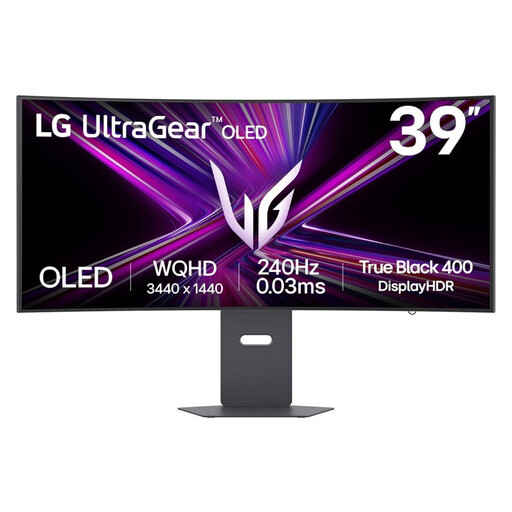
LG UltraGear 39GX900A-B 39-inch gaming monitor
An ultrawide monitor to consider if you want to view lesson documents alongside other windows.
The product description lists a 39-inch 21:9 UltraWide QHD screen with a resolution of 3440 × 1440 pixels, Picture-by-Picture and USB-C power delivery up to 65 W. The stand is height-adjustable and can be tilted and swivelled.
View at Joybuy
 No image available
CRUA CR320QB 32-inch curved 4K monitor
A 32-inch curved 4K monitor to consider if you also want to view visual content while editing teaching materials.
The product name lists a resolution of 3840 × 2160 pixels. The product description mentions a VA screen, HDR10 support and 100% sRGB colour coverage.
View at Joybuy
Frequently asked questions
Do you need a KVM monitor for two users?
Not if you take turns using the same computer. KVM is relevant when two computers also need to share a keyboard and mouse; check the video and USB connections on both computers.
Is 4K or HDR necessary for a Dutch language lesson?
No, not because of the language being taught. If you’re mainly working with text, legibility and window layout are the key considerations. For video review, the colour settings should suit the output. Adobe describes separate colour management settings for each video sequence.
Which health and safety rule applies to a shared employee workstation?
According to Arboportaal, for employees who work at a screen for more than 2 hours a day, the screen and keyboard must not be attached to one another. This requirement applies to employees and says nothing about a private workstation where the employment relationship is unknown.
How do you adjust the monitor for different users?
Check that each user can reposition the screen, and assess legibility from their own viewing position. Height adjustment can help, but it doesn’t automatically make the whole workstation suitable.
What warranty applies when you buy a monitor as a consumer in the Netherlands?
According to the Dutch government, there is no fixed statutory warranty period in the Netherlands. It states that consumers are entitled to a product that works as it should, and that the retailer is the point of contact if a product is faulty; a manufacturer’s warranty is in addition to your statutory rights. This consumer guidance does not necessarily apply to purchases made on behalf of an organisation.


