
For reading fine detail in plans
If you mainly view one scan or map at a time and zoom in on small markings, consider both the resolution and a text scaling setting that remains comfortable to read. Dell and LG offer 27-inch 4K models as examples.


If you usually look at one plan or scan at a time, a 27-inch 4K monitor is a good choice for viewing fine detail. If you often work with a plan and its accompanying notes side by side, a 34-inch ultrawide gives you more horizontal workspace. Dell, LG and Philips list these resolutions for their respective models, but the specifications don’t guarantee that small labels in a downloaded file will be readable. So also check the text scaling, desk space, screen adjustment options and video connection to your computer.
If you mainly view one scan or map at a time and zoom in on small markings, consider both the resolution and a text scaling setting that remains comfortable to read. Dell and LG offer 27-inch 4K models as examples.
If you regularly keep a plan and an accompanying document open at the same time, consider how much horizontal screen space you need. Philips and LG offer 34-inch ultrawide models as examples.
If you read for extended periods, look for ways to position the screen comfortably at your workstation. The Arboportaal recommends, among other things, facing the screen straight on and positioning it with the top just below eye level.
First choose between fine detail on a single plan and space for multiple windows. Then check readability at your preferred scaling, desk space and the connection to your computer.
Best for: usually viewing one large map or scan and regularly zooming in on details.
Trade-off: 4K doesn’t guarantee that small text in a scan will be easy to read without zooming in.
Best for: often opening a plan and notes side by side, with enough space on your desk.
Trade-off: measure your available space; the ultrawide models listed have 1440 vertical pixels, compared with 2160 on the 4K screens listed.
Best for: a compact document workspace if 4K detail or ultrawide width isn’t your priority.
Trade-off: QHD has fewer pixels than the 4K screens listed. Also check that video and power delivery over USB-C are compatible with your computer.
| What to consider | What should you check? | Who is this most relevant to? |
|---|---|---|
| Detail and readability | Check the resolution of the exact model and view a representative downloaded plan at a comfortable zoom and text scaling setting. | If I mainly view one map or scan, I want to be able to read small lines and labels at my chosen scaling. Around 36% of consumers prioritise fine detail. |
| Viewing a plan and notes side by side | Measure the available desk width and test whether both windows fit at your preferred text scaling. | If I want to compare a plan and notes at the same time, I mainly need enough horizontal space without making the text too small to read. Around 29% of consumers prioritise this comparison. |
| Adjustability for extended reading | Check the height and tilt adjustment, the stand’s dimensions and whether you can position the screen directly in front of you. | For longer reading sessions, I want to be able to position the screen comfortably at my workstation. Around 21% of consumers prioritise adjustability. |
| Connection to your computer | For the exact model, check that your computer can send video through the port you intend to use, and that the power supply and cable are suitable. | If I want to connect my laptop with a single cable, I want to know in advance whether that connection supports video and suitable power delivery. Around 14% of consumers prioritise a compatible connection. |
The stated screen resolution doesn’t tell you how sharp the downloaded source file is or what text size you’ll find comfortable to read.
If possible, view a representative plan at the zoom and text scaling you intend to use.
A wide screen needs enough room. LG lists the 34WR55QC-B as 809 mm wide, including the stand.
Measure your desk and check how much of the plan and notes remains visible at a readable scaling.
Video capabilities and stated power delivery vary by monitor. Your computer must also support video through the USB-C connection you choose.
Compare the ports and power specifications of your computer and monitor, and check which cable is required for the exact models.
Depending on your computer, you may need a suitable cable or another connection solution.
The Pro Plus P2725QE is a 27-inch 4K USB-C hub monitor for combining plan viewing with connectivity options.
The 27UP850K-W and 34WR55QC-B are examples of 27-inch 4K and 34-inch ultrawide options respectively.
The E Line 346E2CUAE/00 is a 34-inch ultrawide option for viewing windows side by side.
The Series 5 Pro 527pu is a 27-inch QHD USB-C option for a compact document workspace.
The Q27P3CV is an example of a 27-inch QHD IPS monitor with USB-C and a network connection.
This selection includes 27-inch 4K monitors for viewing one plan or scan at a time, and a 34-inch ultrawide for viewing a plan and notes side by side.
 No image available
Ideal if you usually focus on one plan or scan and want to examine the detail.
27 inches; 4K; IPS.
 No image available
Ideal if you mainly view a single downloaded plan or scan with lots of image detail.
27 inches; 3840 × 2160 pixels; 60 Hz; 4 ms; HDMI and DisplayPort.
 No image available
Ideal if you focus on one plan or scan and want the fine detail of a 4K screen.
27 inches; 3840 × 2160 pixels; 4K UHD.
 No image available
Ideal if you usually view one plan or scan at a time and prioritise fine detail.
27 inches; 3840 × 2160 pixels; 4K UHD.
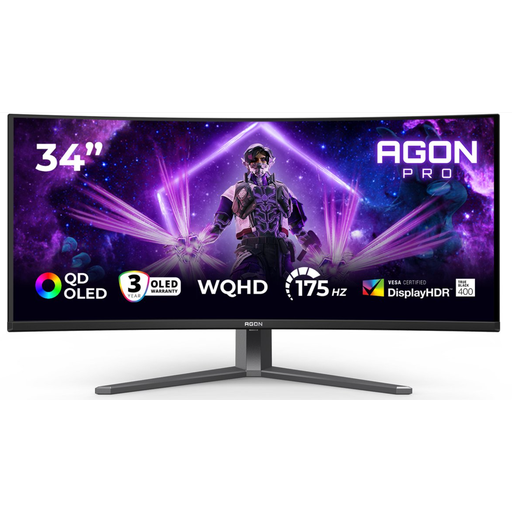 No image available
Ideal if you want to view a plan and notes side by side; measure the available desk width first.
34 inches; 3440 × 1440 pixels; DisplayPort up to 175 Hz and HDMI up to 100 Hz.
Yes. The monitor displays the output from the connected computer. Make sure the files and required software are available on that computer, and check that the computer and monitor have a suitable video connection. A USB-C port alone doesn’t confirm compatibility.
The Arboportaal recommends positioning the screen directly in front of you, with the top just below eye level, and tilting it so you’re looking straight at the screen. Also vary your posture and tasks; this advice doesn’t prove that any one monitor model prevents discomfort.
For many eligible distance purchases from a business, you have a 14-day cooling-off period; check the terms of your specific purchase. If the product is faulty, contact the seller to arrange a solution, such as a repair or replacement.
No. The obligations described by the Arboportaal apply to employers and employees in relevant circumstances involving screen-based work. They aren’t automatically legal monitor requirements for every consumer, although the practical setup advice can help you arrange your workspace.
According to the Rijksoverheid, you can return old electrical appliances to places such as a shop or online retailer where you buy a new, similar appliance, a collection point or your local council recycling centre. When you buy a new, similar appliance, the old-for-new scheme applies.