
Student with a small desk
You need space for both a monitor and your study materials, and want to be able to adjust your setup. Measure the available space, including the monitor stand, before choosing a size.


Start by deciding whether you mainly read one document or want to see your notes and sources side by side. A compact 24-inch screen may suit text-based work, while 27-inch QHD gives you more room for multiple windows. Measure your desk and, for USB-C, check separately that the monitor, laptop and cable support video and the power delivery you need; a USB-C port alone doesn’t guarantee a one-cable setup.
You need space for both a monitor and your study materials, and want to be able to adjust your setup. Measure the available space, including the monitor stand, before choosing a size.
You want to keep your notes and an article or lecture file on screen at the same time. Compare the screen space available with the space on your desk.
You want to switch easily between your laptop and monitor. Check that the connection you want supports video and, if needed, can charge your laptop.
First decide how many windows you want to see at once. Then measure how much room you have left for the monitor stand, laptop and study materials.
Ideal for: mainly reading or writing, a limited amount of desk space and the option to adjust the screen height.
Bear in mind: a compact screen offers less room for wide windows side by side. According to Dell, the USB-C downstream port on the Dell P2425 and P2425H is for data only and supports up to 15 W.
Ideal for: regularly viewing two windows side by side, if your desk can accommodate a larger screen.
Bear in mind: measure the available space and, for USB-C, check the video and charging capabilities of the monitor, laptop and cable.
Ideal for: keeping several wide windows open at once, if you have enough desk width.
Bear in mind: the LG 34WR55QC-B is 809 mm wide with its stand, and that extra width is less useful if you usually work with just one text document.
| Consideration | What should you check? | Who does this matter most to? |
|---|---|---|
| Reading and writing space | Compare the aspect ratio and native resolution; also check the stand and its adjustability. | If I mainly read and write in one document, I want enough vertical space without immediately opting for a larger screen. Around 27% of consumers prioritise reading and writing notes. |
| Notes and sources at the same time | Compare 27-inch QHD with ultrawide screens based on how you arrange your windows, and measure the available desk width and depth. | I want to be able to view my notes alongside a source. Around 33% of consumers give the highest priority to seeing multiple windows at once. |
| Desk space and spending | Measure the space available for both the screen and stand; check which cables or accessories your setup needs. | I also need room on my desk for my laptop and study materials, so the monitor stand mustn’t take up too much space. Around 27% of consumers give most weight to limited space or spending. |
| Connecting and charging a laptop | Check the laptop’s video output, the monitor’s video input, the cable and, if required, the power delivery. | I want to connect my laptop easily and charge it through the monitor if needed. Around 13% of consumers prioritise connecting their laptop. |
Not every USB-C port supports video or delivers enough power to charge a laptop. Dell states that the USB-C downstream port on the P2425 and P2425H is for data only and delivers up to 15 W.
Before choosing a cable or accessory, check the functions of the ports on both the monitor and the laptop.
Depending on your setup, you may need a different cable, an adapter or a separate laptop power supply.
The screen diagonal doesn’t tell you how much space the stand takes up. The LG 34WR55QC-B is 809 mm wide with its stand, which affects how much room is left for your laptop and study materials.
Measure the available width and depth, allowing for the full stand and your other belongings.
A higher resolution doesn’t automatically make a monitor better suited to the way you study. The Dell P2425 has 1920 × 1200 pixels; the larger QHD or ultrawide screen offers a different layout for your windows.
Think about whether you usually read one long document or want to view several sources side by side, then compare the aspect ratio and native resolution.
The Dutch Pro Plus models P2425 and P2425H show the difference between compact 16:10 screens for text and compact 16:9 screens for general use.
The Business Monitor 27B2U4601/00 is an example to consider if you’re comparing 27-inch QHD screens with USB-C connectivity.
The 34WR55QC-B is an example of an ultrawide setup for keeping multiple windows open.
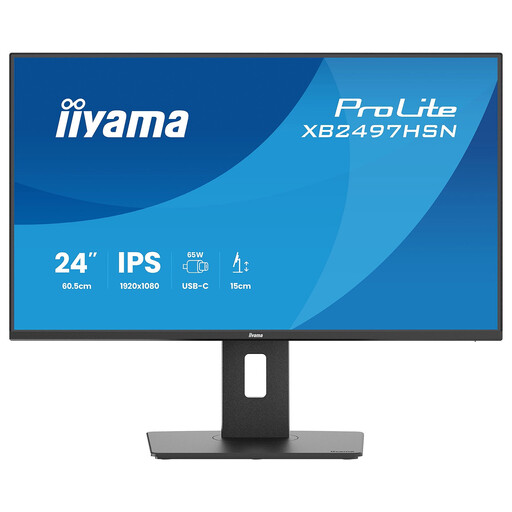
The ProLite XUB2493HS-B6 is a historical example of a 24-inch screen with height adjustment and pivot.
These monitors suit compact text-based work, viewing notes alongside sources and arranging multiple windows on an ultrawide screen. Before buying, check that the dimensions and connections suit your desk and laptop.
 No image available
Suited to compact text-based work and a laptop setup if you’re looking for an adjustable monitor stand and a USB-C connection.
The product description lists a 23.8-inch IPS screen, Full HD, 100 Hz and a stand with height, swivel, tilt and pivot adjustment. It also mentions a USB-C dock for video and data, up to 65 W Power Delivery and Gigabit Ethernet. Check that the connections and power delivery suit your laptop.
 No image available
Suited to a study setup where you want to view notes alongside a source on a larger screen.
The product information lists a resolution of 2560 × 1440 pixels, a Fast IPS panel and a stand with 130 mm of height adjustment and pivot.
 No image available
Suited to compact reading and writing if you’re looking for a 16:10 screen and an adjustable viewing position.
The product information lists a resolution of 1920 × 1200 pixels, a matte finish, up to 100 Hz and height adjustment of up to 13 cm. It also mentions a hub with four USB Type-A ports.
 No image available
Suited to anyone who wants to view notes and sources in QHD on a relatively compact screen and connect their laptop via USB-C.
The product information lists a 23.8-inch IPS screen with a resolution of 2560 × 1440 pixels and 100 Hz. It also mentions USB-C with 90 W Power Delivery, an RJ45 connection and a stand with height and angle adjustment. Check that the connections and power delivery suit your laptop.
 No image available
Suited to viewing multiple windows side by side if you have enough desk space for an ultrawide screen.
The product information lists a 34-inch 21:9 screen with a resolution of 3440 × 1440 pixels and Picture-by-Picture for displaying two devices. According to the description, it measures 809 mm wide with the stand.
No, it depends on the connections and capabilities of the monitor, laptop and cable. Check whether the laptop can output video through that port, whether the monitor accepts video and whether the power delivery is sufficient. For the P2425 and P2425H reviewed, Dell lists a USB-C downstream port for data only.
Place the monitor directly in front of you, with the top just below eye level, as recommended by Arboportaal. A suitable workstation setup is still important; a product specification for eye comfort doesn’t replace this positioning advice.
Compare the EU energy label for the exact monitor model. According to the European Commission, computer monitors are covered by energy labelling rules, with a scale from A to G.
According to the Dutch government, in many cases you have 14 days to change your mind when buying remotely from a business. The rules and exceptions depend on the purchase, so check which terms apply to your situation.
The Dutch government states that the seller must provide a complete, undamaged product with the features described. Compare the monitor with the product page and contact the seller if anything differs.