Start by looking at the space available on your desk and your laptop’s video output. A compact screen is easier to fit in, while a 27-inch QHD monitor gives you more pixels for viewing slides and source material side by side. Choose an adjustable stand if you want to change the screen position, or USB-C if both your monitor and laptop support the video connection and power delivery you need.
Who is this choice relevant to?
Student with a small desk
If you create slides at a shared workstation, you’ll want to know whether the screen and stand will fit alongside your laptop and study materials. BenQ and ASUS also publish stand dimensions for the models mentioned here, so measure your available space before choosing a screen size.
Student who spends a long time working on presentations
If you spend a long time working on slides, screen positioning may be worth considering. A monitor can’t replace a suitable workspace or breaks from working; Arboportaal recommends looking away from the screen regularly and taking microbreaks, among other things.
Student with lots of sources or a preference for one cable
If you want to view slides and source material side by side, weigh up the extra screen space against the space available on your desk. If you want to keep cables to a minimum, also check that the USB-C ports on both your laptop and monitor support the video and power delivery you need.
What should you look for in a monitor for your student bedroom?
First, measure the available width and depth of your desk. Then decide whether screen size, positioning or a connection that works with your laptop matters most.
| Buying consideration |
What should you check? |
Who is this important for? |
| Desk space |
Compare the screen’s width and depth, including the stand, with the free space on your desk. |
If my desk also needs to fit my laptop and notes, I want to know whether the screen and stand will fit. Around 30% of consumers prioritise the space available on their desk. |
| Slides and sources side by side |
Compare Full HD, 1920 × 1200 and QHD with the size that fits your desk and your laptop’s scaling settings. |
If I want to keep source material visible while creating slides, I look at how much screen space is available. Around 30% of consumers prioritise space for slides and sources. |
| Screen positioning |
Check whether the exact monitor model is height-adjustable; tilt adjustment alone doesn’t mean the height can be changed. |
If my desk or sitting position calls for a different screen height, I want to know what adjustments the stand offers. Around 20% of consumers prioritise adjustability. |
| Laptop connection |
Compare the video output, video input, USB-C video capability and power output; also check which cable is included. |
If I want to connect my laptop with as few cables as possible, I check that both devices support video and the power delivery I need over the same connection. Around 20% of consumers prioritise a suitable, simple connection. |
Things to remember when buying
-
Measuring only the screen diagonal
The stand takes up desk depth too. For example, BenQ lists a depth of 241 mm with the stand for the GW2490T.
Measure the free space on your desk and compare it with the dimensions of the exact model, including its stand.
-
Assuming every USB-C port provides video and laptop power
Dell says the USB-C downstream port on the P2425 is for data. Philips, by contrast, describes one-cable use with a compatible device for the 24E1N1300AE/01.
Check the function and power output of the specific monitor port, as well as your laptop’s capabilities. Don’t rely on the USB-C connector alone.
-
Confusing tilt adjustment with height adjustment
ASUS doesn’t list height adjustment for the VA24EHF, while BenQ specifies 110 mm of height adjustment for the GW2490T.
Compare the adjustment options of the exact model. If you need height adjustment, check that the stand actually offers it.
Depending on your workspace, you may otherwise need a suitable riser or a separate mount.
Brands to consider
Dell
The P2425 is a 24.07-inch 16:10 model for anyone looking for vertical workspace and adjustability.
- Dell lists a resolution of 1920 × 1200 pixels, along with height, swivel and pivot adjustment.
- According to Dell, the USB-C downstream port is for data and delivers a maximum of 15 W; don’t treat it as a USB-C port for powering your laptop.
Philips
The 24E1N1300AE/01 and 27E1N1600AE/00 offer a compact Full HD option and a larger QHD option respectively.
- Philips describes USB-C connectivity for both of these specific models; for the 24E1N1300AE/01, it mentions one-cable use with a compatible device.
- Check the video and power requirements for each monitor and laptop. The 27-inch model needs more desk space than the 23.8-inch model.
BenQ
The GW2490T is a 23.8-inch Full HD model for anyone who wants to adjust the screen position.
- BenQ specifies 110 mm of height adjustment, two HDMI inputs and one DisplayPort input.
- The stated depth with the stand is 241 mm, so check that it will fit on your desk.
ASUS
The VA24EHF is a compact 23.8-inch Full HD option with HDMI.
- ASUS specifies an IPS panel and VESA 100 × 100 mm for this model.
- ASUS doesn’t list height adjustment or built-in speakers for the VA24EHF.
Monitors at Joybuy
This selection focuses on compact Full HD monitors for presentations in a student bedroom, including models with adjustable stands and a USB-C option.
 No image available
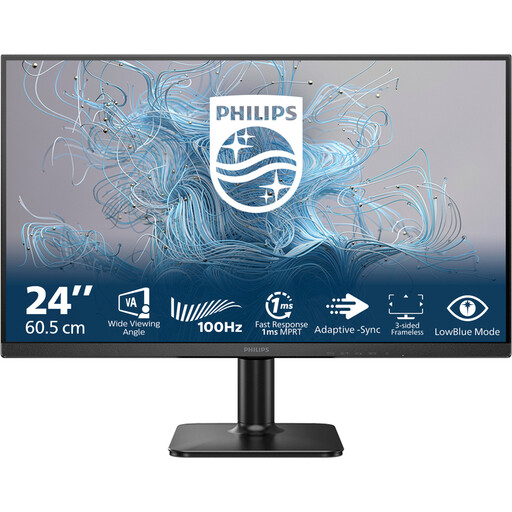
Philips 1000 Series 24E2N1100LB/00 24-inch Full HD 100 Hz VA monitor
A compact Full HD option for creating slides at a desk with limited space.
24 inches, 1920 × 1080 pixels, VA panel and 100 Hz.
View at Joybuy
 No image available
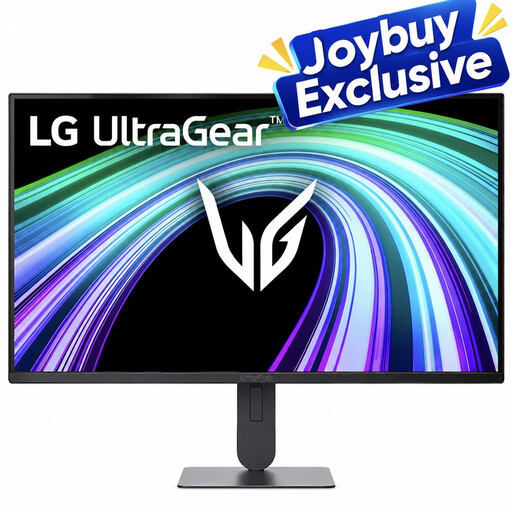
LG UltraGear 24G414B-B 24-inch Full HD monitor
A compact option if you want to adjust the screen height and tilt.
23.8 inches, 1920 × 1080 pixels, IPS panel, height and tilt adjustment, HDMI and DisplayPort.
View at Joybuy
 No image available
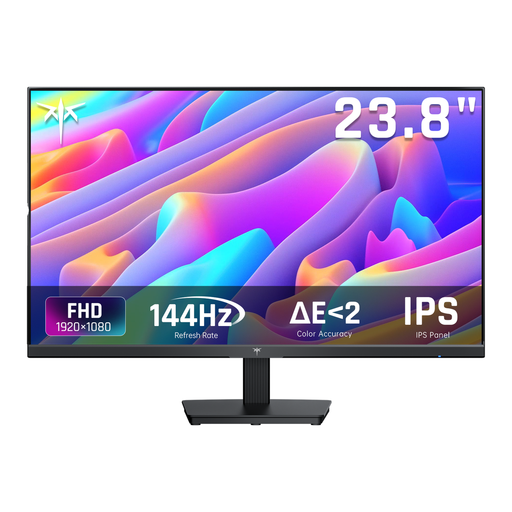
KTC H24B9S 24-inch Full HD IPS monitor, 144 Hz
A 24-inch Full HD option for a compact study space.
1920 × 1080 pixels, IPS panel, HDMI, DisplayPort and a tilt-adjustable stand.
View at Joybuy
 No image available
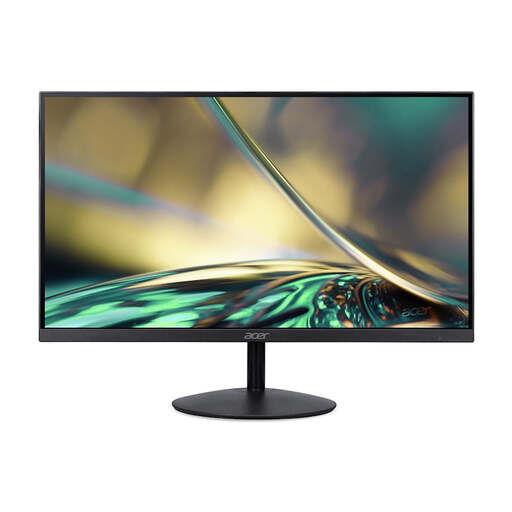
Acer SA242YH1 23.8-inch Full HD monitor, 100 Hz
A compact monitor for anyone mainly looking for a Full HD screen; check which connections your laptop has before you buy.
1920 × 1080 pixels, VA panel, HDMI and VGA. The description states that the power adapter isn’t included.
View at Joybuy
 No image available
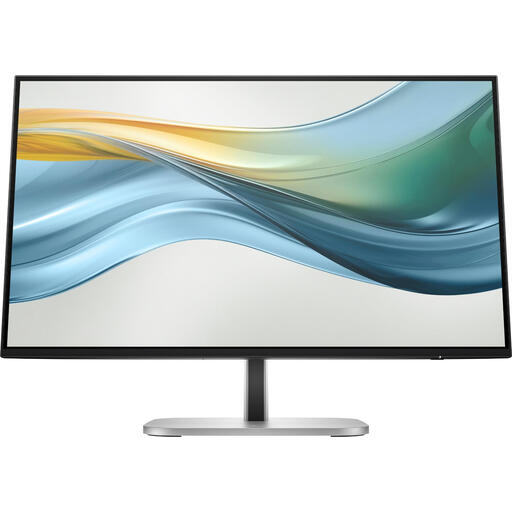
HP Series 5 Pro 524pu 23.8-inch Full HD USB-C monitor
A compact option if your laptop supports USB-C video and you want to use one cable for video, data and charging.
1920 × 1080 pixels, IPS panel, adjustable stand and Ethernet port. The description lists USB-C up to 100 W and says the power adapter isn’t included; check your laptop’s requirements.
View at Joybuy
Frequently asked questions
Do I need a 27-inch monitor to create presentations?
No, a 27-inch screen isn’t essential. Philips lists a 27-inch screen size and 2560 × 1440 pixels for the 27E1N1600AE/00; choose a larger screen like this only if you have the space and want more room for windows. More compact models offer different benefits, such as adjustability or a 16:10 aspect ratio.
Can any USB-C monitor charge my laptop with one cable?
No. USB-C alone doesn’t guarantee that video and laptop power will work over the same cable. Check the video support and power output of both your laptop and the exact monitor port. Philips describes one-cable use with a compatible device for the 24E1N1300AE/01; Dell says the USB-C downstream port on the P2425 is a data port.
How should I set up my monitor for long study sessions?
Position your screen and input devices so you can use your workspace without adopting an awkward posture, and take breaks from screen work. Arboportaal recommends looking away from the screen regularly and taking microbreaks, among other things; this doesn’t guarantee that a particular monitor will prevent discomfort.
What can I do if a monitor I bought online doesn’t fit or develops a fault?
For a standard online consumer purchase in the Netherlands, you’re generally entitled to a statutory cooling-off period of up to 14 days after delivery, subject to exceptions; ACM ConsuWijzer explains how this works. If a product doesn’t meet reasonable expectations when used normally, you also have statutory guarantee rights against the seller. A manufacturer’s guarantee doesn’t replace those rights.
Do rules on screen work automatically apply to studying in my room?
No, don’t assume that rules on screen work create a general legal requirement for a particular monitor when you’re studying independently. Arboportaal outlines the obligations of employers and employees; its practical advice about taking breaks may still be useful when studying.


