
Vandaag of morgen in huis

Kwaliteit gegarandeerd

Welkomstaanbiedingen ontgrendelen: GRATIS bezorging | Tot 80% korting | Gratis 30 dagen JoyPlus-proefperiode
Download de app
A monitor stand can help keep your desk tidy, but not every model suits every screen or desk. You may not spot a poor choice until after installation: the base takes up more room than expected, the screen wobbles or the VESA mount isn’t compatible. Marketing terms such as ‘ergonomic’ don’t mean much if the height, weight capacity and mounting method aren’t clear.
Look out for these common pitfalls:
First, choose between a monitor stand for one screen, a monitor stand for 2 screens or a monitor stand for 3 screens. Then check the maximum weight per screen, not just the overall weight capacity.
For example, a triple monitor arm with a limit of 6 kg per screen may be suitable for three lightweight screens, but it won’t necessarily support three heavy gaming monitors. Remember to allow for the weight of any VESA adapter, too.
Check the maximum screen size and the mounting pattern on the back of your monitor. Many models in this selection support VESA 75 × 75 mm and 100 × 100 mm. These sizes are common, but not universal.
A monitor stand for a 32-inch screen won’t necessarily suit every 32-inch monitor. The arm must also support the weight and allow enough movement. If your screen doesn’t have VESA holes, you may need a separate adapter. Check in advance whether one is included or needs to be bought separately.
An adjustable monitor stand can help if your screen is too low. Check the actual adjustment range. For example, the Neomounts FPMA-D700 has manual height adjustment from 15 to 45 cm, while the FPMA-D885BLACK adjusts from 7.5 to 32.5 cm using a gas spring.
Also check:
A desk monitor stand with cable management helps route loose cables along the arm or behind the desk. It won’t automatically leave your work surface completely tidy, but it will stop cables hanging freely across it.
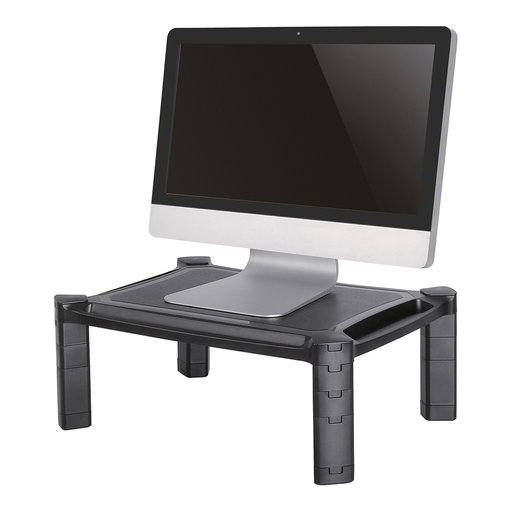
Why it suits this profile: This monitor riser is ideal if you want to raise a single monitor or laptop without attaching an arm to your desk. The height adjusts from 4.6 to 16.8 cm, and the maximum load is 10 kg.
The weight capacity and adjustment range are clearly stated. The stand doesn’t use a VESA mount, so you don’t need to check for a compatible hole pattern first.
Height adjustment from 4.6–16.8 cm, space for a tablet or accessories, and a cable channel at the back.
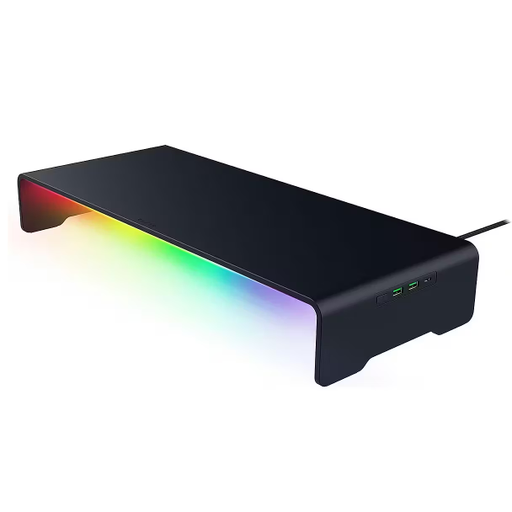
Why it suits this profile: This desk monitor stand combines an aluminium body with extra connectivity. It’s a good choice if you want to expand your monitor setup with a USB-C hub, HDMI connection and integrated lighting.
The maximum load of 13.6 kg is stated. Place the screen fully on the surface, and remember that the hub and lighting need a power adapter.
Aluminium construction, a four-port USB-C hub according to the product information, and space to store your keyboard and mouse under the stand.
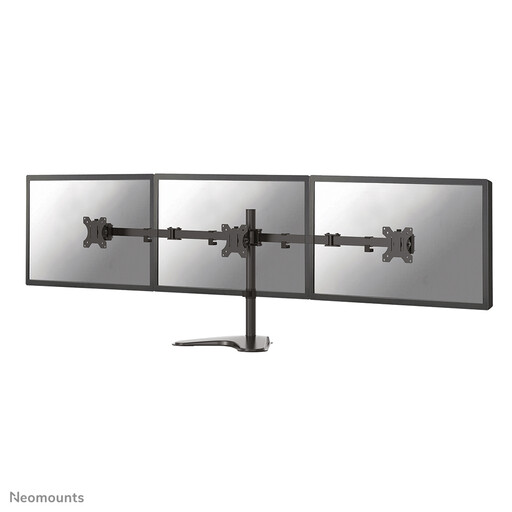
Why it suits this profile: This monitor stand supports 3 screens measuring 13 to 27 inches. It’s a practical solution for home workers, IT users and multitaskers who want to position three screens together using a single desk mount.
The specifications state 6 kg per screen, VESA 75 × 75 and 100 × 100 mm, and a height range of 0–43.2 cm. Check these limits before installation.
Each screen tilts, rotates and swivels, with cable management clips to keep connections tidier.
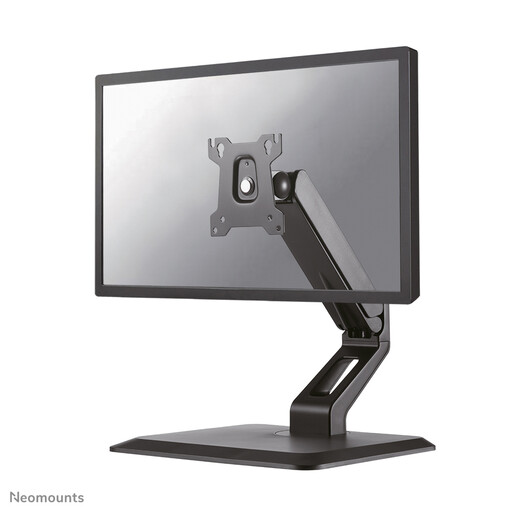
Why it suits this profile: The gas spring makes it easy to adjust the height frequently for a single screen measuring 15 to 32 inches. The stand supports up to 10 kg and has VESA 75 × 75 and 100 × 100 mm compatibility.
The minimum and maximum load are specified as 2 to 10 kg. Adjust the spring tension to suit the actual weight of your screen, and don’t exceed the limit.
Height adjustment from 7.5–32.5 cm, 360-degree rotation and integrated cable management.
We’ve put together a complete, up-to-date list of products that meet these strict selection criteria and the applicable European safety regulations.
It depends on your desk and screen. A monitor arm frees up most of the work surface and often offers more ways to adjust your screen. A monitor riser sits on the desk and is usually easier to set up. If you use a laptop and monitor, an adjustable monitor stand with storage space may be more practical.
Its lifespan depends on the materials, load, installation and how often you move the arm. Check the screws, clamps and joints regularly. Never use a model above its stated weight limit. Warranty terms vary between products, so check the product page.
A standard monitor arm or monitor riser doesn’t use electricity. A model with a built-in USB hub, HDMI connection or lighting, such as the Razer Monitor Stand Chroma, does need a power adapter for those features. The monitor itself still needs its own power.
