
Vandaag of morgen in huis

Kwaliteit gegarandeerd

Welkomstaanbiedingen ontgrendelen: GRATIS bezorging | Tot 80% korting | Gratis 30 dagen JoyPlus-proefperiode
Download de app
A monitor stand can help keep your desk tidy, but not every model is suitable for every monitor, laptop or workspace. A stand that’s too lightweight may be unstable. A fixed riser may not offer enough flexibility. And a monitor arm that doesn’t fit your desk or VESA pattern can mean extra work during installation.
So pay attention to the technical specifications, not just terms such as “universal”, “ergonomic” or “space-saving”. Read on to find out which features matter and which monitor and laptop accessories suit different needs.
A universal monitor mount may suit a wide range of models, but always check:
A monitor without a VESA mount won’t automatically fit a monitor arm. For a laptop, you’ll also need a laptop tray or laptop stand, unless the model is specifically designed for VESA mounting.
An adjustable monitor stand can help you raise the screen, but check the actual adjustment range. A few centimetres of adjustment is quite different from a monitor arm that can also swivel, tilt and move forwards or backwards.
With a laptop stand, you’ll notice the practical difference between fixed positions and stepless adjustment. Fixed positions are simple to use, while stepless adjustment gives you more control over the viewing height.
Your desk may look tidy until the power, HDMI, DisplayPort and USB cables are hanging behind the monitor. Check whether the stand has cable clips, a cable channel or an integrated cable grommet. Also consider the length of your cables: a monitor arm can increase the distance to your computer.
The load capacity must be greater than the weight of your monitor, laptop or mini PC. Remember to include accessories such as a webcam, docking station or VESA adapter. Place the stand on a flat, stable surface and never exceed its stated maximum load.
Examples from the range:
With a dual monitor arm, don’t just check the weight limit per screen. Also check the desk’s load capacity and the mounting point. Two screens put more strain on the clamp.
VESA refers to the distance between the mounting holes on the back of the screen. Many monitor arms and VESA monitor mounts support 75 × 75 mm and 100 × 100 mm. Measure the spacing before you order.
A monitor with a different hole pattern may sometimes be mounted using a conversion plate. However, this is an extra part and isn’t always available for every screen.
Consider the combination of height, depth, tilt, swivel and rotation. A monitor arm with a wide range of movement is useful if you regularly switch between sitting, working at a sit-stand desk and collaborating around the same screen.
According to the product specifications, the Neomounts FPMA-D650BLACK offers:
These figures don’t tell you what your ideal working posture is, but they do show how much adjustment the monitor arm offers.
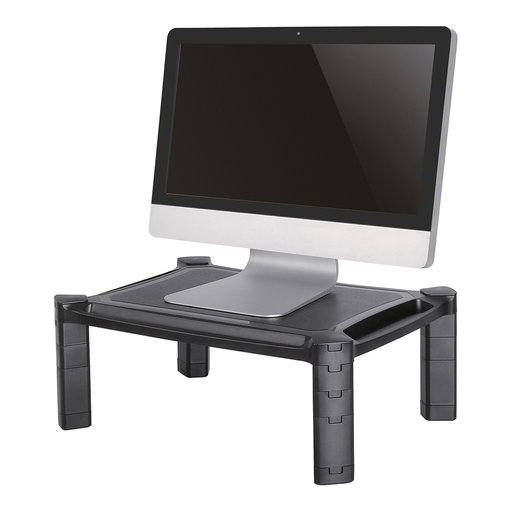
Why it suits this type of user: This monitor riser is suitable for a single screen or laptop weighing up to 10 kg, with an adjustment range of 4,6 to 16,8 cm. It’s a practical choice for a simple desk setup that doesn’t require a clamp on the edge of the desk.
The product specifications state both the load capacity and the adjustment range. There’s also a cable channel at the back.
Suitable for screens from 10 to 32 inches; adjustable height; storage space at the front and back.
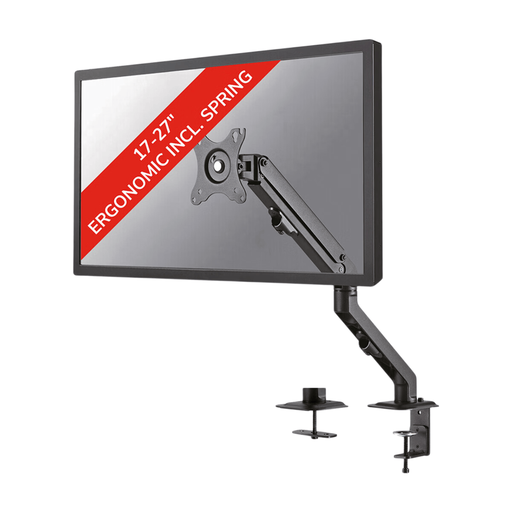
Why it suits this type of user: If you want plenty of adjustment options, this monitor arm moves in several directions. It’s designed for screens from 17 to 27 inches and comes with both a desk clamp and a grommet mount.
The VESA sizes of 75 × 75 and 100 × 100 mm, the maximum weight of 7 kg and the cable management features are all clearly specified.
Height and depth adjustment; tilt, rotation and swivel; cable clips to keep your desk tidy.
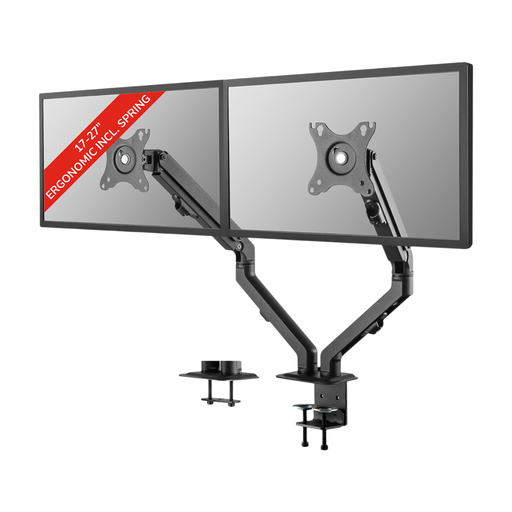
Why it suits this type of user: This dual monitor arm is designed for users with two screens from 17 to 27 inches. According to the product specifications, each arm supports up to 7 kg per screen.
The load limit per screen, VESA compatibility and mounting options can all be checked in advance. Also make sure your desk can support two screens.
Two independent arms; height and depth adjustment; cable clips; supports tilt, rotation and swivel.
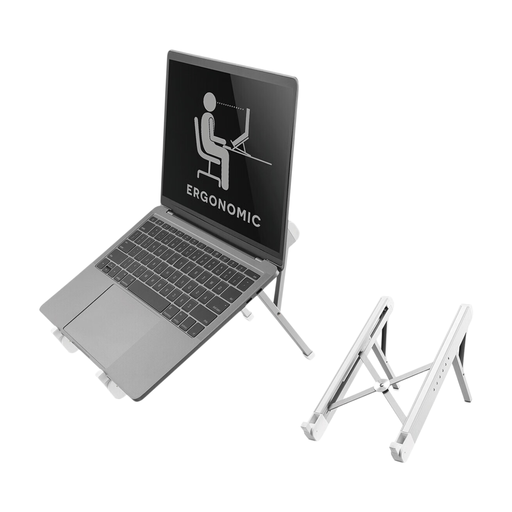
Why it suits this type of user: This foldable laptop stand is suitable for laptops from 11 to 17 inches and weighing up to 5 kg. Its six positions and included carry bag make it a good fit for working in different locations.
The size range and maximum weight are clearly stated. The open design helps with ventilation, according to the product description, but make sure you don’t block your laptop’s air vents.
Foldable design; six height settings; non-slip silicone pads; carry bag included.
We’ve put together a complete, up-to-date list of products that meet these strict selection criteria and the applicable European safety regulations.
If you want to mount a mini PC behind your screen, a VESA monitor mount such as the Neomounts THINCLIENT-01 is worth considering. This model supports VESA 75 × 75 and 100 × 100 mm and a maximum weight of 3 kg. A CPU holder with wheels can free up space if you want to keep your desktop computer under the desk. Check the case width first: the CPU-M100BLACK is designed for cases from 12 to 21 cm wide and weighing up to 10 kg.
If you want to attach a laptop to an existing monitor arm, consider a VESA laptop mount. The Neomounts NOTEBOOK-V200 supports laptops from 10 to 15 inches and weighing up to 4 kg. For a sit-stand desk, a workstation with several height settings is an alternative to a separate monitor riser.
No. Check the screen size, weight and mounting method. If you’re using a monitor arm, check the VESA pattern too. A freestanding monitor stand doesn’t need VESA mounting holes, but it must have sufficient load capacity.
Position the screen so you don’t have to look down for long periods. The right height depends on your chair, desk and height. Adjust your chair and desk first, then use the monitor stand or monitor arm to make any further height adjustments.
Its lifespan depends on the load, installation and how you use it. Don’t exceed the maximum load capacity, tighten the screws properly after installation, and check regularly for looseness or damage. If you have an adjustable monitor stand, also make sure the height locks are fully secured before placing the screen on it.
