
Vandaag of morgen in huis

Kwaliteit gegarandeerd

Welkomstaanbiedingen ontgrendelen: GRATIS bezorging | Tot 80% korting | Gratis 30 dagen JoyPlus-proefperiode
Download de app
A monitor stand can free up desk space and make it easier to position your screen. However, not every stand is suitable for every desk or screen. You may not realise you’ve chosen the wrong one until you start assembling it: the VESA mount doesn’t fit, the arm slowly sinks or the desk clamp isn’t suitable for your desk.
For people working from home, gamers, office professionals and creative users, there are three common pitfalls to watch out for:
Start by checking how many screens you need to mount. A desk monitor stand is often enough for one screen. With two or three screens, the construction matters more, as the total weight is higher and the load may be further from the mounting point.
Look out for the following details:
For example, a monitor stand for 3 monitors isn’t automatically suitable for three heavy ultrawide screens. According to the product specifications, the Neomounts FPMA-D550DD3BLACK supports three screens from 13 to 27 inches, with a maximum of 6 kg per screen. The Neomounts FPMA-D700D6 monitor arm is designed for six screens from 19 to 27 inches and lists a maximum weight of 8 kg per screen. A six-screen setup also requires a sturdy desk and careful cable management.
VESA refers to the distance between the mounting holes on the back of your monitor. Many stands support 75 × 75 mm and 100 × 100 mm, but check your screen before you order.
Also check:
A VESA monitor stand without matching holes won’t work, even if your screen size is within the stated limit.
There are three main mounting methods:
An adjustable monitor stand may offer height, tilt, rotation and swivel adjustment. Check the exact ranges in centimetres and degrees. Cable management is useful too: cables shouldn’t be pulled taut or rub against the joints when you adjust the stand.
The features below are based on the manufacturers’ stated product specifications. Treat brand claims about comfort or performance as no guarantee; always check the technical details and instruction manual.
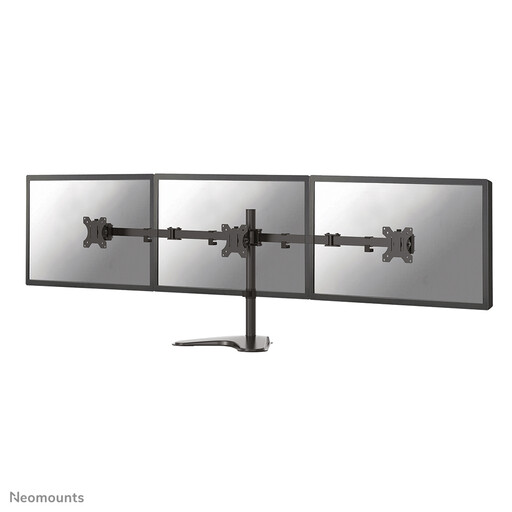
Why it suits this user: This stand is a good choice if you want to mount three screens without going straight for a six-screen model. It’s rated for 6 kg per screen and supports screens from 13 to 27 inches.
The product specifications state the weight capacity per screen, VESA 75 × 75 and 100 × 100 mm compatibility, and a height adjustment range of 0 to 43,2 cm. This means you can check the key fit details in advance.
Suitable for three screens, with tilt, rotation and swivel adjustment, plus clips for cable management.
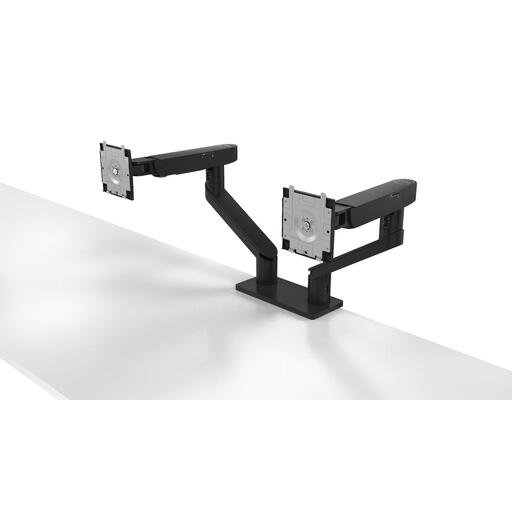
Why it suits this user: The Dell MDA20 is designed for two screens up to 27 inches, with a maximum weight of 10 kg per monitor. The Quick Release feature is particularly useful in an office where screens are mounted or replaced more often.
The product information lists a maximum load of 10 kg per arm. It also mentions cable management for up to 10 cables, so you can check whether it meets your needs in advance.
For two screens up to 27 inches, with height adjustment, tilt and rotation, plus a desk clamp mount.
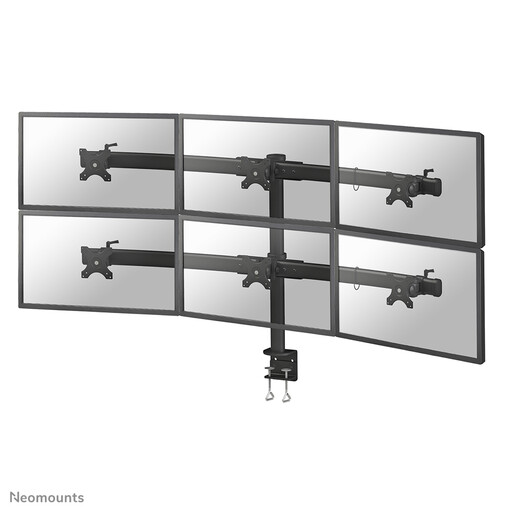
Why it suits this user: This monitor arm for 6 screens is designed for extensive workstations, trading setups or business use. According to the product specifications, it supports six screens up to 27 inches and 8 kg per screen.
The manufacturer lists the weight capacity, VESA 75 × 75 and 100 × 100 mm compatibility, a height range of 22 to 70 cm and a desk clamp. Also check whether your desk can support the total load.
Six screen positions, 180° tilt, 360° rotation, 180° swivel and integrated cable management.
Before installation:
A freestanding monitor stand without an arm, such as a fixed riser, may be more practical if you don’t want to use VESA holes. One example is the Razer Monitor Stand Chroma, with a stated maximum load of 13,6 kg and an integrated USB hub. If you choose a model with electronics, check the power adapter and connections too.
We’ve put together a complete, up-to-date list of products that meet these strict selection criteria and the applicable European safety regulations.
No. Check the VESA pattern, weight and screen size. Some monitors don’t have standard VESA holes or may need an adapter.
That depends on the mounting method and clamp range. For a clamp model, check the maximum desk thickness. A grommet mount requires a suitable hole in the desktop.
Lifespan depends on the materials, load, installation and use. Don’t exceed the stated weight capacity, check the mounting points regularly and make sure the cables don’t pull on the joints. The statutory guarantee in the EU is at least two years; some manufacturers also offer a longer commercial warranty on specific models.
