
Vandaag of morgen in huis

Kwaliteit gegarandeerd

Welkomstaanbiedingen ontgrendelen: GRATIS bezorging | Tot 80% korting | Gratis 30 dagen JoyPlus-proefperiode
Download de app
A monitor stand can make your desk more organised, but not every model suits every monitor or workspace. A compact monitor riser is different from an adjustable monitor stand with VESA mounting. A portable monitor also needs different connections and power arrangements from a fixed gaming monitor.
The most common poor purchases come down to three things:
First decide what type of support you need. A monitor riser is usually a platform on which you place your existing monitor stand. It is simple and often suitable for a laptop or single screen. A monitor arm or desk mount is attached to the desk and generally offers greater freedom of movement.
For a fixed monitor, these points are important:
With a VESA monitor stand, you need to measure the distance between the mounting holes on the back of the screen. Many models support 75 × 75 mm and 100 × 100 mm, but larger screens may use a different pattern. Also check the weight without accessories that have not been included in the manufacturer's calculations.
An adapter plate can sometimes accommodate a different hole pattern. That does not automatically mean that every monitor will fit safely. Also consider the screw length, the stability of the desk and the space behind the screen.
A monitor stand for 2 monitors must support the total weight and width of both screens. With a monitor stand for 3 monitors, the positioning of the centre and outer screens is also important. A narrow desk may not offer sufficient depth when the arms extend a long way forwards.
A freestanding riser needs a stable, level surface. Do not place a heavy monitor on a shelf that bends, and never exceed the maximum load. With an adjustable model, check after setting it up that the platform or arm is fully locked in place.
A laptop stand only raises your existing laptop. A portable monitor adds an extra screen. This is useful for working from home, spreadsheets, photo editing, presentations or gaming away from home.
When choosing a portable monitor, consider:
The stated image quality, speed and colour coverage are product specifications from the relevant product listings. They provide a basis for comparison, not a guarantee of the same experience on every laptop, console or phone.
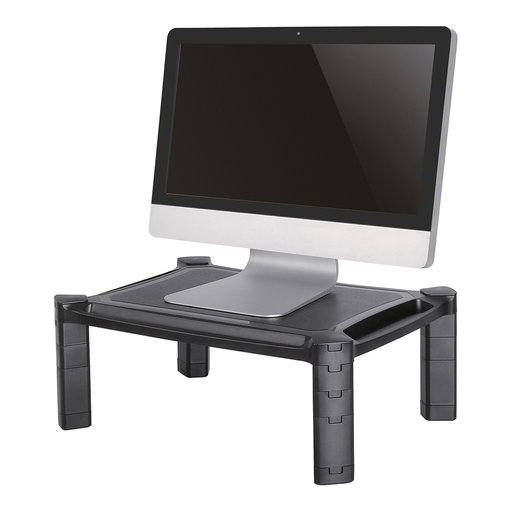
Why it suits this profile: This riser supports one monitor or laptop weighing up to 10 kg and is height-adjustable from 4.6 to 16.8 cm. Ideal for students and home workers who want to adapt their desk without complicated installation.
The maximum load and adjustment range are clearly stated. This means you do not have to rely solely on a general ergonomic claim.
Suitable for screens up to 32 inches, with cable management and storage space at the front and rear.
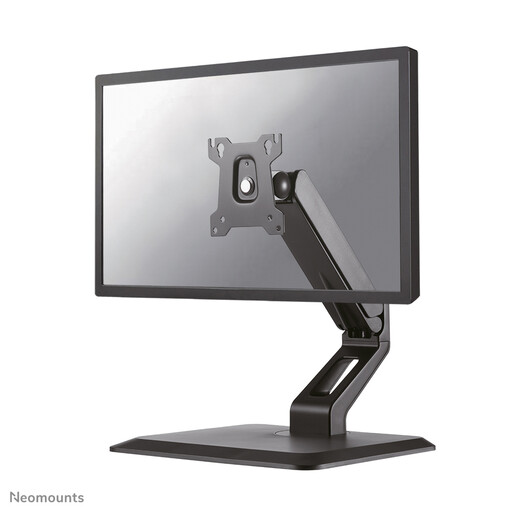
Why it suits this profile: The gas spring allows height adjustment for one screen measuring 15 to 32 inches. This is ideal for office professionals who regularly adjust their viewing angle or working posture.
The mount has clearly specified VESA sizes of 75 × 75 and 100 × 100 mm and a load capacity of 10 kg. Adjust the spring tension to match the actual weight of the screen.
Height adjustment from 7.5 to 32.5 cm, plus tilting, rotation and swivelling. Cable management is integrated.
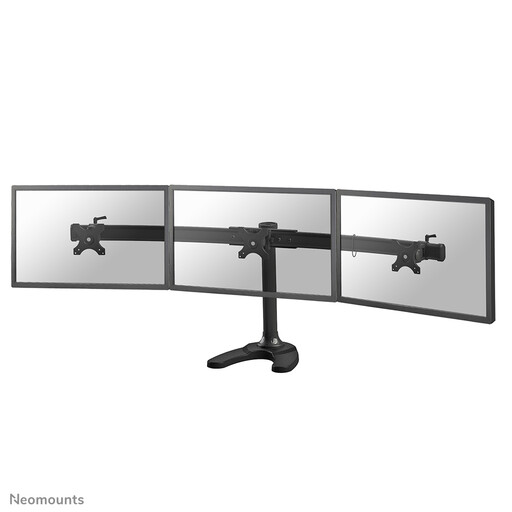
Why it suits this profile: This monitor stand for 3 monitors is designed for users who need several windows open at once, such as programmers, finance professionals and creative specialists.
The specifications state that it supports three screens from 10 to 27 inches and up to 8 kg per screen. However, check that your desktop is wide and deep enough.
Supports VESA 75 × 75 and 100 × 100 mm, with 360° rotation, 45° swivelling and manual height adjustment.
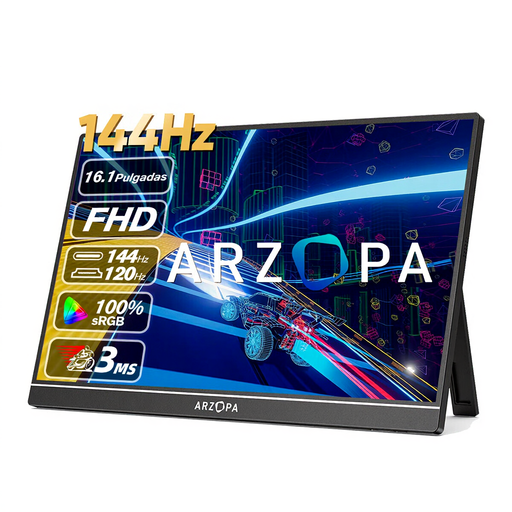
Why it suits this profile: With a 16.1-inch IPS screen, Full HD resolution and 144 Hz refresh rate, this model is aimed at gamers and mobile users who want to take an extra screen with them.
The connections are clearly listed: two USB-C ports and Mini HDMI. Check in advance that your laptop, phone or console has the required output.
144 Hz, 300 cd/m² brightness, a built-in stand and a weight of 780 grams, according to the product listing.
We have put together a complete, up-to-date list of products that fully meet these strict selection criteria and the applicable European safety regulations.
Position the screen so that you can look at it without constantly tilting your head. The top edge is often around eye level, but the ideal position depends on your screen size, viewing distance and sitting posture. Adjust the stand first, then position your chair and keyboard.
It depends on how you use it. A monitor riser is simple, freestanding and suitable for one screen or laptop. A monitor arm offers greater freedom of movement and frees up desk space, but you need to check the VESA sizes, load capacity and mounting method. For two or three screens, an arm system is often more practical than separate risers.
A portable monitor draws power via USB-C or a separate power connection. Consumption varies depending on the model, brightness and connection. Check whether a single USB-C cable supplies both video and power. With phones and laptops, an additional power source may be required, especially when the USB port does not provide sufficient power.
