
Sprite artist with limited desk space
Wants a practical screen for drawing and previews without giving up keyboard space, so compares the dimensions of the screen and stand first.


Start with the space available on your desk, including the room taken up by the monitor stand. Then choose a resolution and colour reproduction to suit your drawing and preview work. A compact Full HD screen may be enough; a 16:10 screen gives you more vertical space for your editor, while a 25-inch QHD monitor offers more pixels but also needs a larger setup. For crisp pixel art, your software’s scaling and filtering settings matter too: a monitor alone cannot guarantee a pixel-perfect image.
Wants a practical screen for drawing and previews without giving up keyboard space, so compares the dimensions of the screen and stand first.
Wants to assess pixel edges and sprite colours, taking into account both the stated sRGB coverage and the scaling settings in their software.
Wants to see the timeline, tools and preview at the same time, and weighs extra screen space against the room the monitor takes up on the desk.
First, measure the free space on your desk, including the stand. Then work out how much screen space, colour information and connectivity your work requires.
| What to consider | What should you look for? | Who is this important for? |
|---|---|---|
| Will the monitor fit on your desk? | Measure the available width and depth, and check the dimensions with the stand attached. BenQ lists the PD2506Q as 570,0 mm wide and 256,9 mm deep with its stand. | If I need to leave room on my desk for a keyboard and drawing tablet too, I include the stand in my measurements. Around 36% of consumers prioritise the footprint. |
| Can you assess pixels and colours clearly? | Compare the resolution and stated sRGB coverage of the exact model. In supported software, also set the pixel-art filtering and reference resolution appropriately; Unity, for example, describes Point filtering for this purpose. | For pixel art, I want to assess edges and colours without a blurry image, so the software settings matter too. Around 29% of consumers prioritise assessing pixels and colour. |
| Is there enough space for your editor? | Compare the aspect ratio, resolution and adjustability of the supplied stand. Also check whether the timeline, tools and preview will all fit in your workspace at once. | If I want to keep the timeline and tools open at the same time, I weigh extra vertical space against the room the stand takes up. This is the main consideration for around 21% of consumers. |
| How will you view and connect your devices? | Compare the stated refresh rate and check that your computer can connect via an available port at the resolution you want. Don’t assume a USB-C port carries video or powers a laptop without checking what that port supports. | When I preview animations on my computer and connect devices, I check both the refresh rate and the ports. Around 14% of consumers start with preview smoothness and connectivity. |
The stand takes up space too. For example, BenQ lists the PD2506Q as 256,9 mm deep with the stand attached.
Measure the available desk depth and compare it with the monitor’s dimensions with the stand attached before choosing a model.
A monitor’s resolution and refresh rate do not, on their own, determine how software displays pixel edges. Unity treats filtering and scaling settings separately from screen specifications.
Assess the monitor alongside the settings in your editor or game engine. For the pixel-perfect workflow described, Unity recommends Point filtering and a suitable reference resolution.
According to Dell, the USB-C downstream port on the P2425 is intended for data and supplies up to 15 W. Don’t assume this port carries video or powers a laptop.
Check each port to confirm that it explicitly supports video input and the charging power you need.
The PD2506Q is a 25-inch QHD option for anyone who values extra workspace and the stated sRGB coverage.
The ProArt PA248QFV is a 24,1-inch 16:10 model for anyone looking for extra vertical space in their editor.
The P2425 is a 24,07-inch 16:10 monitor with a resolution of 1920 × 1200, designed for an editor-focused setup.
The 24E2N1110/00 is a 23,8-inch Full HD IPS option for anyone who prioritises a smaller screen size.
This selection includes compact Full HD models, a 16:10 monitor and QHD options for sprite work and editing.
 No image available
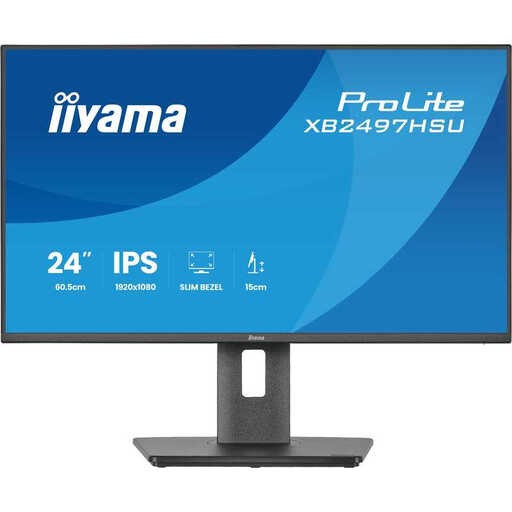
A compact Full HD IPS option for sprite work, with an adjustable screen position.
The product name lists 24 inches, Full HD and 120 Hz. The product information says the stand can be adjusted for height, tilt, swivel and rotation.
 No image available
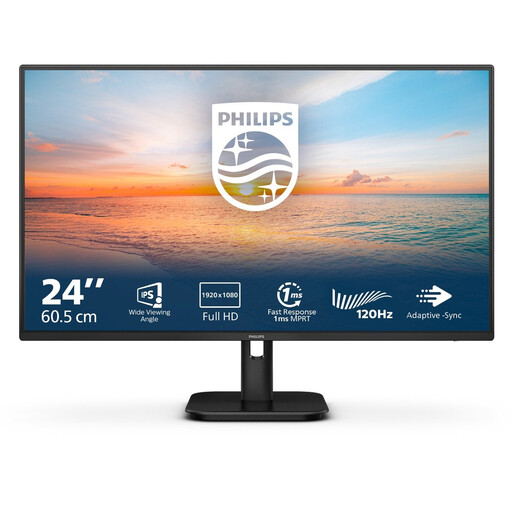
A compact Full HD IPS option to consider if desk space is a priority and you want to assess animations on screen.
The product name lists 24 inches, Full HD, IPS, 100 Hz and speakers.
 No image available
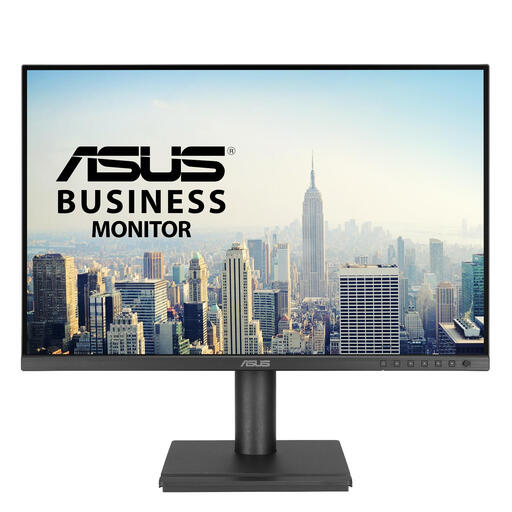
A 16:10 option to consider if you want extra vertical space for your timeline and tools.
The product name lists 1920 × 1200 pixels.
 No image available
A QHD option for anyone who values extra pixels for editor windows and previews. Check how much desk space the monitor will take up before buying.
The product name lists 24 inches and 2560 × 1440 pixels. The product information says the stand can be adjusted for height, tilt, swivel and rotation.
 No image available
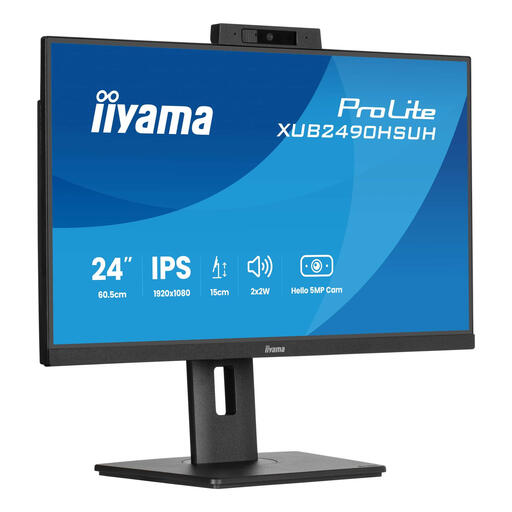
A 24-inch IPS option to consider if you’re looking for a compact screen with a built-in camera and microphone.
The product name mentions a built-in Windows Hello camera and microphone.
No. Check the scaling settings in your editor or game engine too. In the Unity workflow described, Point filtering and a suitable reference resolution are part of achieving a pixel-perfect image.
Measure the space available for both the screen and stand, then compare the monitor’s input with your computer’s output. If you’re using a monitor arm, check the mounting and compatibility separately; for example, BenQ lists VESA 100 × 100 mm for the PD2506Q.
For online purchases by consumers in the Netherlands, there is generally a statutory cooling-off period of up to 14 days after delivery; exceptions and conditions apply. ACM ConsuWijzer states that the cooling-off period ends 14 days after delivery. Check the returns policy and measure your setup before buying.
No. According to ACM ConsuWijzer, statutory consumer rights apply alongside a seller’s or manufacturer’s warranty. If a product develops a fault sooner than you could reasonably expect under normal use, the seller must offer a solution; there is no single fixed statutory guarantee period for every monitor.
The Dutch health and safety rules referred to apply to employers and employees. Arboportaal explains employers’ obligations for working with display screens; don’t assume these automatically apply to personal use.