
Pixel-perfect animator
You draw individual sprite pixels and want to see the timeline and preview without losing sight of your canvas. Aseprite explains how to display pixels at 100% scale and how to use the timeline.


Start with a monitor that lets you view your sprite, timeline and preview comfortably side by side. QHD may be enough; 4K gives you more screen pixels, but you’ll need to consider the scaling of your sprite and interface. Aseprite describes separate settings for displaying pixels and interface elements. The monitor features mentioned are manufacturers’ specifications, not the results of comparative hands-on testing.
You draw individual sprite pixels and want to see the timeline and preview without losing sight of your canvas. Aseprite explains how to display pixels at 100% scale and how to use the timeline.
You assess sprites within a target colour space and want to know which colour settings your chosen monitor offers. The colour spaces and colour features mentioned are specifications from the manufacturer for the specific model.
You work with different users or lighting conditions and consider adjustability, reflections and connectivity. The Dutch Arboportaal offers practical advice on readability, reflections and monitor placement.
Start with your animation software’s layout and scaling. Then compare colour settings, screen positioning and connectivity with the conditions in your shared workspace.
| What to consider | What should you check? | Who is this important for? |
|---|---|---|
| Pixels, timeline and preview | Try your usual workspace layout and check the screen and interface scaling in your animation software. | If I want to see the editor, timeline and preview at the same time, my workspace layout needs to fit on screen. Around 33% of consumers put this combination of workspace and pixel visibility first. |
| Colour assessment | Check which colour space and colour mode the exact monitor variant offers, and how they fit your workflow. | When I assess sprites within a particular colour space, I want to be able to match the colour mode to my workflow. Around 27% of consumers give colour assessment top priority. |
| Lighting and shared use | Look out for reflections where you plan to position the desk, and check whether the stand offers enough adjustment. | If several people use the screen, I want to be able to adjust its position and reduce distracting reflections. Around 20% of consumers put workspace comfort first. |
| Connectivity and motion | Compare the video connections and any USB-C power delivery with your computer. Also consider whether your work requires a higher refresh rate. | When I want to connect my computer or view motion at a higher screen refresh rate, the connections and refresh rate need to suit my equipment and work. Around 20% of consumers give this top priority. |
A higher resolution also changes how much scaling feels comfortable for your sprite and interface.
Test the screen and interface scaling with your own project file and timeline.
A stated colour space or factory calibration is only helpful if the selected mode suits the workflow you use to assess sprites.
Check the colour modes and calibration options available on the exact monitor variant.
Light sources, windows and screen height can all affect readability in a shared workspace.
Check for reflections where you plan to use the monitor and make sure users can adjust the screen.
The PD2705Q is a 27-inch QHD option with an sRGB mode and an adjustable stand, designed for a design workspace.
The UltraSharp U2724D is a 27-inch QHD office monitor with a height-adjustable stand.
The 27E1E1800AE/00 is a 27-inch 4K IPS monitor with an adjustable stand.
The 27UP850K-W is a 27-inch 4K monitor with USB-C and an adjustable stand.
This selection features 27-inch QHD and 4K monitors for sprite animation, with a range of resolutions, refresh rates and connections.
 No image available
A good fit if you want extra screen pixels for windows alongside your sprite work. Check how your software scales the interface and sprite.
27-inch IPS screen, 3840 × 2160 (4K UHD), 60 Hz and 4 ms; HDMI and DisplayPort; height-adjustable stand.
 No image available
The 4K resolution may suit you if you want extra screen pixels for work windows. Adjust the scaling to suit your sprite and animation software.
27-inch screen with 3840 × 2160 pixels (4K UHD).
 No image available
An option for combining more screen pixels with a USB-C connection. Check that the connection and power delivery suit your computer.
3840 × 2160 IPS screen, 120 Hz and USB-C with 90 W Power Delivery.
 No image available
A good fit if you want to combine QHD with a higher screen refresh rate. That rate doesn’t replace the preview and scaling settings in your animation software.
27-inch QHD screen with 2560 × 1440 pixels. Dell lists 120 Hz for the U2724D.
 No image available
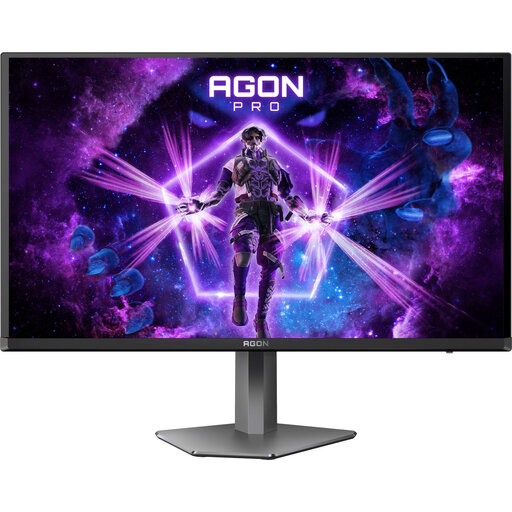
Could suit you if you want QHD and to view motion at a higher screen refresh rate. Check which connection you’ll use for this.
2560 × 1440 pixels; up to 240 Hz via DisplayPort and 144 Hz via HDMI. The stand supports height adjustment, rotation, swivel and tilt.
No, 4K isn’t essential for animating sprites. Choose a monitor based on the space you want for the editor, timeline and preview, and the scale at which you view pixels. Aseprite describes separate settings for sprite scaling and interface elements. Try these before choosing based on resolution alone.
Adjust the screen position and readability for each user, and reduce distracting reflections by considering the lighting and placement too. The Dutch Arboportaal offers practical advice on readability and reflections. The legal requirements that apply depend on the circumstances of the screen-based work.
Only if your laptop supports the required video connection and the monitor provides enough power. BenQ lists 65 W Power Delivery for the PD2705Q, while LG lists up to 96 W for the 27UP850K-W. Check your laptop’s requirements and the exact monitor variant.
Online consumer purchases generally come with a 14-day cooling-off period from delivery, subject to legal exceptions. This is separate from your rights if a product is faulty: ACM ConsuWijzer says you’re often entitled to a free repair or replacement if a product breaks too soon or arrives damaged through no fault of your own. These consumer rules don’t necessarily apply to business purchases.