Start with the desk space you have: a compact screen is better suited to a small workspace, while a 27-inch QHD model offers more screen pixels but also takes up more room. If colour settings and vertical workspace matter, consider an adjustable monitor designed for creative work; also check your computer’s connections and the scaling settings in your animation software. The specifications and colour information mentioned are manufacturer claims, not independent measurements.
Who is this monitor advice for?
Sprite animator assessing pixels and colours
You create sprites and want to make an informed assessment of your editing zoom, preview and colour settings. Aseprite describes separate settings for screen scaling and the size of the controls; ASUS and BenQ publish sRGB figures for specific models.
Creator with a small desk
You want enough screen space without the monitor dominating your workspace. The dimensions of the screen and stand, along with the ability to adjust the viewing height, all matter; Arboportaal recommends positioning the top of the screen slightly below eye level.
Student using one screen for study and sprites
You use the same monitor for everyday work and animation, so you’re weighing up screen space, adjustability and connections. Models from ASUS, BenQ, Dell and Philips offer different combinations of these features.
What should you look for when choosing?
Compact Full HD essentials
Best for: a limited workspace where you mainly use a sprite editor and preview window.
Trade-off: Full HD offers fewer screen pixels for editor panels than the QHD option mentioned here.
Compact, adjustable monitor for creative work
Best for: anyone who values colour settings, vertical workspace and an adjustable stand; the ASUS ProArt PA248QV is one example.
Trade-off: ASUS lists this model at 75 Hz; its colour figures and calibration are manufacturer claims, not independent measurements.
Compact ergonomic all-round monitor
Best for: anyone who prioritises adjustability and standard video connections over design-focused colour claims; the Dell P2425H is one example.
Trade-off: Dell describes this model’s USB-C port as a data downstream port delivering up to 15 W, not as a video input for a single-cable connection.
Larger QHD monitor for creative work
Best for: a fixed workspace where you want to position your editor, timeline and preview side by side; the BenQ PD2705Q is a 27-inch QHD example.
Trade-off: the screen and stand take up more desk space; BenQ lists a 60 Hz refresh rate and 65 W USB-C Power Delivery.
| What to consider |
What should you check? |
Who is this most important for? |
| Assessing pixels and colour |
Aseprite describes 100% screen scaling as a view where one sprite pixel occupies one screen pixel. Also compare the sRGB specification for the exact model; ASUS and BenQ publish figures for specific screens. |
If I want to assess pixel edges and colours while drawing, I want to choose the screen scaling and software view deliberately. Around 29% of consumers rank pixel and colour assessment as their top priority. |
| Desk space and posture |
Measure the space available for the screen and stand, and check whether you can adjust the viewing height. Arboportaal recommends positioning the top of the screen slightly below eye level. |
With limited desk space, I want to know how much room the stand takes up and whether I can adjust the viewing height. For around 29% of consumers, desk size and posture are the main priorities. |
| Only the features you need |
Decide whether Full HD gives you enough room for your editor, timeline and preview; then compare only the extra features you actually need. |
For study and sprites, I want to choose features that genuinely suit my editor layout, rather than extras I’ll rarely use. Around 24% of consumers prioritise essential features. |
| Connecting up and reviewing animation |
BenQ lists DisplayPort Alt Mode and 65 W Power Delivery for the PD2705Q; Dell describes the P2425H’s USB-C port as data downstream up to 15 W. Check the video input on the exact model. |
If I connect a laptop, I want to know whether the monitor receives video through that port and provides enough charging power. Around 18% of consumers give connection and animation playback top priority. |
Common buying mistakes
-
Assuming a USB-C port guarantees video input and laptop charging
Dell says the USB-C port on the P2425H is for data and delivers up to 15 W; BenQ lists video over USB-C and 65 W Power Delivery for the PD2705Q.
Check the function and power output of the exact monitor port, then compare them with your computer’s video output and charging requirements.
If the connection you need isn’t available, you may need another cable, adapter or dock for your setup.
-
Looking only at the screen size
The screen and stand take up physical space, and the viewing height needs to suit your setup.
Measure the available width and depth, including the monitor stand, and work out where the screen can go.
If the stand doesn’t fit, you may need to rearrange your workspace or use a monitor arm.
-
Assuming more hertz or pixels automatically means better sprites
Resolution and refresh rate are different monitor specifications; Aseprite also has its own setting for the display scale of sprite pixels.
First choose the screen space you need for your editor, then check the sprite zoom and display at the scale you want to assess for your game.
Brands to consider
ASUS
The ProArt PA248QV is a compact option designed for creative work if 16:10 workspace, sRGB settings and an adjustable stand matter to you.
- ASUS lists 1920 × 1200, 100% sRGB, factory calibration and 75 Hz for the PA248QV.
- These figures are manufacturer claims for this model, not an independent comparison with other screens.
BenQ
The PD2705Q is a larger DesignVue screen for a fixed workspace where you want QHD resolution and USB-C video.
- BenQ lists a 27-inch screen, 2560 × 1440, 100% sRGB, 60 Hz and USB-C with 65 W Power Delivery for this model.
- The screen and stand need more room than a compact setup; the colour figures are manufacturer claims.
Dell
The P2425H is a 23.8-inch all-round option if physical adjustability and standard video connections come first.
- Dell lists IPS, Full HD, 99% sRGB and height, swivel and pivot adjustment for this model.
- According to Dell, the USB-C port is for data only and delivers up to 15 W; don’t assume it supports USB-C video or laptop charging over a single cable.
Philips
The 24E1N1100A/00 is a compact Full HD IPS example for anyone who doesn’t need a larger monitor designed for creative work.
- Philips lists a 23.8-inch screen and 1920 × 1080 resolution for this model.
- Philips lists 120 Hz for the 24E1N1100A/00; check the exact version on offer before choosing it based on its refresh rate.
Joybuy products
This selection from Joybuy includes portable screens and compact monitors to consider for sprite editing; check that each model is compatible with your computer and suits the space available on your desk.
 No image available
TECLAST V16Q portable monitor
The portable 16-inch size and kickstand are useful if you want to set up a screen in a compact workspace; check that the connections are compatible with your computer.
2.5K, 144 Hz, IPS, 100% sRGB, 10-bit, 16:10, HDR, FreeSync, 2 USB-C ports, Mini HDMI and built-in speakers.
View at Joybuy
 No image available
UPERFECT 16-inch portable QLED monitor
The portable 16-inch size may suit a compact setup; check in advance which Type-C features your computer supports.
2560 × 1600, 16:10, 144 Hz, QLED, 1200:1 contrast ratio, 450 nits and Mini HDMI.
View at Joybuy
 No image available
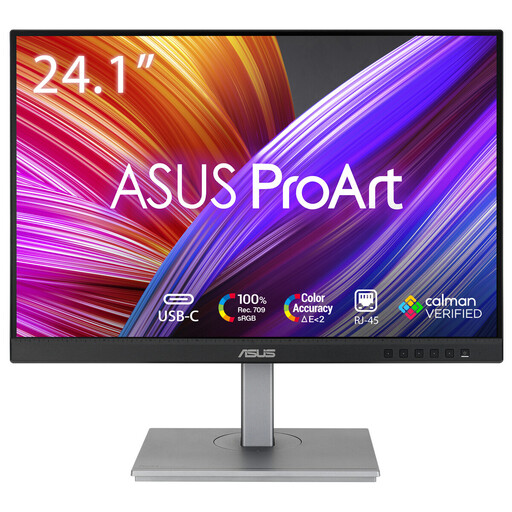
ASUS ProArt PA248CNV
Consider this model if you’re looking for a compact creative workspace with a 24.1-inch screen and vertical workspace.
1920 × 1200.
View at Joybuy
 No image available
ASUS ProArt Display PA24ACRV
Consider this compact model if you’re looking for a 23.8-inch screen with QHD resolution for your editor layout.
23.8 inches, 2560 × 1440.
View at Joybuy
 No image available
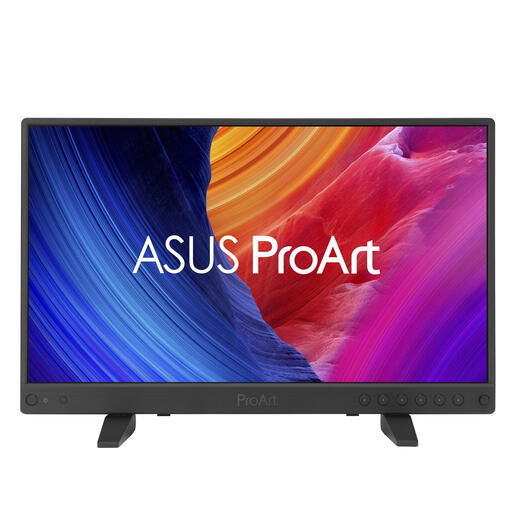
ASUS ProArt PA16USV
The portable 15.6-inch size may appeal if you’re looking for a compact screen for sprite work; check that your source device supports 4K output.
15.6 inches, 3840 × 2160.
View at Joybuy
Frequently asked questions
How can I view my sprite without confusing screen pixels with software controls?
In Aseprite, use the separate settings for screen scaling and control size. Aseprite describes 100% screen scaling as a view where one sprite pixel represents one screen pixel; you can enlarge the controls separately.
Where should I place a monitor on a small desk?
Position it directly in front of you and, following Arboportaal’s advice, set the top of the screen slightly below eye level. Before buying, also measure the space for the stand and consider reflections and ambient light; this workplace advice is not a general legal purchase requirement for students.
Can I connect and charge my laptop with any USB-C monitor using one cable?
No. Check separately whether the port supports video input and how much power the monitor delivers. BenQ lists DisplayPort Alt Mode and 65 W Power Delivery for the PD2705Q; Dell describes the P2425H’s USB-C port as a data downstream port delivering up to 15 W.
What are my rights if I’m unhappy with a monitor bought online or it breaks too soon?
For online purchases, you generally have a statutory cooling-off period of up to 14 days after delivery, subject to legal exceptions; ACM ConsuWijzer explains this time limit. You’re also entitled to a product that meets what you could reasonably expect. If a product is faulty, the seller is responsible for providing an appropriate solution; an additional guarantee does not replace your statutory rights.
Does a monitor sold in the Netherlands need an energy label?
The European Commission states that energy labelling and ecodesign rules also apply to computer monitors, with some exceptions under the product rules. Check the energy label and stated power consumption for the specific model; don’t use these figures to assume fixed electricity costs without factoring in your own usage and tariff.


