
Developers who need larger text
You enlarge text while building and checking your site, and want to keep results, buttons and development windows usable. Test your screen scaling alongside your website layout.


A 27-inch QHD monitor is a practical starting point if you want to combine larger text with space for code, a preview page and sports results. Choose 4K if you can make use of the extra pixels with your usual scaling setting; give adjustability or USB-C power delivery more weight if your posture or laptop connection is a deciding factor. Test the website itself too: a monitor won’t make the page work well when text is enlarged.
You enlarge text while building and checking your site, and want to keep results, buttons and development windows usable. Test your screen scaling alongside your website layout.
You keep code, a website preview and data in view at the same time. Balance the visible workspace against a text size you can read comfortably.
You work with a laptop for extended periods and care about screen adjustability and a connection that suits your display and power requirements.
Start with the text size and window layout you actually use, then compare resolution, screen adjustability and laptop connectivity.
| What to consider | What should you check? | Who is this most relevant to? |
|---|---|---|
| Readability and page layout | Test enlarged text and the site’s controls at your usual screen scaling. | If I enlarge the text, I want to keep using results and buttons without the page cutting off content. Around 36% of consumers say readability is their main concern when buying. |
| Space for multiple windows | Place your code, browser and results overview side by side at the scaling you want to use. | If I view code, a preview page and results at the same time, I want enough space to keep track of my work. Around 29% of consumers give this shared workspace the highest priority. |
| Adjustability | Check the height, swivel and tilt settings of the exact model. | When using the screen for long periods, I want to adjust its position on my desk. Around 21% of consumers put posture first. |
| Laptop connectivity and power | Compare your laptop and cable’s video support and power requirements with the monitor’s connection. | If I want to connect and power my laptop through the monitor, the connection needs to suit my equipment. Around 14% of consumers say laptop connectivity is their main concern when buying. |
QHD and 4K offer different pixel counts, but the amount of content you can see also depends on the scaling setting. For example, LG and Dell list 27-inch QHD models with 2560 × 1440 pixels; Dell lists the P2725QE at 3840 × 2160 pixels. Microsoft generally recommends using the recommended screen resolution. If needed, enlarge the interface separately and assess readability at your chosen scaling.
A USB-C port doesn’t guarantee that every laptop can receive video and enough power through a single cable. Check your laptop and cable’s capabilities and compare them with the charging power specified for the particular monitor model.
The scaling setting partly determines the size of text and windows. Choosing a lower screen resolution can make text look blurry, while extra pixels don’t guarantee that the website will reflow properly when enlarged.
Test the site and your windows at the scaling you want, and use the recommended screen resolution where possible.
Your laptop, cable and monitor need to be compatible, and the specified power output must be sufficient. You may still need a separate power adapter or another suitable connection.
Check your laptop and cable’s video support and power requirements before making the hub function a deciding factor.
Philips lists the 27E1N1600AE/00 at 120 Hz, while a Joybuy product description states 100 Hz. Dell lists the P2725QE as 4K; a Joybuy description calls it QHD.
Before ordering, compare the full model number and key specifications for the version you’ve chosen with the manufacturer’s information.
LG lists both the 27-inch QHD 27BA65QB-B and the 27-inch Full HD 27BA650-B, which comes with an adjustable stand.
The Dell Pro Plus range includes the 27-inch QHD P2725DE and the 27-inch 4K P2725QE, both USB-C hub monitors.
Philips lists the 27E1N1600AE/00 as a 27-inch QHD monitor with USB-C. The 27E1N1900AE/00 is a 27-inch 4K model with a stand that Philips says is height-adjustable.
These products are suited to QHD and 4K setups, adjustability and workspace for multiple windows. Check that each model’s connections and settings suit your laptop and the way you work.
 No image available
Suited to a setup where you want to combine QHD workspace with an adjustable workstation and laptop connectivity.
2560 × 1440 pixels; USB-C Power Delivery up to 90 W; adjustable design.
 No image available
A 4K option if you can make use of the extra pixels with your preferred scaling setting and window layout.
3840 × 2160 pixels; 120 Hz according to the product description; connections include HDMI, DisplayPort and Thunderbolt.
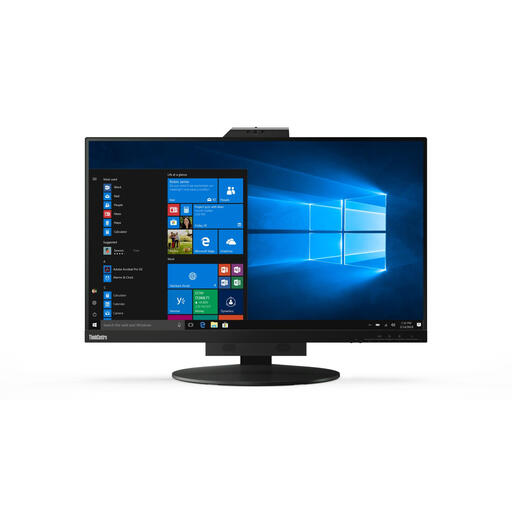 No image available
A QHD model to consider if you want to use multiple windows alongside an adjustable screen position.
27 inches; 2560 × 1440 pixels; height and tilt adjustment. According to the product description, the mains adapter must be purchased separately.
 No image available
The panoramic Dual QHD layout may suit anyone who wants to view multiple windows side by side; assess the layout at your own text scaling.
5120 × 1440 pixels; USB-C dock; height-adjustable stand.
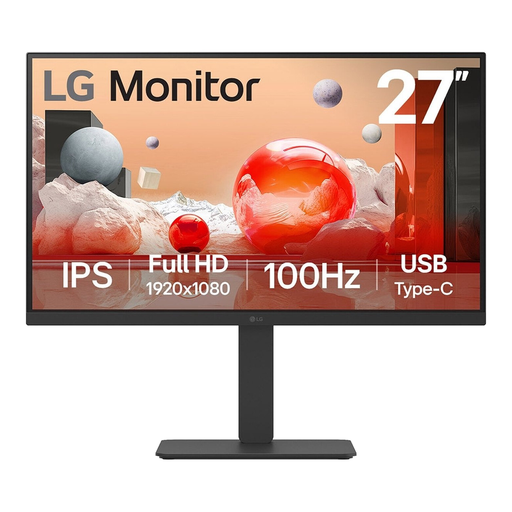 No image available
A Full HD option to consider if you mainly use one enlarged window at a time and have less need to view multiple windows side by side.
1920 × 1080 pixels; height, swivel and tilt adjustment.
No. Adjust text or display scaling separately, then test the page. Microsoft generally recommends using the recommended screen resolution; a resolution lower than the native setting can make text look blurry.
Test your website with enlarged text and in a narrower view, as well as in your usual development setup. The W3C’s WCAG guidance describes text enlargement up to 200% without loss of content or functionality, and reflow, with a specific exception for elements such as data tables that need a two-dimensional layout. These are criteria for web content, not monitor certification.
Check that your laptop can output video through the connection you intend to use, and that the monitor’s power output is suitable for your laptop. Then set the recommended resolution and your preferred scaling for the correct external display.
That depends on the provider and the site’s features. Specific obligations apply to public bodies covered by the Digital Accessibility of Government Decree. The ACM sets out separate rules for relevant e-commerce services, including services that allow consumers to enter into a contract online. Publishing sports results alone doesn’t show that those rules apply.
For an applicable online consumer purchase, you generally have a 14-day cooling-off period. In the Netherlands, there is also a statutory guarantee with no fixed statutory time limit; if a product is faulty, the retailer is your point of contact. Before ordering, check who the retailer is and which terms and conditions apply to your purchase.