First, measure the available width and depth of your desk, allowing for the monitor stand. Then decide how much screen space you need for text, photos and any editing panels. A 16:10 screen of around 24 inches offers 1920 × 1200 pixels; a 25-inch QHD screen has more pixels but needs a deeper setup. If you plan to print your photos, colour management and profiling matter more than a wide colour gamut alone. Also check that a USB-C monitor’s video and charging features are compatible with your laptop.
Who is this guide for?
Travel journal creator with limited desk space
You want to view text and photos side by side without the stand taking over your workspace. So, measure the available space, including room for the stand. ASUS and BenQ publish the dimensions of their monitors.
Travel photographer who prints photos
If you prepare photos for printing, choosing a suitable colour space and managing your colour workflow are more important than simply having extra screen pixels. EIZO describes the colour features of the ColorEdge CS2400S.
Laptop user who wants a single-cable setup
You want to connect video and, if needed, power your laptop via USB-C. Check that both your laptop and the monitor support the required video function and charging wattage. BenQ and Dell publish these details for the models mentioned here.
What should you consider when choosing?
First, measure the space where you plan to place the screen. Then decide whether you mainly need room for text and photos, colour management for printing, or a connection that suits your laptop.
| What to consider |
What should you check? |
Who is this important for? |
| Desk space |
Measure the available width and depth, including space for your keyboard. Compare the dimensions with the stand attached: ASUS lists 53,30 × 50,50 × 21,10 cm for the PA248QV, while BenQ lists a width of 57,0 cm and a depth of 25,69 cm for the PD2506Q. |
If I have limited space, I want to know whether the screen and stand will fit together without taking over my workspace. Around 36% of consumers give the available desk space top priority. |
| Room for text and photos |
Compare the resolution and aspect ratio: the PA248QV and CS2400S offer 16:10 and 1920 × 1200 pixels; the PD2506Q has 2560 × 1440 pixels. |
If I work on text and travel photos at the same time, I want to see enough content while choosing a screen that fits on my desk. Around 29% of consumers prioritise workspace for text and photos. |
| Colour for printing |
Check whether the stated colour gamut and calibration options suit your output. EIZO lists more than 99% AdobeRGB for the CS2400S; Adobe highlights the importance of an accurate monitor profile. |
When I edit travel photos for print, I want to match my colour workflow to the final print. Around 21% of consumers make colour management for printing their top priority. |
| Laptop connection |
Check your laptop’s video output and charging requirements. BenQ lists USB-C with DisplayPort Alt Mode and 65 W Power Delivery for the PD2506Q; Dell lists 90 W power delivery for the U2424HE. |
If I want to connect my laptop with a single cable, that connection needs to support both its video output and its charging requirements. Around 14% of consumers prioritise a suitable laptop connection. |
Common pitfalls
-
Measuring only the screen diagonal
The space a monitor takes up also depends on its stand. So, two screens in the same size category may need different amounts of desk space.
Measure the available width and depth, including space for your keyboard. If you’re considering a monitor arm, check the VESA size and make sure your mounting area is suitable.
If the stand doesn’t fit your setup, you may need a suitable monitor arm.
-
Assuming a wide colour gamut guarantees accurate print colours
A stated colour gamut won’t automatically make the colours on your screen match a print. Adobe distinguishes between calibration and creating a monitor profile.
First, decide where your photos will be viewed or printed. If colour-critical work matters, tailor your workflow to that output and profile your monitor.
Colour-critical work may require calibration equipment or a dedicated colour workflow.
-
Assuming every USB-C port supports video and can provide enough power to your laptop
USB-C monitors can vary in their video specifications and Power Delivery wattage – in other words, how much power the monitor can supply to charge a laptop.
Compare your laptop’s video output and charging requirements with the specifications of the exact monitor model.
Relevant brands to compare
ASUS
The ProArt PA248QV is a 24,1-inch option for a compact workspace.
- ASUS specifies 1920 × 1200 pixels, 100% sRGB and an adjustable stand.
- According to ASUS, the monitor has HDMI and DisplayPort and supports VESA 100 × 100 mm.
- The listed connections don’t include a USB-C video input. Don’t confuse the PA248QV with the separate PA248QFV Gen2.
BenQ
The PD2506Q combines a 25-inch QHD screen with USB-C for a laptop setup.
- BenQ specifies 2560 × 1440 pixels, 100% sRGB and USB-C with 65 W Power Delivery.
- The stated depth with the stand is 256,9 mm. Check whether 65 W is enough to charge your laptop.
- A stated colour gamut isn’t an independent measurement of the individual monitor you receive.
EIZO
EIZO positions the ColorEdge CS2400S for colour management and photo editing.
- EIZO lists a 24,1-inch screen, 1920 × 1200 pixels, more than 99% AdobeRGB and hardware calibration.
- The resolution isn’t QHD. The manufacturer’s specifications don’t remove the need to profile your own setup.
Dell
The UltraSharp U2424HE is a 23,8-inch USB-C hub monitor for a laptop workspace.
- Dell lists 1920 × 1080 pixels, an adjustable stand and 90 W power delivery.
- Full HD offers fewer vertical pixels than the 16:10 models mentioned here. The listed specifications don’t establish it as a priority choice for colour-critical print work.
Monitors at Joybuy
These monitors are options for editing text and travel photos on a separate screen. Compare the listed screen sizes and connections with the space available on your desk and your laptop’s capabilities.
 No image available
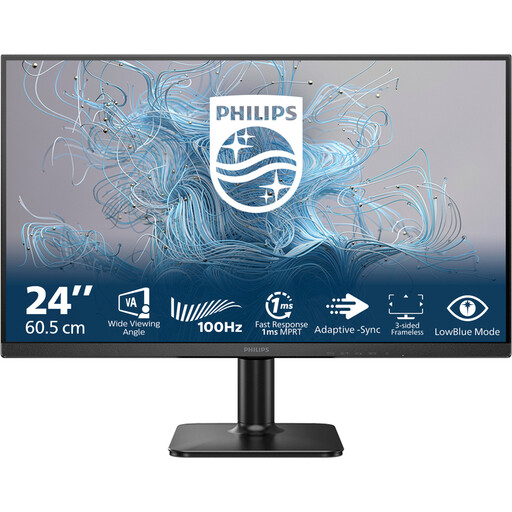
Philips 1000 Series 24E2N1100LB/00
A 24-inch monitor for viewing text and travel photos on a separate screen.
Full HD, 100 Hz and VA panel, according to the product name.
View at Joybuy
 No image available
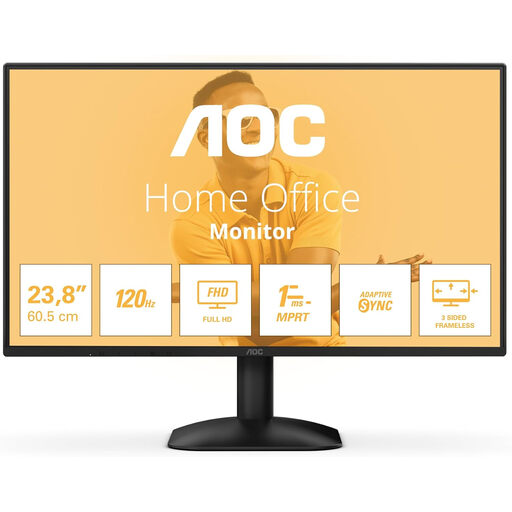
AOC 24B31H
A 24-inch screen for text and photos in a compact workspace.
1920 × 1080 pixels, 16:9, 300 cd/m² and 1 ms, according to the product name. The listed connections are HDMI and DisplayPort.
View at Joybuy
 No image available
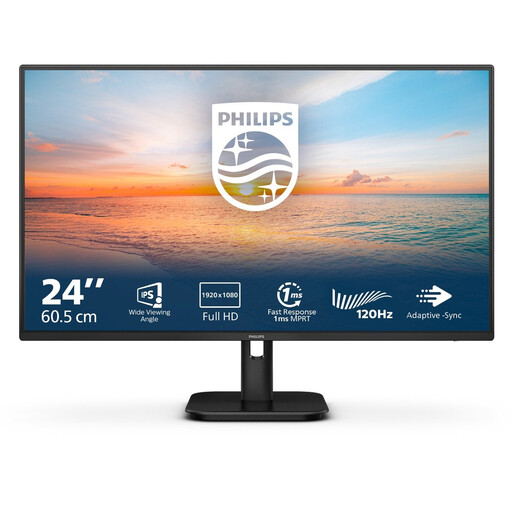
Philips 24E1N1100A
A 24-inch screen for viewing and editing text and travel photos.
Full HD IPS, 100 Hz and built-in speakers, according to the product name. The product description lists HDMI and VGA.
View at Joybuy
 No image available
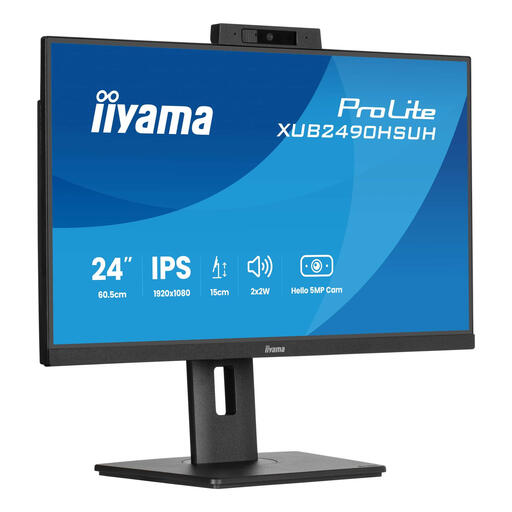
iiyama 24-inch IPS monitor with built-in Windows Hello camera and microphone
A 24-inch monitor for text and photos; the product description mentions an adjustable stand.
IPS and Full HD, according to the product description. The title mentions a built-in Windows Hello camera and microphone.
View at Joybuy
 No image available
ASUS ProArt Display PA24ACRV
A 23,8-inch QHD screen for anyone who wants to edit text and photos side by side.
2560 × 1440 pixels, according to the product name. The product description lists USB-C with video, data and 90 W Power Delivery.
View at Joybuy
Frequently asked questions
How do you set up a monitor on a small desk?
Measure the space for the screen and stand before choosing a monitor. Leave room for your keyboard too. If you’re mounting it on an arm, check that the VESA size and mounting area are suitable.
Do you need to profile a monitor before editing photos?
For colour-critical work, Adobe recommends an accurate monitor profile and calibration. Tailor your editing to the intended output; a stated colour gamut alone doesn’t guarantee that a print will match what you see on screen.
What rights do you have when buying a monitor online in the Netherlands?
According to ACM ConsuWijzer, online purchases generally come with a statutory cooling-off period of up to 14 days after delivery, subject to applicable exceptions. The product must also do what you could reasonably expect it to do. If there’s a fault, contact the seller about your statutory guarantee.
Can you share identifiable people in your travel photos publicly?
That depends on how the photos are published and which privacy rules apply. The Dutch Data Protection Authority distinguishes between personal use within a limited circle and wider or public sharing. Don’t assume that being allowed to take a photo privately automatically means you can publish it publicly.


