What should you look for?
For writing at a small desk, available workspace, document visibility, adjustability and connectivity are four distinct priorities. The percentages are practical guidelines for this working situation, not market shares.
| Consideration |
What should you check? |
Who is this important for? |
| Desk space |
Measure the available width and depth, then compare them with the monitor’s dimensions, including the stand. Leave room for your keyboard and papers too. |
If I need my keyboard and papers beside the screen, I want to know how much desk space the stand takes up. Around 36% of consumers put available desk space at the top of their list. |
| Document visibility |
Compare the resolution and aspect ratio of the exact model, and check how your preferred text size and window layout will work. |
When I view a lengthy application alongside reference documents, vertical workspace matters to me. Around 29% of consumers give document visibility top priority. |
| Adjustability |
Check which height, tilt and swivel adjustments are available, and whether the complete setup will fit on your desk. |
If I’m writing for long periods, I want to adjust the screen to suit me and reduce distracting reflections. Around 21% of consumers put adjustability first. |
| Connecting your laptop |
Compare your laptop’s video output and charging requirements with the port features of the exact monitor model. |
When I want to connect my laptop without unnecessary extra equipment, I first check which USB-C features both devices support. Around 14% of consumers make connectivity their top priority. |
Brands to compare
The models below are examples of different features to compare; a brand being mentioned doesn’t indicate its availability at Joybuy.
Dell
The P2425 is a 24-inch 16:10 option for anyone who values extra vertical workspace for long documents.
- Dell lists the P2425 as having a resolution of 1920 × 1200 pixels, with height, tilt, swivel and pivot adjustment.
- According to Dell, the P2425’s USB-C port is a downstream data port providing up to 15 W. These aren’t the docking features of the separate P2425E.
Lenovo
The ThinkVision T24i-30 is a Full HD model with an adjustable stand.
- Lenovo PSREF lists the dimensions with the stand as 539,8 × 199,7 mm (width × depth), with pivot and up to 155 mm of height adjustment.
- Its resolution is 1920 × 1080 pixels; make sure you allow for the stand’s footprint on a small desk.
Philips
The 24B2G5301/00 is a 23.8-inch Full HD model with USB-C docking features.
- Philips describes the USB-C dock connection as providing video, data transfer and laptop power.
- Check that your laptop supports the video and charging features you need; a dock doesn’t add desk depth or vertical pixels.
BenQ
The GW2490T is a 23.8-inch Full HD model worth comparing if adjustability and reading modes matter to you.
- BenQ lists height, tilt, swivel and pivot adjustment, as well as an ePaper mode.
- A reading mode doesn’t prove that the screen prevents discomfort; consider your workspace setup too.
AOC
The 24P3CW may be worth considering if video calls and laptop docking matter alongside your writing work.
- For this Full HD model, AOC specifies a 5 MP webcam and USB-C with DisplayPort Alternate Mode and power delivery of up to 65 W.
- Decide whether you need the webcam and docking features on your small desk, and check compatibility with your laptop.
Monitor options at Joybuy
This selection includes monitors for writing at a compact workstation, including 24- or 24.1-inch desktop models and a portable 16-inch screen. Measure the complete setup and choose a resolution and connections to suit your work.
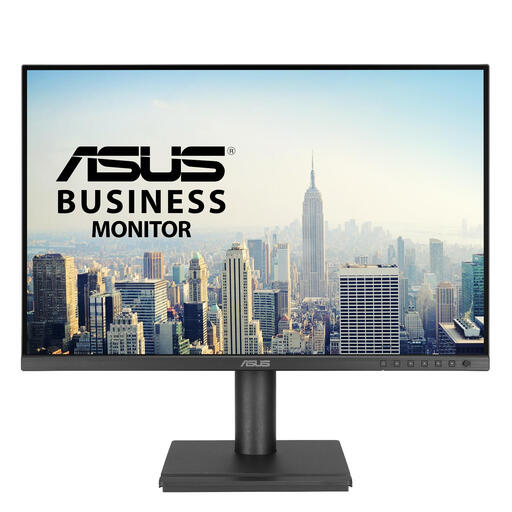 Image unavailable
ASUS BE248CFN 24.1-inch WUXGA monitor
Compare this model if you’re looking for extra vertical workspace when writing lengthy applications.
The product name specifies a resolution of 1920 × 1200 pixels and WUXGA.
View at Joybuy
 Image unavailable
Dell Pro Plus P2425DE 24-inch Quad HD monitor
Compare this model if you’re looking for a Quad HD monitor for working with documents at your desk.
The product name specifies a 24-inch screen and a resolution of 2560 × 1440 pixels.
View at Joybuy
 Image unavailable
Dell Pro Plus P2425D 24-inch Quad HD monitor
This is a model to compare if you’re looking for a 24-inch Quad HD screen for long documents.
The product name specifies a resolution of 2560 × 1440 pixels.
View at Joybuy
 Image unavailable
TECLAST V16H portable 16-inch FHD monitor
Compare this portable model if you’re looking for a screen that won’t only be used in a fixed desk setup.
The product name specifies a 16-inch screen, FHD and 144 Hz.
View at Joybuy
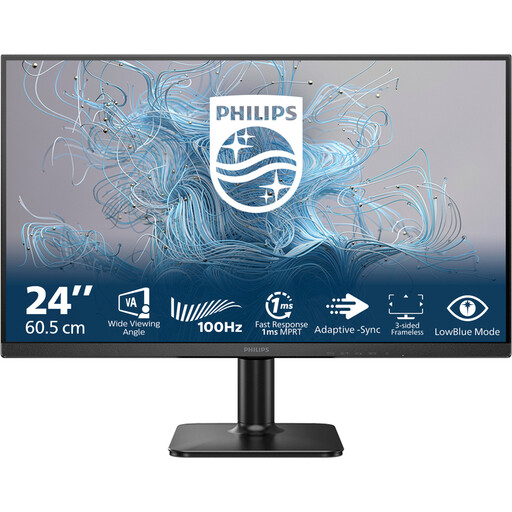 Image unavailable
Philips 1000 Series 24E2N1100LB/00 24-inch Full HD monitor
Compare this model if you’re looking for a 24-inch Full HD screen for everyday writing.
The product name specifies 100 Hz and a VA panel.
View at Joybuy
Frequently asked questions
Is a 24-inch monitor always suitable for a small desk?
No. Also measure the space taken up by the complete monitor, including the stand, and leave room for your keyboard and documents. Lenovo PSREF lists the ThinkVision T24i-30 as measuring 539,8 × 199,7 mm (width × depth) with the stand.
Which resolution is useful for writing lengthy applications?
If vertical workspace matters to you, compare the exact resolution and aspect ratio of the models. Dell Netherlands specifies 1920 × 1200 pixels for the P2425; Lenovo lists 1920 × 1080 pixels for the ThinkVision T24i-30.
Can any USB-C monitor connect to and charge my laptop with one cable?
No. Check which features the USB-C port on the specific model offers and whether your laptop supports that connection. Philips describes video, data transfer and laptop power via the dock connection on the 24B2G5301/00; Dell describes the P2425’s USB-C port as a downstream data port providing up to 15 W.
Do screen-work regulations apply if you’re writing a grant application at home?
It depends on your situation. Arboportaal describes employers’ obligations and states that, if an employee works at a screen for more than two hours a day, the screen and keyboard must not be attached to each other. Don’t infer from this that there is a general legal requirement to have a monitor for personal use or self-employment.
Do I automatically get exactly two years of statutory warranty on a monitor in the Netherlands?
No. According to the Dutch government, there is no fixed statutory warranty period in the Netherlands. If a product is faulty, contact the retailer; assess any additional warranty based on the extra rights it provides.


