
Designer with limited desk space
You need to fit the screen, stand, keyboard and mouse on a small work surface, and want to position the monitor comfortably.


Start by measuring the available width and depth of your desk, including space for the stand, cables, keyboard and mouse. Screen size alone won’t tell you whether a monitor will fit. Then choose based on the work you do: QHD gives you more pixels for your design and tools, stated sRGB colour coverage can help with colour-focused work, and USB-C video with enough power to charge your laptop can reduce cable clutter. Not every compact model combines all these features, so check the exact model and its connections.
You need to fit the screen, stand, keyboard and mouse on a small work surface, and want to position the monitor comfortably.
You check the colours of buttons, images and backgrounds, and want to assess stated sRGB coverage without mistaking a manufacturer’s claim for a measurement of your individual unit.
You regularly connect a laptop and want to check whether a single cable can carry video and data while providing enough power to charge it.
First, measure the space left for the stand and peripherals. Then compare the resolution, colour specifications and connections with what you actually need when designing.
| What to consider | What should you check? | Who is this important for? |
|---|---|---|
| Fit and positioning | Measure the available width and depth, including space for the stand and cables; check for height adjustment or compatible VESA mounting. | If I’m sharing a small work surface with a keyboard and mouse, I want to know whether the stand will fit and whether I can position the screen properly. Around 31% of consumers in this decision-making context prioritise fit and positioning. |
| Colour assessment | Check the stated sRGB coverage and any calibration information for the exact model; use the intended colour mode. | When I’m assessing colours for a landing page, I want to know what the colour information is based on rather than relying on a general screen description. Around 25% of consumers in this decision-making context prioritise colour assessment. |
| Visible workspace | Compare the native resolution and screen size: for example, QHD 2560 × 1440 versus Full HD 1920 × 1080. | If I want to view my design and tools at the same time, I look at the number of pixels and the screen size. More pixels don’t make the screen itself any larger. Around 25% of consumers in this decision-making context prioritise visible design workspace. |
| Laptop connection | Check that your laptop supports USB-C video, and check the monitor’s features and the power output of the exact model. | If I want to connect my laptop with as few cables as possible, I check that video and charging work together and that the power output is sufficient. Around 19% of consumers in this decision-making context prioritise the laptop connection. |
The stand takes up space too. BenQ lists a depth of 256,9 mm with the stand for the PD2506Q; ASUS lists 21,10 cm with the stand for the PA248QV.
Measure the available desk depth and allow for cables and input devices before choosing a size.
Video, data and power for your laptop are separate functions. ASUS’s official port list for the PA248QV does not include USB-C video, while other models specify particular power outputs.
For the exact model, check video, data, power output and compatibility with your laptop separately.
Stated sRGB coverage and Delta E are model specifications or manufacturer claims; on their own, they don’t show how your individual unit performs in the selected mode.
Compare the stated colour gamut and calibration information, select the intended colour mode, and check an independent measurement if your work requires one.
The PD2506Q is a 25-inch QHD model with stated colour and USB-C specifications.
The Pro Plus P2425D and P2425DE are 23,8-inch QHD models with different connectivity options.
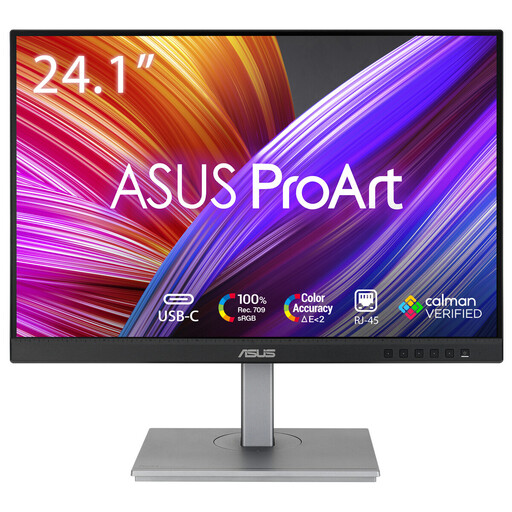
The ProArt PA248QV combines a 24,1-inch 16:10 screen with stated sRGB specifications.
The 24E1N5300AE/00 is a 23,8-inch Full HD model with USB-C features for a compatible notebook.
The 24BA550-B is a 23,8-inch Full HD model with an adjustable stand.
This Joybuy selection includes compact monitors with different features, including QHD workspace, a 16:10 design view, colour information and laptop connectivity.
 No image available
A good option to compare if you’re looking for a compact 16:10 screen with colour information and USB-C.
1920 × 1200; stated 100% sRGB and factory calibration; USB-C with 90 W power delivery.
 No image available
Worth considering if you’re looking for a compact QHD screen with a USB-C connection for a compatible laptop.
23,8 inches; 2560 × 1440; USB-C with 90 W power delivery; adjustable stand.
 No image available
A good option to compare if you want more pixels for design work and your browser on a compact screen.
23,8 inches; 2560 × 1440; the product description lists height, swivel, tilt and pivot adjustment.
 No image available
A compact QHD option to compare if you also want to check colour information and USB-C.
2560 × 1440; stated 95% DCI-P3; factory-calibrated modes; USB-C with 90 W power delivery; adjustable stand.
 No image available
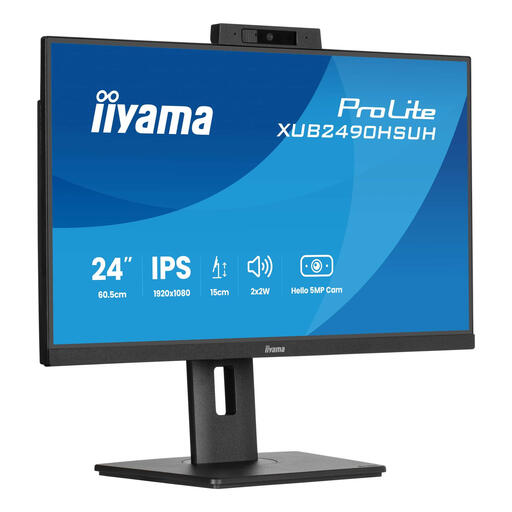
A Full HD option to compare if a 24-inch screen with an adjustable stand suits your workspace.
1920 × 1080; the product description lists 150 mm height adjustment, pivot, swivel and tilt adjustment, plus a built-in camera and microphone. Full HD has fewer pixels overall than QHD.
First, measure the space for the stand, cables, keyboard and mouse, then adjust the screen position. For employees who spend more than two hours a day working at a screen, Arboportaal describes requirements including adjustability and the workstation. This requirement is not a general minimum specification for every personal purchase.
Check whether your laptop’s USB-C port supports video output, and whether the monitor and cable support the functions you need. Also compare your laptop’s power requirements with the power output listed for the exact monitor: BenQ specifies 65 W for the PD2506Q and Dell specifies 90 W for the P2425DE.
Compare the EU energy label and the information for the exact monitor. The European Commission states that computer monitors fall under the rules for electronic displays and carry an energy label on a scale from A–G; your electricity costs will also depend on how you use the monitor and your tariff.
No. The Dutch government states that the Netherlands has no fixed statutory warranty period: you are entitled to a product that works properly, and the retailer is your point of contact if there’s a problem. A manufacturer’s warranty is additional to this.
When buying a similar new electrical appliance, private buyers can use the free old-for-new scheme; according to the Dutch government, it also applies to online purchases. A local council collection point is another option. The scheme does not apply in the same way to business equipment.