First, measure the desk’s available width and depth, as well as the space needed to rotate the screen. Then choose a monitor whose screen and stand will fit. Dell lists a resolution of 1920 × 1200 for the adjustable P2425. If you need more pixels, USB-C video and laptop charging, you could compare it with the BenQ RD240Q, which offers 2560 × 1600 pixels and up to 90 W Power Delivery, provided your laptop and desk are suitable. Chrome for Developers describes Device Mode as an approximation, so check important mobile issues on a real mobile device too.
Who is this monitor for?
Developers with a small desk
You want to view code and DevTools on an external screen, but need to make room for the monitor stand and keyboard. Arboportaal recommends positioning the screen directly in front of you, so check that this setup will fit on your desk too.
Developers who view code and previews side by side
You often switch between source code and a simulated mobile view. Resolution, aspect ratio and scaling settings all affect how you can arrange these windows. Chrome for Developers describes Device Mode as an approximation of a mobile device.
Laptop users who want fewer cables
You may be looking for a single USB-C cable that carries video and powers your laptop. Dell and BenQ list different USB-C capabilities for their P2425 and RD240Q models, so check the features of both the monitor and your laptop.
What should you look for when choosing?
First, measure the space available for the screen, stand and keyboard. Then compare the screen layout, connections and adjustment options you need.
| What to consider |
What should you check? |
Who is this important for? |
| Fit on your desk |
Measure the available width and depth, then compare these with the monitor’s dimensions, including its stand. BenQ lists the RD240Q as 533.6 mm wide and 228.6 mm deep in landscape orientation. |
If my desk has little free space, I want to know whether the screen, stand and keyboard will all fit. Around 33% of consumers prioritise having a product that fits their space. |
| Room for code and previews |
Compare resolution and aspect ratio. Dell lists 1920 × 1200 pixels for the P2425; BenQ lists 2560 × 1600 pixels for the RD240Q. Try arranging your windows at a readable scale. |
When I want to view code and a mobile preview side by side, I look for a useful layout and readable text. Around 27% of consumers prioritise screen space. |
| Connection and laptop charging |
Check the USB-C port’s video capabilities, laptop compatibility, required charging power and included cables. Dell lists a USB-C data port of up to 15 W for the P2425; BenQ lists USB-C with DisplayPort Alt Mode and up to 90 W Power Delivery for the RD240Q. |
If I want to connect my laptop with as few separate cables as possible, I check that the monitor and laptop support video and the charging power I need. Around 20% of consumers prioritise this combination. |
| Adjustability and mobile testing |
Check the height adjustment and pivot for each model, and measure the space needed to rotate the screen. Chrome for Developers describes Device Mode as an approximation; test important differences on a real mobile device too. |
When I want to rotate the screen or check the mobile view, I need room for the position I’ve chosen and want to test critical interactions on a real device. Around 20% of consumers prioritise adjustability and this kind of testing. |
Common buying mistakes
-
Measuring only the screen diagonal
The stand and the space needed to rotate the screen also take up room on a small desk.
Measure the usable depth of your desk and check the dimensions including the stand, as well as the space needed to pivot the screen, before choosing a model.
-
Assuming every USB-C port carries video and charges your laptop
USB-C ports can offer different features and charging power depending on the monitor. Dell lists a data port of up to 15 W for the P2425; BenQ lists USB-C with DisplayPort Alt Mode and up to 90 W Power Delivery for the RD240Q.
Check the exact port functions, video compatibility, the charging power your laptop needs and which cables are included with the monitor.
-
Treating a portrait desktop preview as a complete phone test
Chrome for Developers explains that Device Mode does not run on mobile hardware and cannot fully simulate mobile features.
Use the preview for quick layout checks, and test any issues that matter on a real mobile device too.
Brands worth comparing
Dell
According to Dell Netherlands, the P2425 is a 24.07-inch, 16:10 office monitor for anyone looking for an adjustable screen with 1920 × 1200 pixels.
- Dell lists height adjustment and rotation for this model.
- Dell says the USB-C downstream port is for data and supplies up to 15 W; it is not specified as a USB-C input for laptop video and power.
BenQ
The RD240Q is an approximately 24-inch, 16:10 monitor to compare if you’re looking for a higher stated resolution and a USB-C video connection.
- BenQ lists 2560 × 1600 pixels, pivot and USB-C with up to 90 W Power Delivery for the RD240Q.
- The stated stand depth is 228.6 mm. Benefits that BenQ attributes to its coding modes have not been independently verified.
Philips
The Philips 24B2G5301/00 is a business monitor range to consider if energy consumption is relevant to your choice.
- Philips describes LightSensor and PowerSensor 2 as energy-saving features.
- The features listed by Philips do not, by themselves, provide a calculated saving for your use. Check the full dimensions and connections of the specific model too.
Lenovo
The ThinkVision T24v-30 is a 23.8-inch FHD model worth comparing if you also make video calls regularly as part of your development work.
- Lenovo lists a built-in webcam and microphones for this model.
- These features may be unnecessary if you only need an external screen for debugging.
Monitors for a compact debugging setup
These Joybuy picks are 23.8- to 24-inch desktop monitors for an external debugging setup. Compare each model’s resolution, stand and connections with the space and equipment you use.
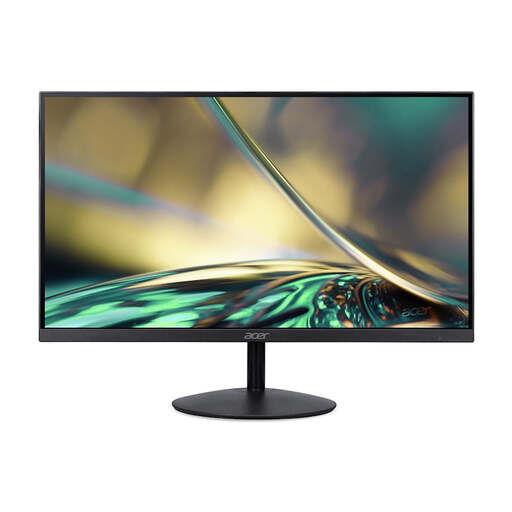 Image unavailable
Acer SA242YH1 24-inch Full HD monitor
The stated screen diagonal is 23.8 inches; check that this size suits your desk and viewing distance.
VA panel; Full HD; HDMI and VGA.
The product description says the charger is not included as standard and must be bought separately.
View at Joybuy
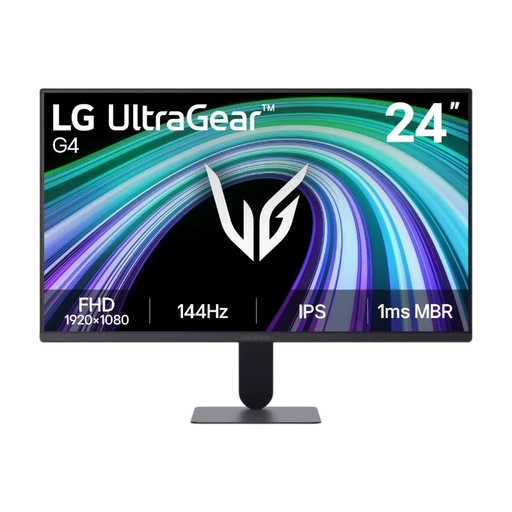 Image unavailable
LG UltraGear 24G411B-B 23.8-inch Full HD gaming monitor
The 23.8-inch Full HD IPS version is an option to compare for viewing code and a mobile preview on an external screen.
IPS panel; HDMI and DisplayPort; tilt-adjustable stand.
View at Joybuy
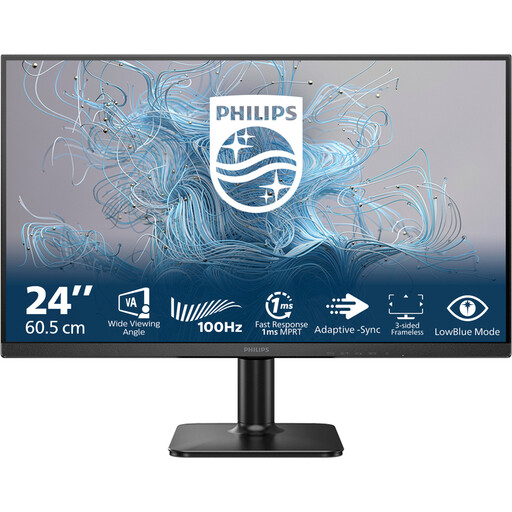 Image unavailable
Philips 1000 Series 24E2N1100LB/00 24-inch Full HD monitor
Compare the stated 24-inch screen diagonal with the available space on your desk.
VA panel; Full HD resolution of 1920 × 1080 pixels; 100 Hz.
View at Joybuy
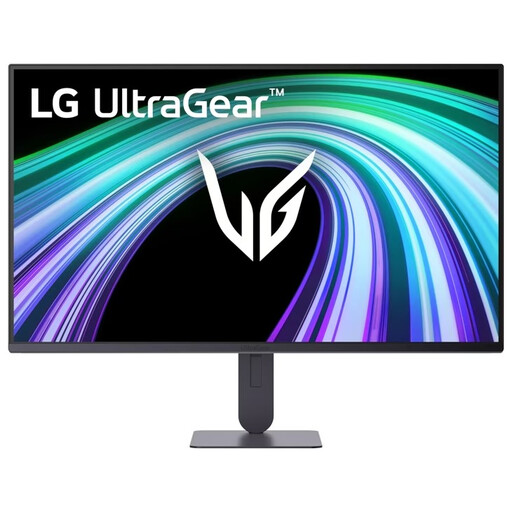 Image unavailable
LG UltraGear 24G414B-B 23.8-inch Full HD gaming monitor
The 23.8-inch Full HD IPS monitor could suit an external debugging setup; check the stand and available desk height.
IPS panel; HDMI and DisplayPort; height and tilt adjustment.
View at Joybuy
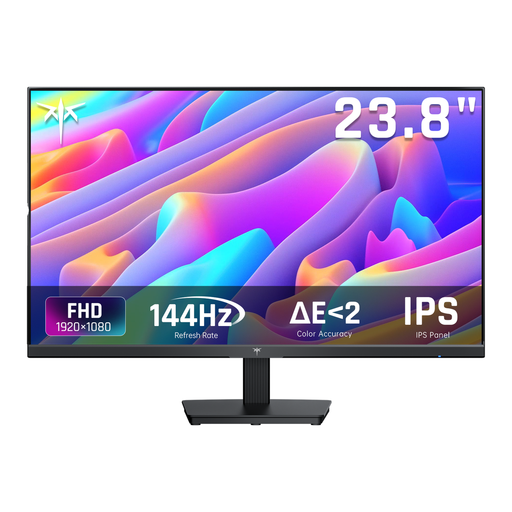 Image unavailable
KTC H24B9S 24-inch Full HD gaming monitor
This 24-inch IPS monitor with Full HD resolution is a desktop option to compare for code and mobile previews.
1080p; 144 Hz; HDMI and DisplayPort; tilt adjustment.
View at Joybuy
Frequently asked questions
Is a monitor in portrait orientation the same as testing on a phone?
No. Chrome for Developers describes Device Mode as a first approximation; the page does not run on mobile hardware. Use the preview for quick layout checks and test important differences on a real mobile device.
Will every USB-C monitor charge my laptop?
No. Dell lists a USB-C data port of up to 15 W for the P2425, while BenQ lists USB-C with DisplayPort Alt Mode and up to 90 W Power Delivery for the RD240Q. Check that the features and charging power suit your laptop.
How should I position a monitor on a small desk?
First, measure the space for the screen and stand, then position the screen directly in front of you. Arboportaal warns that many screens are positioned too high, so check that your desk and monitor stand allow you to place yours at a suitable height.
Do I always have 14 days to change my mind when buying online?
Not in every case. According to the Rijksoverheid, online distance purchases generally come with a 14-day cooling-off period, but there are exceptions. Before buying, check who the seller is and which terms and conditions apply to your order.
Are there rules for a computer workstation?
Arboportaal states that for employees who work with a screen for more than two hours a day, the screen and keyboard must not be attached to each other. This applies to employees’ workstations and is not a general product requirement for every private buyer.


